
Cisco 8841 IP Phone Multiplatform firmware CP-8841-3PCC-K9

Frequently Asked Questions

Start by confirming the phone is actually connected to your network and has a valid IP address. Check the Ethernet cable, ensure the switch port is providing PoE if you’re not using a power adapter, and then verify the SIP server address and credentials in the phone’s settings. A simple reboot often clears transient registration glitches. If the issue persists, a Toronto‑based VoIP support provider can usually resolve this remotely.
First, make sure the handset or headset is firmly plugged in, and try switching to speakerphone to see if audio plays there. If speakerphone works, the problem is likely with the handset or its cord. Also confirm that the volume isn’t muted or set extremely low. If no audio path works, check with your network team for packet loss or jitter that can disrupt audio—rebooting the phone and the local switch can sometimes clear that up.
Inspect the Ethernet cabling and try a known‑good network drop. On the switch side, disable Energy‑Efficient Ethernet (EEE) on that port, as it can sometimes cause link flapping with VoIP phones. Also verify that the switch port is set to the correct VLAN and is providing sufficient PoE power. A reboot after these changes is a safe next step.
Typically, the firmware is pushed by your VoIP provider’s provisioning server; you shouldn’t need to update it manually. If you host your own server, place the correct firmware file in the TFTP/HTTP directory and adjust the provisioning URL accordingly. Do not attempt a firmware downgrade unless you’ve confirmed the exact cause of a problem with your provider or support team.
This usually means the phone can’t reach the provisioning server or the URL is incorrect. Double‑check the server address under the phone’s settings or, if you’re using DHCP options, confirm that option 66 or 150 is returning the right server. Make sure the phone can resolve and reach that server—firewall rules occasionally block the needed HTTP or TFTP traffic. A reboot after correcting the URL often triggers a successful re‑provision.
First, press a key or lift the handset to see if the screen wakes from a dim state; try adjusting the contrast or brightness settings through the menu if you can navigate. If the screen stays completely off but the phone still works for calls, power‑cycle the unit. If the screen remains dead afterward, it may need a hardware inspection—contact support before assuming a factory reset will help.
Yes, the multiplatform firmware lets you configure it for almost any SIP‑compatible service. You’ll need to enter the provider’s server address, SIP credentials, and often a provisioning URL if they support zero‑touch setup. It works well with many Canadian hosted providers as long as they don’t lock phones exclusively to their own branded firmware.
The 8841 supports Power over Ethernet (802.3af PoE), which is how most businesses power it—no separate adapter needed if your switch provides PoE. If your network doesn’t have PoE, you’ll have to buy a compatible Cisco power adapter, since one is not included in the box. Budget for that accessory when planning a small deployment without a PoE switch.
Log into the phone’s web interface or use the on‑screen menu, navigate to the line key settings, and assign a speed dial to an available key, entering the target number. On multiplatform firmware, the exact menu path can vary slightly with your software version, but it’s straightforward. If you’re managing many phones, using a provisioning template is more efficient.
Yes, the phone has a built‑in Gigabit Ethernet switch with a PC port on the back. You connect your computer to that port, and the phone shares the single network drop. Keep in mind that if the phone loses power, your computer’s network connection will also drop, so position the phone where a brief outage won’t disrupt critical PC sessions. If you need high‑availability for the PC, a separate switch port is safer.
IP Phones

Cisco 8841 IP Phone Multiplatform firmware CP-8841-3PCC-K9
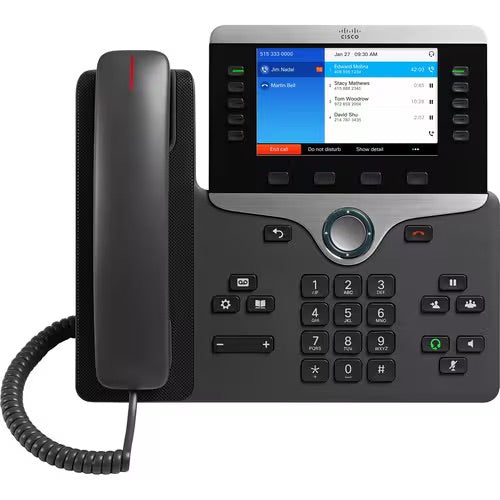
The Cisco IP Phone 8841 is a business-class collaboration endpoint that delivers high-fidelity, reliable, secure, and scalable voice communication for small to large enterprise businesses. With the Cisco IP Phone 8841, you can increase personal productivity through an engaging user experience that is both powerful and easy-to-use. Key features include: • Wideband audio for crystal clear voice communications • "Always-on" reliability with encrypted voice communications for enhanced security • Access to a comprehensive suite of unified communication features from Cisco on-premises and hosted infrastructure platforms and third-party hosted call control The phone offers five programmable line keys, allowing you to configure keys to support multiple directory numbers or call features such as speed dial. Additionally, the multicall-per-line feature enables handling multiple calls for each directory number. Fixed function keys provide one-touch access to applications, messaging, directory, and often-used calling features. Backlit acoustic keys offer flexibility for audio path selection and switching. The Cisco IP Phone 8841 is designed with sustainability in mind, using post-consumer recycled plastic and reducing the use of natural resources while closing the loop with its own electronic waste. Package does not include power supply. Key Features: • High-resolution (800 x 480) widescreen VGA backlit color display • Built-in Gigabit Ethernet switch for PC connection • Support for Cisco EnergyWise technology for energy efficiency and eco-friendliness • Optional wall-mount kit available as a spare part • Uses VoIP technology to transfer audio signals over the Internet For a full list of specifications, please refer to the Product Datasheet.

About This Product

The Cisco 8841 is a desk phone built for organizations that want a reliable, full-featured endpoint without being locked into a single call‑control vendor. Because this unit runs multiplatform firmware, it fits well in environments where IT teams manage their own SIP infrastructure or subscribe to a hosted VoIP service—common across many Canadian businesses, from downtown Toronto law firms to distributed offices in the GTA. It’s a sensible pick for knowledge workers, reception areas, or shared spaces where clear wideband audio and multiple line appearances support efficient call handling.

You get a high-resolution colour display, five programmable line keys, and a built‑in Gigabit Ethernet switch that lets you share a single network drop with a nearby PC. These are genuine productivity features, not just spec‑sheet extras, when you handle several calls at once or need quick access to speed dials and features. The multiplatform nature also means you can migrate between service providers without changing hardware—a practical advantage if your business re‑evaluates its UCaaS contract.

A practical point to plan for: the package doesn’t include a power supply. The phone expects Power over Ethernet from your switch; if your network lacks PoE, you’ll need to buy a compatible adapter separately. That’s fine in a structured office with modern switches, but it can be a hidden cost in a home office or a small retail counter where only a basic network setup is available. Also, while the 8841 handles multiple calls gracefully, it’s not a call‑center specialist—no built‑in attendant console or expansive sidecar support—so for heavy dispatch or contact‑center roles, you might look at a model with expansion capability.

For a standard business deployment in a medium‑to‑large enterprise, the 8841 strikes a good balance between capability and cost. It pairs naturally with common Canadian SIP platforms, from on‑premises Asterisk boxes to cloud services like Rogers Unison or third‑party hosted PBX offerings. If your entire operation runs on a single‑line basic phone and you never need more than one call at a time, this unit is probably overkill, but for any professional who spends meaningful time on the phone, it delivers the clarity and flexibility that make a difference day to day.
Services We Provide
  • Professional Installation & Configuration
  • Ongoing Maintenance & Support
  • Troubleshooting & Repairs
  • System Upgrades & Updates



