
Fanvil A32i Android Touch Screen IP Phone

Frequently Asked Questions

First, double-check that the phone’s IP address, subnet mask, and default gateway are correct under network settings—an incorrect gateway is a common culprit. Then verify the SIP server address, port, and transport protocol (UDP/TCP) match exactly what your provider requires. If using Wi-Fi, temporarily connect via Ethernet to rule out wireless instability before troubleshooting registration further.
Start by cleaning the screen with a dry microfiber cloth to remove any residue that might interfere with touch sensitivity. Next, reboot the phone through the on-screen menu (not a factory reset) and see if responsiveness improves after a fresh start. If the issue is intermittent, check that the phone isn’t overheating due to direct sunlight or being enclosed in a tight space, as high temperatures can affect performance.
Swipe down from the top of the screen to access the Android quick settings, then tap the Wi-Fi icon. Select your corporate SSID, enter the password, and ensure the network is set to use DHCP unless your IT team has assigned a static IP. After connecting, confirm the phone shows a valid IP address under System > About Phone > Status.
Test with a different handset or a known-good headset to isolate whether the issue is with the phone or the accessory. In the phone’s audio settings, ensure HD audio is enabled and that the codec priority list includes wideband codecs like G.722. Also verify that the network has sufficient bandwidth and low jitter—poor audio often points to packet loss rather than a hardware fault.
First, confirm that the Ethernet cable is plugged into the LAN port (not the PC port) and that the switch port is providing PoE. Try a different known-working PoE port and cable. If the switch shows no power draw, check whether the phone’s PoE mode is set to auto-negotiate in the settings; if you previously used a power adapter, the phone might have disabled PoE detection.
Make sure the headset is in pairing mode and within a few feet of the phone. On the A32i, go to Settings > Connected Devices and forget any previous pairings for that headset, then scan again. If disconnections persist, check for interference from other 2.4 GHz devices or USB 3.0 peripherals nearby, and try disabling Wi-Fi temporarily to see if coexistence is causing the problem.
Log into the phone’s web interface using its IP address, navigate to the DSS Key section, and assign each key a type (BLF, Speed Dial, Intercom, etc.) along with the corresponding extension or number. The changes will sync to the touchscreen layout. For monitoring extensions, ensure your SIP platform supports BLF subscriptions and that the monitored extensions have allowed the phone to subscribe.
First, confirm the A32i itself has internet access—open a browser on the phone and load a web page. Then check the hotspot settings: the SSID and password should be set, and the security type should match what your client device expects (WPA2 is typical). If the phone is using Wi-Fi for its own connection, note that the hotspot shares that same connection, so slow or restricted Wi-Fi will affect hotspot performance.
The A32i supports video receive only, not sending a local camera feed. The USB camera port is designed for specific peripherals like the Fanvil camera for monitoring or intercom previews, not for transmitting your own video during a call. Check your call flow: if you need to send video, you’ll require a different endpoint that supports H.264 encoding.
Start by checking the Wi-Fi signal strength on the phone’s status screen—if it’s below -70 dBm, move the phone closer to the access point. Verify that the access point’s channel isn’t congested and that the phone is using the 5 GHz band if available, as 2.4 GHz can be crowded in office buildings. If the issue persists, a Toronto-based VoIP support provider can usually resolve this remotely after reviewing your wireless survey data.
IP Phones

Fanvil A32i Android Touch Screen IP Phone
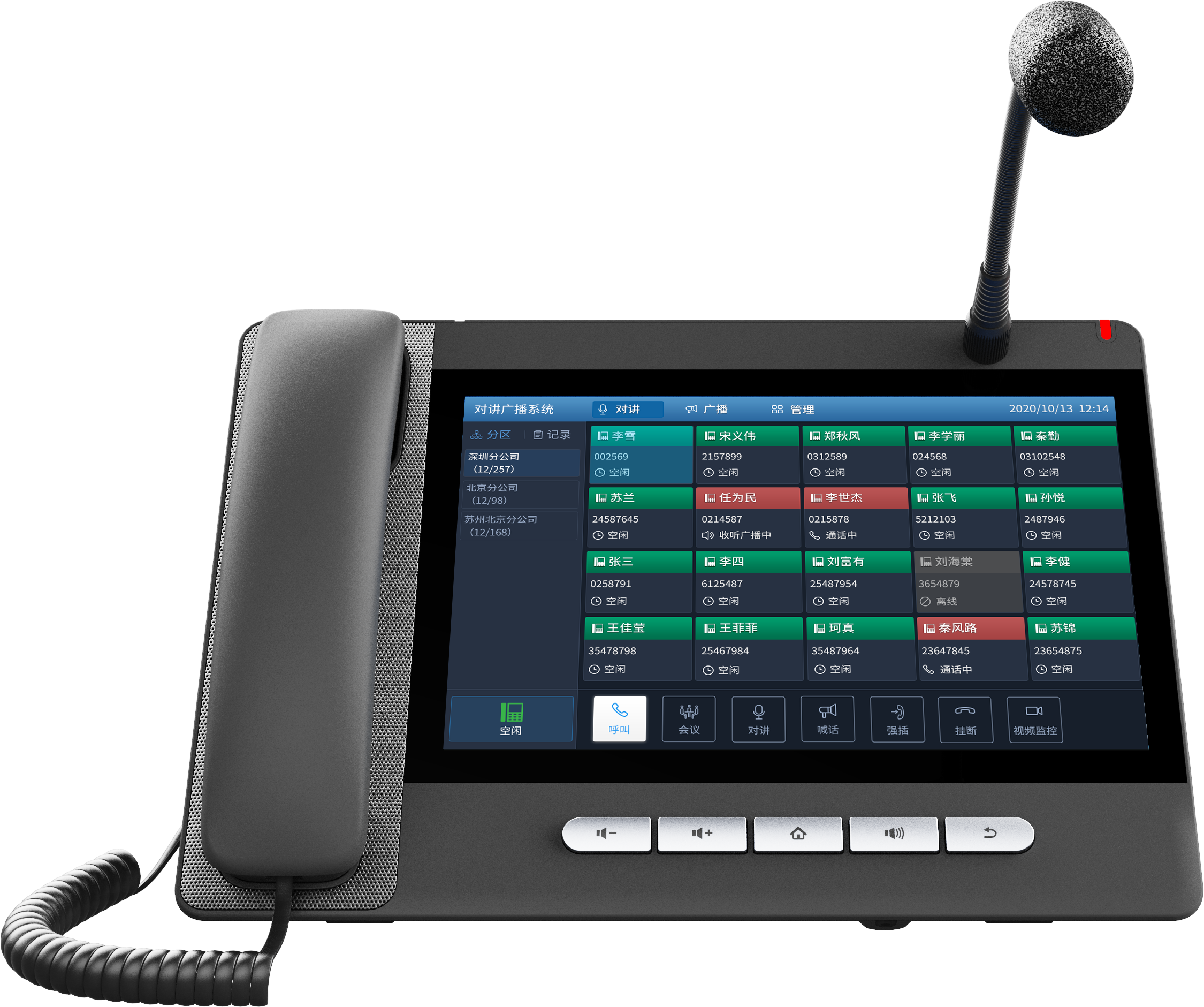
• The Fanvil A32i Android Phone supports up to 20 SIP lines and can serve as a hotspot, featuring built-in Bluetooth and Wi-Fi for easy deployment and installation. • Key features: • Compatible with major platforms: Asterisk, Broadsoft, 3CX, Metaswitch • Two-way intercom, monitoring, and broadcasting capabilities • Emergency response features • Support for external Fanvil USB camera (optional) • 112 one-touch DSS keys on a 10.1” capacity color touch screen • HD audio on speaker and handset • Built-in Bluetooth 5.0 and 2.4G/5G Wi-Fi • Video Codec H.264 support for receiving video calls • Dual Gigabit ports, integrated PoE • Adjustable stand with 40 and 50-degree angles For a full list of specifications, please refer to the product datasheet (available on request).

About This Product

The Fanvil A32i is built for high-call-volume roles where visual clarity and one-touch access matter—reception desks, executive assistants, and dispatch consoles in mid-sized to larger Canadian offices. Its Android backbone and large touchscreen make it feel more like a tablet than a traditional desk phone, which suits teams already comfortable with app-driven workflows. The 20-line capacity and 112 programmable DSS keys mean it can consolidate multiple extensions, speed dials, and monitoring functions onto a single device, reducing desk clutter.

Because it runs Android, the phone can double as a Wi-Fi hotspot and supports Bluetooth peripherals, which is handy in open-plan or hot-desking environments where cabling is limited. However, this flexibility comes with the trade-off that IT staff will need to manage Android security patches and app compatibility alongside their VoIP platform. It pairs naturally with Asterisk, 3CX, Broadsoft, or Metaswitch deployments, and its dual Gigabit ports with PoE simplify wiring in structured office builds common in the GTA.

A buyer should know that video support is receive-only (H.264), so it won’t serve as a full video conferencing endpoint. The adjustable stand is a thoughtful touch for shared desks, but the phone’s size and price tag make it overkill for a standard knowledge worker who only needs a handful of line keys. For teams that don’t require the DSS density or Android apps, a simpler Fanvil model will likely cost less and be easier to support.
Services We Provide
  • Professional Installation & Configuration
  • Ongoing Maintenance & Support
  • Troubleshooting & Repairs
  • System Upgrades & Updates



