
Fanvil H5W WiFi Hotel Phone in Black
Frequently Asked Questions
Start by verifying that the phone is within range of the access point and that the Wi‑Fi password was entered correctly, including case. On the phone’s display, go to the Wi‑Fi settings and confirm the SSID is visible; if not, try moving the phone closer or check whether the access point broadcasts a 2.4 GHz signal, since the H5W only supports that band. If the network uses a captive portal, the phone won’t be able to complete the login—this model works best with a dedicated PSK‑secured SSID for devices.
Registration drops often point to intermittent Wi‑Fi or DHCP lease timeouts. First, confirm the phone has a stable connection by pinging its IP address from another device on the same subnet. Then check the registration expiry timer on the SIP server; a very short expiry combined with spotty wireless can cause frequent re‑registration. A Toronto‑based VoIP support provider can usually resolve this remotely by reviewing the server logs and adjusting the registration interval if needed.
Confirm that the green SIP account indicator is solid on the display; a blinking or absent light means the line isn’t registered. Navigate to the phone’s status page to see the registration state and any error code. Common causes are an incorrect SIP server address, the wrong port, or a firewall blocking traffic. Double‑check the server address and credentials exactly as provided by the PBX administrator.
The hotspot feature is meant to share the phone’s Wi‑Fi connection with a single Ethernet device. Connect a laptop or streaming box to the phone’s LAN port, then enable the hotspot function in the phone’s network settings. The guest device will receive an IP from the phone’s internal DHCP. Keep in mind the speed is limited to what the 2.4 GHz connection provides, so it’s suitable for light browsing, not streaming 4K video.
This is almost always a wireless quality issue. Start by checking the phone’s Wi‑Fi signal strength indicator; if it’s below -70 dBm, relocate the access point or add a repeater. Also ensure there’s no heavy interference on the 2.4 GHz band—nearby Bluetooth devices, microwaves, or crowded neighbouring Wi‑Fi networks can cause packet loss. Testing with a wired connection on the phone’s Ethernet port can isolate whether the problem is wireless.
Yes, the phone supports URL‑based provisioning and can pull a config from a server using DHCP option 66 or a redirection service. Many Canadian cloud PBX providers offer a plug‑and‑play setup where the phone contacts their provisioning server once the MAC address is added to the portal. For on‑premise systems, you can host a config file on an HTTP/TFTP server and point the phone to it through the web interface.
Review the function assigned to each key in the phone’s settings or provisioning file. A speed dial key may show the right label but hold the wrong number. Edit the key’s value directly on the phone or through the web configuration, making sure the number is stored in the exact format required by the PBX (with or without an outside line prefix). Test each key with a short call after making changes.
Verify that the Ethernet cable is plugged into the correct port on the phone—the H5W expects PoE on the LAN/PoE port, not the PC port. Try a different known‑good PoE‑capable cable and a different switch port. If the switch does not provide enough power (the phone requires at least a standard 802.3af supply), you may need to use the optional external DC adapter. If the issue persists, a Toronto‑based VoIP support provider can usually diagnose power sourcing problems remotely by checking the switch’s PoE logs.
IP Phones
Fanvil H5W WiFi Hotel Phone in Black
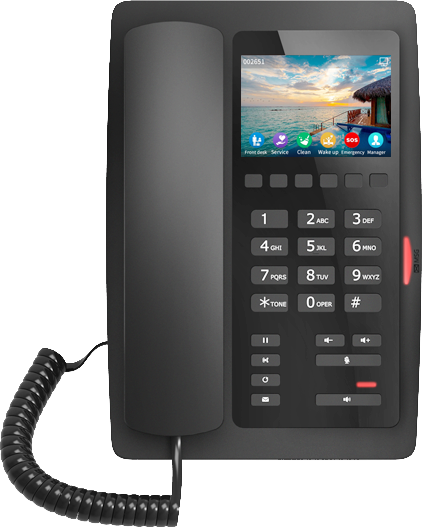
The Fanvil H5W supports up to 2-SIP lines and can serve as a SIP hotspot. It has a 3.5 color display and supports H.264 video decoding. Key features: • Supports up to 2 SIP lines • 3.5-inch 480x320 color display • Built-in 2.4G Wi-Fi for IEEE 802.11b/g/n • Dual network ports with integrated PoE • 1 USB Port for Phone Charging • 6 Programmable Keys for Speed Dial Functions • Optional External Power Supply • Compatible with major platforms: Asterisk, Broadsoft, 3CX, Metaswitch, Elastix, Avaya For a full list of specifications, please refer to the product datasheet.
About This Product
The Fanvil H5W is designed for hospitality settings where a clean, low‑clutter guest room phone is a must, but wired Ethernet isn’t practical at every bedside. Its built‑in Wi‑Fi and SIP hotspot capability let a property extend VoIP service to rooms that only have power, while still keeping the look of a traditional hotel phone. Small hotels, motels, and boutique inns across the GTA often choose it as a way to modernize without pulling new cable.
The H5W pairs naturally with hosted PBX platforms that support zero‑touch provisioning over Wi‑Fi, and it works well alongside other Fanvil hotel sets for a consistent guest experience. However, buyers should understand that it relies on stable 2.4 GHz coverage; congested wireless environments (common in older concrete‑and‑steel buildings or high‑density downtown Toronto properties) may require a dedicated SSID and careful access‑point placement. The 3.5‑inch screen and side programmable keys add a professional touch but are intentionally limited—this is not a receptionist desk phone.
For an executive office or a high‑call‑volume front desk, the H5W would be underpowered: it lacks gigabit passthrough, Bluetooth, and the large screen that heavy users expect. For a conference room, its single USB charging port is a convenience, but the fixed‑angle display is not ideal for video calls despite the H.264 decoding. It is best used where a secondary SIP line or a video‑door‑phone feed is a helpful extra, not a primary collaboration tool.
In a Canadian hotel context, the phone’s compatibility with BroadSoft, 3CX, and Asterisk covers most popular cloud and on‑premise systems used by local service providers. Keep in mind that power is supplied either through the optional external adapter or the PoE‑enabled network port—if your deployment uses only Wi‑Fi, you must plan for a nearby outlet.
The H5W pairs naturally with hosted PBX platforms that support zero‑touch provisioning over Wi‑Fi, and it works well alongside other Fanvil hotel sets for a consistent guest experience. However, buyers should understand that it relies on stable 2.4 GHz coverage; congested wireless environments (common in older concrete‑and‑steel buildings or high‑density downtown Toronto properties) may require a dedicated SSID and careful access‑point placement. The 3.5‑inch screen and side programmable keys add a professional touch but are intentionally limited—this is not a receptionist desk phone.
For an executive office or a high‑call‑volume front desk, the H5W would be underpowered: it lacks gigabit passthrough, Bluetooth, and the large screen that heavy users expect. For a conference room, its single USB charging port is a convenience, but the fixed‑angle display is not ideal for video calls despite the H.264 decoding. It is best used where a secondary SIP line or a video‑door‑phone feed is a helpful extra, not a primary collaboration tool.
In a Canadian hotel context, the phone’s compatibility with BroadSoft, 3CX, and Asterisk covers most popular cloud and on‑premise systems used by local service providers. Keep in mind that power is supplied either through the optional external adapter or the PoE‑enabled network port—if your deployment uses only Wi‑Fi, you must plan for a nearby outlet.
Services We Provide
- Professional Installation & Configuration
- Ongoing Maintenance & Support
- Troubleshooting & Repairs
- System Upgrades & Updates



