
Fanvil V62 Entry-level Phone

Frequently Asked Questions

Start by confirming the Ethernet cable is securely connected to the LAN port and the network switch is providing a link. Next, log into the phone's web interface (you can find its IP on the phone's status screen) and verify the SIP server address, username, and password exactly match what your VoIP provider supplied. A common issue is a typo or an extra space in the credentials. Also ensure your firewall isn’t blocking UDP port 5060.
First, check the handset cord is fully inserted into the correct jack on the phone. Then, on the main screen, confirm the phone is registered (usually a green checkmark or "Registered" status). If it is registered, try switching to speakerphone – if you hear a dial tone there, the handset or cord may be faulty; otherwise, reboot the phone. In a PoE deployment, a weak power supply from the switch can cause audio issues, so trying an external DC adapter can rule that out.
This often points to a NAT or SIP ALG problem on your router. Log into the router and disable any “SIP ALG” or “SIP Helper” feature; then reboot the router and phone. If the issue persists, check the phone’s network settings and ensure you are using the correct NAT traversal method (STUN or a public IP). Many Canadian VoIP providers will assist with these settings remotely.
Make sure nothing is resting on the phone’s microphone, which is usually near the bottom front. Try positioning the phone at one of the adjustable angles (40 or 45 degrees) so it’s directed toward you. Also test the speakerphone volume level; if it’s too high, the built-in echo cancellation might be working too hard, so reduce it slightly. A quick power cycle can reset the audio DSP if it’s stuck.
You can configure a DSS key via the phone’s web interface under the Function Keys or DSS Key tab. Select the key number, set the type to BLF, and enter the extension number you want to monitor, along with the correct SIP account. Save the change, and the key’s LED should light when the monitored extension is busy. For auto-provisioning, your VoIP provider’s platform may push these settings; check with them for a template.
The V62 supports both EHS (Electronic Hook Switch) and standard Bluetooth headsets. For Bluetooth, put the headset in pairing mode, then go to the phone’s menu > Basic > Bluetooth and follow the pairing steps. EHS operation usually requires an additional EHS adapter cable that connects to the phone’s EHS port; this lets you answer/end calls from the headset button. Check your headset manufacturer for the correct adapter model.
First, ensure the Ethernet cable is providing Power over Ethernet – if your switch port PoE is off or insufficient, the phone may not power up fully. Look at the switch port’s LED; if it’s not lit, try a different port or use a known good PoE injector. If you have an external power adapter, connect it to the phone’s DC jack. If the screen remains black, hold the phone’s power button (if present) or disconnect and reconnect the network cable. If none of these work, the phone may need service – contact your supplier or a Toronto-based VoIP support team for further diagnosis before attempting a factory reset.
IP Phones

Fanvil V62 Entry-level Phone
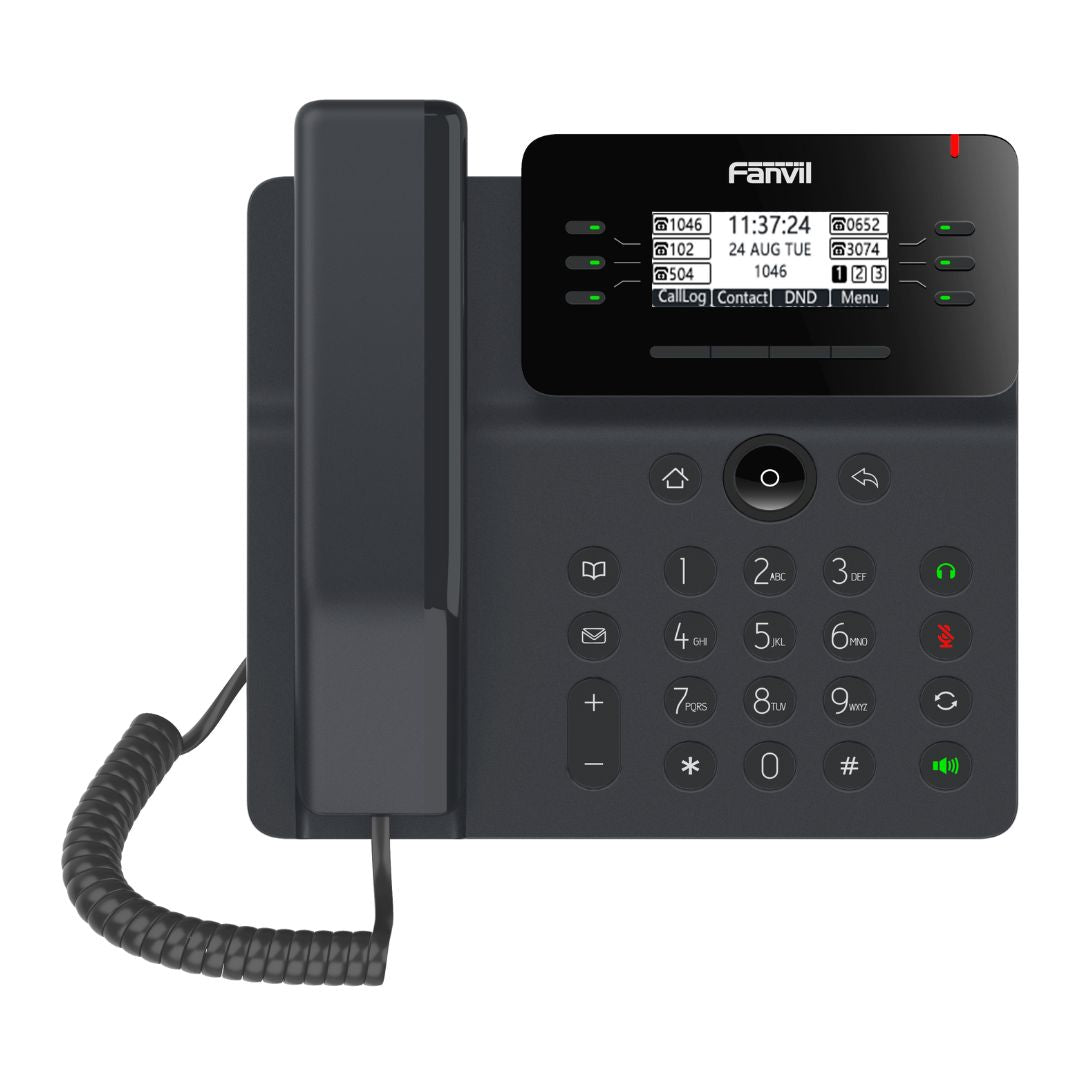
The V62 IP Phone features an ergonomic design that complements the user's hand, delivering quality audio in both speakerphone and handset. It is an expandable desk phone designed to increase efficiency and productivity in every home or office. • 2.7” graphical LCD • HD audio on speakerphone and handset • Support for 6-party local conference • 6 DSS keys on the main display, up to 15 DSS keys with dual-colored physical keys • Support for EHS/Bluetooth wireless headset • Dual Gigabit ports with integrated PoE • Adjustable stand angles of 40 and 45 degrees • Compatible with major platforms: Asterisk, Broadsoft, 3CX, Metaswitch, Elastix, Avaya, etc. • Optional external power supply For a full list of specifications, please refer to the product datasheet.

About This Product

The Fanvil V62 is a practical choice for home offices and small businesses that want a reliable VoIP desk phone without spending on features they won't use. It hits the sweet spot between a barebones single-line phone and a full-featured executive terminal, giving users things like HD audio, dual Gigabit ports, and a modest set of DSS keys for speed dials or BLF monitoring. For a GTA-based firm with a 3CX or Asterisk system, the V62 covers day-to-day calling, three-way and local six-party conferences, and integrates smoothly with corded or Bluetooth headsets.

Buyers should be aware that this model trades a larger color touchscreen for a 2.7-inch graphical LCD; it is not a touch device, and the interface relies on physical keys. While it offers up to 15 dual-colored DSS keys, the main display itself holds only six soft keys, so heavy call-handling workflows might quickly outgrow it. The Fanvil V62 is not designed for video calls or complex unified communications—it is a straightforward SIP endpoint that needs an external power supply if your network switch lacks PoE. Deployment in a large call center or reception area where agents need constant BLF monitoring is likely not a good fit.

From a Canadian business standpoint, the V62 works with all major open-standards platforms, which aligns with the preference of many local providers who deploy BroadSoft, Metaswitch, or 3CX. It is a sensible device for a lawyer’s office, a medical clinic, or a small retail counter in Toronto where voice quality and basic call handling matter more than touchscreen frills. If your team’s needs are simple and the budget is around $135 per seat, the V62 pairs well with a headset like the Plantronics Savi series for a tidy desk setup.
Services We Provide
  • Professional Installation & Configuration
  • Ongoing Maintenance & Support
  • Troubleshooting & Repairs
  • System Upgrades & Updates



