
Fanvil X210-V2 Enterprise IP Phone

Frequently Asked Questions

First, check that the SIP server address, username, and password entered in the phone’s account settings are exactly correct—typos in the server URL or credentials are the most common cause. Also confirm that the phone has a valid IP address and can reach the internet; you can test by pinging the SIP server’s domain from the phone’s network menu. If the issue persists, a Toronto-based VoIP support provider can usually resolve this remotely.
One-way audio often indicates a network or firewall issue. Start by checking that both the phone and the remote device are on the same VLAN or subnet for voice traffic, and confirm that your router or firewall is not blocking RTP ports (typically 10000–20000). Also verify that the phone’s NAT settings match your network configuration (e.g., STUN server or NAT keep-alive). If the problem continues, a simple power cycle of the phone and router can sometimes clear transient issues.
First, ensure the phone is receiving power: if using PoE, confirm that the switch port is PoE-enabled and that the Ethernet cable is securely connected. If using the included power adapter, check that the adapter is plugged into a working outlet and the phone’s DC input. Try a different Ethernet cable or port to rule out a cable fault. If the phone still does not power on, the issue may be hardware-related and should be escalated to support.
Log into the phone’s web interface (via its IP address) and navigate to the DSS Key settings. Each physical key and virtual page can be assigned a function, such as BLF monitoring of an extension, speed dial, or intercom. You can configure up to 96 DSS keys across multiple pages. After saving, the side displays will update to show the assigned labels and statuses.
This usually means the DSS keys have not been configured yet, or the phone’s firmware needs an update. Access the web interface and check the DSS Key configuration page; if keys are assigned but still blank, try rebooting the phone. If the issue persists, verify that the phone is running the latest firmware from Fanvil’s support site, as older versions may have display bugs.
Yes, the X210-V2 supports Bluetooth headsets for hands-free calling. Pair your headset by going to the phone’s Bluetooth settings, enabling Bluetooth, and selecting the headset from the list of discoverable devices. For DECT or other wireless headsets, you will need a headset adapter that connects via the EHS port; check the headset’s compatibility with Fanvil phones before purchasing.
The X210-V2 supports auto-provisioning via FTP, TFTP, HTTP, or HTTPS using a configuration file. Upload a properly formatted .cfg file to your provisioning server and point the phone to the server URL in its network settings. Alternatively, you can manually enter account details through the phone’s LCD menu or web interface. For large deployments, auto-provisioning saves time and ensures consistent settings across all phones.
Intermittent connectivity is often caused by a loose Ethernet cable, a faulty switch port, or power fluctuations. Start by reseating the Ethernet cable at both ends and trying a different cable. If the phone is on PoE, check that the switch is not oversubscribed or experiencing power budget issues. Also disable any energy-efficient Ethernet (EEE) settings on the switch, as they can cause link drops with some phones.
First, ensure the phone is on a flat, stable surface and that the microphone hole on the front is not blocked. Lower the speaker volume slightly, as high volume can cause acoustic echo. If the issue persists, check your network for jitter or high latency, which can degrade audio quality. You can also adjust the phone’s audio codec priority in the web interface to favor a more robust codec like G.711.
Download the latest firmware file from Fanvil’s official support website. Then log into the phone’s web interface, go to the Firmware Upgrade section, and upload the file. The phone will reboot after installation. Alternatively, if you use a provisioning server, you can specify the firmware URL in the config file for automatic updates. Always back up your settings before upgrading.
IP Phones

Fanvil X210-V2 Enterprise IP Phone
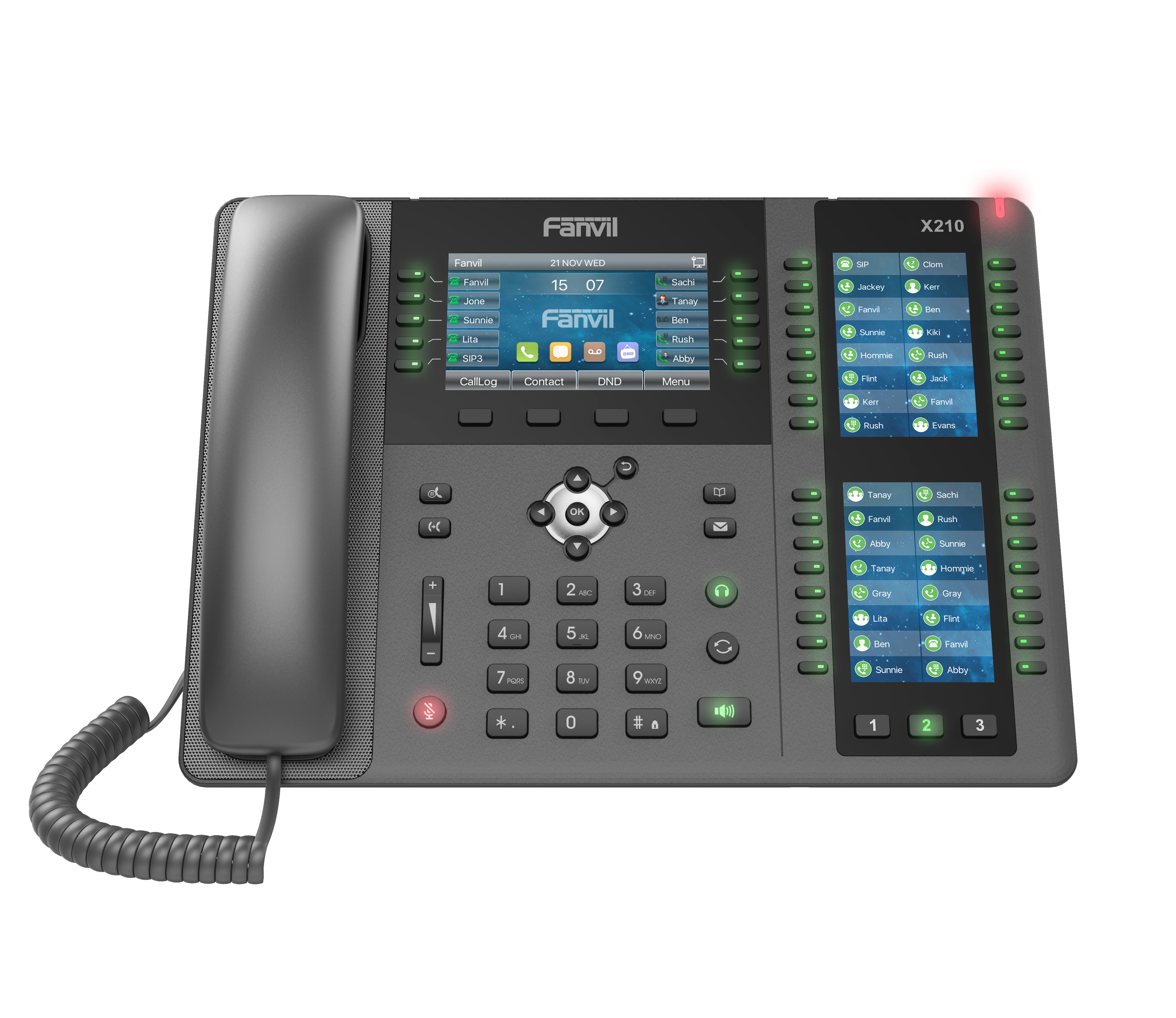
The Fanvil X210-V2 Enterprise IP Phone is designed for businesses that require dynamic management and extra DSS keys. It features two 3.4-inch color displays, each with three page-buttons at the bottom for efficient page switching. With up to 96 DSS keys available for BLF and speed dial functions, users can customize their experience. Key Features: • Supports 20 SIP lines and 3-way conference capabilities • 4.3" main display with 10 DSS keys • Built-in Bluetooth for 2×3.5" side color displays on DSS keys • Up to 106 DSS keys (42 tri-colored physical keys) available • Dual Gigabit ports, integrated PoE Wi-Fi connectivity (via Wi-Fi dongle) • Supports EHS headset and video codec H.264 for receiving video calls • Adjustable stand with 40 and 50-degree angles

About This Product

The Fanvil X210-V2 is an enterprise-grade IP phone built for receptionists, executives, and power users who need to monitor and manage a high volume of calls and extensions. Its expanded side displays and abundant DSS keys make it a strong fit for front-desk or contact-center environments where quick access to line status, BLF, and speed dials is critical. The phone pairs well with hosted PBX platforms and on-premises systems that support many SIP registrations, and its dual Gigabit ports allow it to sit in line with a PC without degrading network performance.

A practical tradeoff to consider is that the X210-V2 relies on a USB Wi-Fi dongle for wireless connectivity, so if you plan to use it wirelessly, you will need to source the dongle separately and accept that Wi-Fi can introduce latency or jitter for voice traffic. The built-in Bluetooth is convenient for connecting a wireless headset, but the phone does not support video calling as a primary function—only H.264 decoding for incoming video streams. For a small office with just a few extensions, the X210-V2’s extensive DSS keys and side displays may be overkill; a simpler model would suffice. Conversely, in a high-traffic call center or a busy reception desk, the extra display real estate and programmable keys are a genuine productivity advantage.

For Canadian deployments, the phone is compatible with most SIP-based VoIP providers operating in Ontario, and its support for PoE simplifies installation in offices where power outlets near desks are limited. The adjustable stand angles (40° and 50°) help reduce glare on the main screen, which is useful in bright open-plan offices common in Toronto’s downtown core. Overall, the X210-V2 is best suited for users who need to see and act on many lines at a glance, rather than for general-purpose desk use.
Services We Provide
  • Professional Installation & Configuration
  • Ongoing Maintenance & Support
  • Troubleshooting & Repairs
  • System Upgrades & Updates



