
Fanvil X210i -V2 Paging Console Phone

Frequently Asked Questions

First, confirm that the account is enabled under the Line settings and that the SIP server address, extension, and password exactly match what your VoIP provider supplied. Common registration failures come from a mistyped server port, a missing outbound proxy, or a firewall blocking SIP traffic. Also verify that the phone’s DNS server is reachable and can resolve the registrar’s domain. If the issue persists, a Toronto-based VoIP support provider can usually resolve this remotely.
Start by reseating the power connection—if you are using PoE, try a different known-working Ethernet cable and a different switch port that delivers the correct PoE class. If you are using an external power adapter, confirm it is the correct voltage and properly plugged into both the wall and the phone. A dim or flashing display can also be caused by the phone booting in a low-power state because the switch port cannot supply enough power.
The side screens rely on the DSS key configuration profile that is tied to the active SIP line or page. Check the phone’s web interface under the Function Keys section and confirm the desired line key type, value, and label are assigned to the correct DSS page. If your provisioning server pushes a fixed template, the locally entered values may be overwritten; verify with your administrator that the configuration file includes the side-car key settings.
Ensure the gooseneck microphone is fully plugged into its dedicated port and that nothing is obstructing the capsule. In a paging setup, choppy audio often points to network jitter or a duplex mismatch; confirm both the phone and the switch port are set to auto-negotiate and are linking at 1 Gbps full-duplex. If you are connected over Wi-Fi via a dongle, try switching to a wired connection temporarily to rule out wireless interference.
Short-duration call drops frequently indicate a NAT or session timer mismatch. Verify that SIP ALG is disabled on your router and that the phone’s NAT traversal settings match what your provider recommends. Also confirm that the register expiration and session timer values in the phone are set to the intervals your VoIP service expects. Checking these settings often resolves drops without a factory reset.
In the phone’s web interface, go to Function Keys and assign a DSS key as a Multicast Paging or BLF type, depending on whether your system uses multicast or a standard SIP extension for paging. For a multicast setup, enter the correct multicast address and port; for a SIP-based group, enter the paging extension number. After saving, test the button to confirm it triggers the intended group and adjust the codec to a narrowband option if some endpoints cannot negotiate the paging stream.
Make sure the Wi-Fi dongle is a model supported by the X210i and that it is inserted into the correct USB port. After inserting the dongle, navigate to the phone’s Network settings and switch the default interface from wired to wireless, then scan and select your SSID. If the phone still shows no connectivity, verify that your access point is not blocking the device via MAC filtering and that the security type and password are entered exactly.
IP Phones

Fanvil X210i -V2 Paging Console Phone
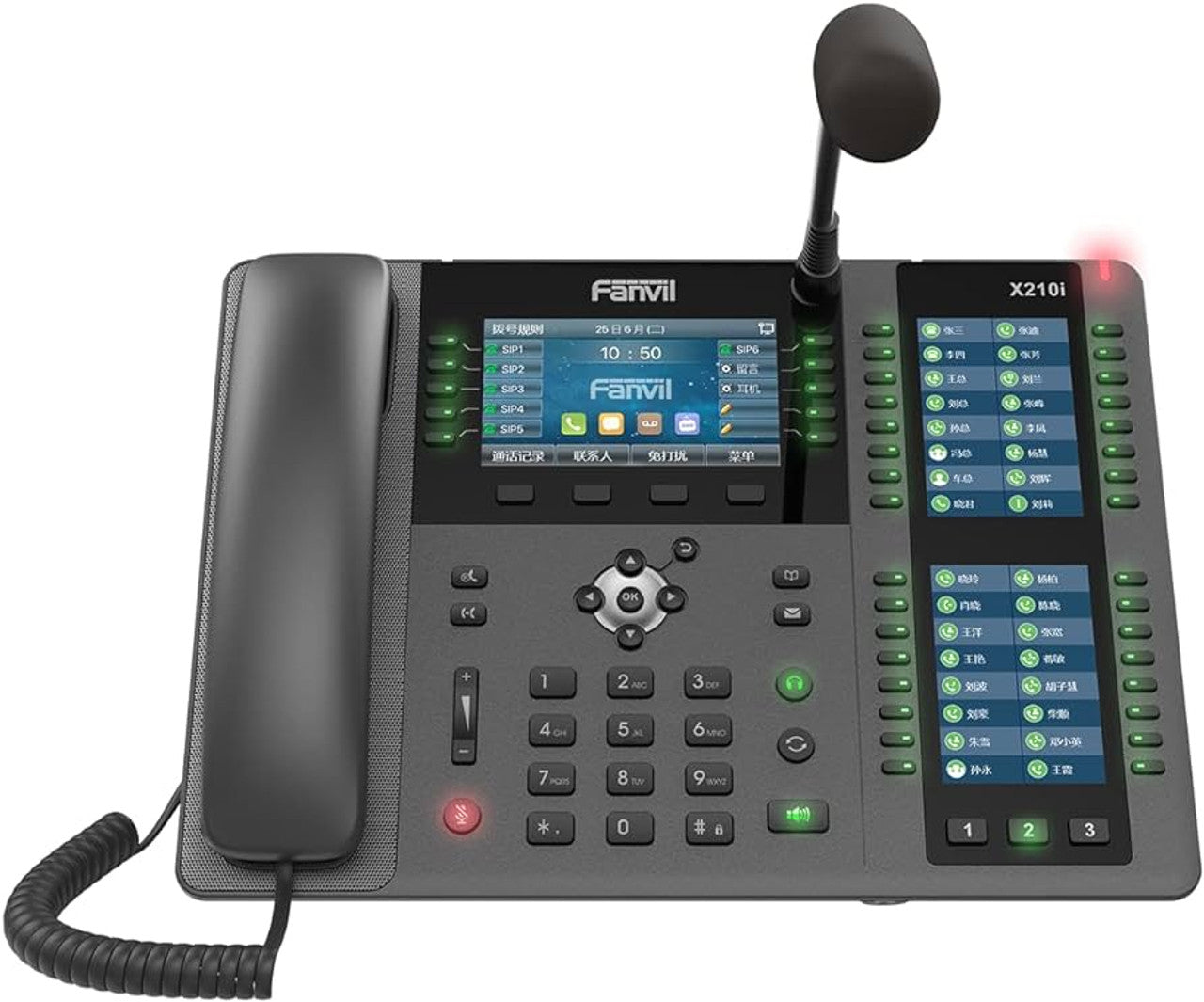
The Fanvil X210i Paging Console Phone is designed for use as a monitoring center station or office manager phone, offering a two-way intercom system for hands-free calls and real-time communication within the business. • 20 SIP lines, 3-way conference • HD audio on speakerphone and handset • Programmable DSS buttons for one-click call functions to improve productivity and efficiency • Gooseneck microphone with directional design • Main color display: 4.3" • Side color displays for DSS keys: 2×3.5" • Up to 106 DSS keys (42 tri-colored physical keys) • Dual Gigabit ports, integrated PoE • Built-in Bluetooth and Wi-Fi connectivity (via Wi-Fi dongle) • Video codec H.264 support for receiving video calls • Support for EHS headsets • Adjustable stand with 2 angles: 40 and 50 degrees • Compatible with major platforms: 3CX, Asterisk, Broadsoft, Metaswitch, Avaya For a full list of specifications, please refer to the product datasheet.

About This Product

The Fanvil X210i is built for roles where constant reachability and quick coordination matter more than a standard desk phone. It fits naturally on the desk of a receptionist, operations coordinator, or security dispatcher who needs to monitor multiple lines and trigger paging or intercom calls without hunting through menus. In a Canadian business context, it is well suited to a small or mid-sized office in the GTA where a front-desk person also handles after-hours call routing or warehouse paging.

Pairing this console with a SIP-based paging gateway or overhead speaker system lets you bridge desk-to-warehouse communication without a separate analog paging controller. The physical DSS keys reduce the friction of one-touch actions, so it can replace a basic attendant console or a softphone-plus-keypad setup that required too much screen attention.

The tradeoff is desk space and focus. This is a large device with a gooseneck microphone and dual side displays, so it demands a dedicated spot and feels oversized for a hot-desking or home-office environment. It is overkill for a user who only takes a handful of calls a day and does not manage paging groups or monitor extensions. On the other hand, it can be underpowered if you need to visually monitor more than a few dozen extensions simultaneously, since the DSS real estate, while generous, is finite.

Deployments that lean heavily on Wi-Fi should note that wireless connectivity depends on a separate dongle; the integrated dual Gigabit ports and PoE make a wired connection the more predictable path. For Canadian offices running hosted voice platforms like 3CX or Asterisk-based systems, the broad platform compatibility simplifies onboarding, but you will still want to confirm that your provider’s template covers the X210i’s side-car DSS configuration properly, as multi-screen provisioning can vary between platforms.
Services We Provide
  • Professional Installation & Configuration
  • Ongoing Maintenance & Support
  • Troubleshooting & Repairs
  • System Upgrades & Updates



