
Fanvil X2P Professional Call Center Phone with PoE and Color Display

Frequently Asked Questions

First, verify that the network cable is securely connected and that the phone has obtained an IP address (check the phone's network settings under Menu > Status). Then, double-check the SIP server address, username, and password in the phone's account settings. If the credentials are correct, ensure your firewall or router is not blocking SIP traffic on ports 5060 or 5061.
If you are using Power over Ethernet (PoE), confirm that your switch or injector is PoE-compliant and delivering sufficient power. Try a different Ethernet cable and a different port on the switch. If using the optional power adapter, verify it is plugged in and the outlet is live. A simple power cycle (unplug the Ethernet cable for 30 seconds) often resolves this.
This is usually a microphone or headset issue. First, check that your headset is fully plugged into the headset jack and that the mute button on the phone is not lit. If using a headset with a mute switch on the cable, ensure that is not engaged. Try a different headset to rule out a hardware fault. If the problem persists, check the phone's audio settings to confirm the correct audio path (handset/headset/speakerphone) is selected.
Intermittent call drops often point to network instability. Check if the phone's Ethernet cable is loose or damaged. If the phone is on Wi-Fi (via a dongle), move it closer to the access point or use a wired connection. Also, verify that your router's SIP ALG setting is disabled, as it can interfere with call stability. If the issue continues, contact your VoIP provider to check for packet loss on your line.
Connect the foot pedal to the dedicated pedal port on the back of the phone. By default, the pedal should control off-hook/on-hook. If it does not work, go to Menu > Settings > Advanced Settings (password: admin by default) > Function Keys and assign the pedal action to 'Hook' or 'New Call'. Test the pedal by pressing it to lift the line and again to hang up.
This indicates the phone is not receiving a valid IP address. First, try a different Ethernet cable and a different port on your switch or router. If the phone is connected to a PoE switch, ensure the switch port is active. You can also try manually setting a static IP address in the phone's network settings if your network requires it. If none of these work, the phone's Ethernet port may be faulty.
The X2P is designed for use with a standard analog headset with a 3.5mm plug. It supports both headset and handset modes. For best results, use a headset with a built-in mute switch and volume control. If you are using a USB headset, it will not work directly with this phone as it lacks a USB port for audio.
The 'One Button Call' feature allows you to assign a speed-dial key to a contact. To set it up, go to Menu > Phone Book, add the desired contact, then go to Menu > Settings > Function Keys. Choose an unused key (e.g., a line key or a programmable key) and assign it to 'Speed Dial' or 'Call Return'. Select the contact from your phone book. Now pressing that key will dial the contact immediately.
Choppy audio is often a network issue. Check your internet connection speed and ensure no other devices are using excessive bandwidth during calls. Echo can be caused by the other party's speakerphone or by your headset being too loud. Try lowering the headset volume on the phone. If the problem persists, ask your VoIP provider to check for jitter or latency on your line.
If auto-provisioning fails, you can configure the phone manually through its web interface. Find the phone's IP address from Menu > Status > Network. Enter that IP into a web browser on the same network. Log in with the default credentials (admin/admin). Navigate to the Account or SIP settings and enter your VoIP provider's details. Save and reboot the phone. If you need help with the specific settings, contact your VoIP provider.
IP Phones

Fanvil X2P Professional Call Center Phone with PoE and Color Display
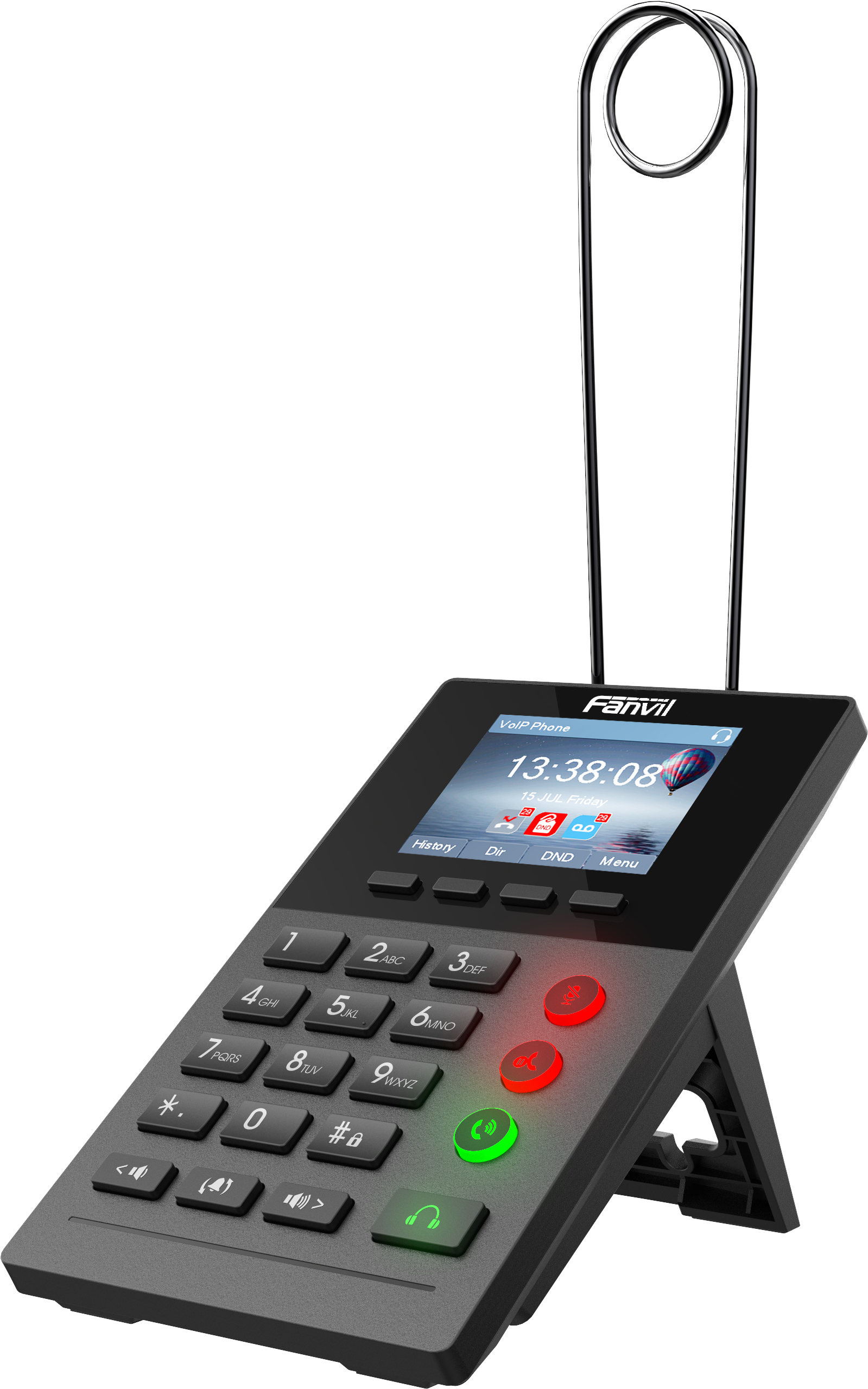
• The Fanvil X2 IP Phone is designed for call center environments where internet calling is key to business success. Its innovative design, high performance, and product efficiency make it an ideal solution. • Easy to use, the phone features a unique interface that allows you to easily dial to clients and customers using a pedal switch or softphone applications. • Key Features: • Color Screen for enhanced visuals • Power over Ethernet (PoE) for reduced cable management • HD Voice for clear and crisp audio quality • EHS for extended hours of service • LED Buttons for Mute/Hold and Auto Answer • Headset and Mic Volume adjustment • Pedal Switch for off-hook/on-hook call control • Web Dial- "One Button Call" function with call log and phone book • For a full list of specifications, please refer to the product datasheet.

About This Product

The Fanvil X2P is a purpose-built call center phone that prioritizes hands-free, high-volume call handling over the feature set of a general-purpose office desk phone. It is designed for agents who spend most of their day on a headset and need a reliable, no-fuss interface for managing calls. The inclusion of Power over Ethernet (PoE) simplifies cabling, making it a clean fit for dense cubicle environments where power outlets are scarce. The phone pairs naturally with a quality headset and a foot pedal for on/off-hook control, allowing an agent to keep both hands free for data entry. For a small or medium-sized call center in the GTA, this is a cost-effective, space-saving choice. However, it is not a good fit for an executive office or a reception desk where a full-featured phone with multiple line keys, a large directory, or conferencing capabilities is expected. The X2P is underpowered for a supervisor or manager who needs to monitor multiple queues or handle complex call routing, and it would be overkill for a single-user home office where a basic SIP phone or softphone would suffice.
Services We Provide
  • Professional Installation & Configuration
  • Ongoing Maintenance & Support
  • Troubleshooting & Repairs
  • System Upgrades & Updates



