
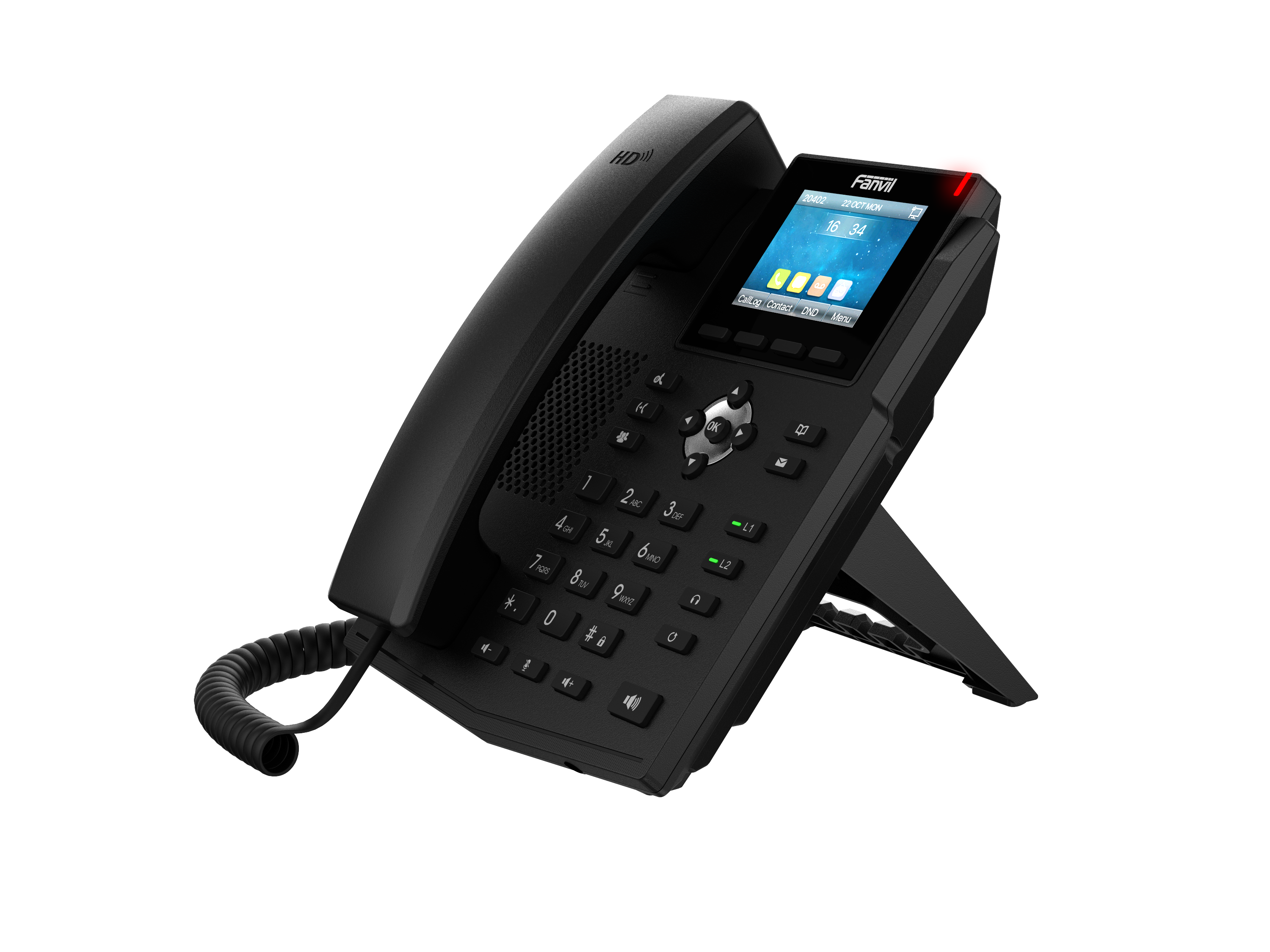
Fanvil X3SG PRO Gigabit IP Phone
Frequently Asked Questions
First, confirm the SIP server address, username, and password are entered exactly as your provider supplied—watch for typos or extra spaces. Then check that the phone’s IP address can reach the internet; a quick test is to ping the server from a computer on the same network. If the phone is behind a firewall, ensure SIP and RTP ports are open or that SIP ALG is disabled. If the issue persists, a Toronto-based VoIP support provider can usually resolve this remotely.
The X3SG PRO can be powered by PoE, so first verify that the network switch or injector is actually providing PoE and that the port is enabled for power delivery. Try a different Ethernet cable to rule out a damaged conductor. If you have a PoE tester, confirm the voltage; otherwise, connect the optional 5V DC adapter (not included) to see if the phone boots, which would point to a PoE source issue.
Echo is often caused by acoustic feedback between the handset and speaker or by headset volume being set too high. Try lowering the speaker volume slightly and ensure the handset is properly seated. If you’re using a headset, check that the EHS connection is secure and that the headset isn’t picking up its own output. On the network side, high jitter or latency can also contribute; a quick test is to make a call on a different network segment to isolate the cause.
Check whether the phone is set to obtain an IP automatically via DHCP, which is the default. Look at the network cable and port LEDs to confirm a physical link. If you’re using the PC passthrough port by mistake, the phone won’t get a connection—make sure the Ethernet from the wall goes into the Internet port, not the PC port. Reboot the phone and your network switch; if DHCP still fails, try a static IP temporarily to see if the phone can reach the local gateway.
Yes, the X3SG PRO supports EHS for compatible wireless headsets. You’ll need an EHS adapter cable specific to your headset brand, connected to the phone’s EHS port. Once physically connected, go to the phone’s web interface or on-screen menu, navigate to the headset settings, and enable EHS mode. Test the answer/hang-up buttons on the headset; if they don’t work, double-check the cable orientation and compatibility list from the headset manufacturer.
Most cloud providers support auto-provisioning via a configuration URL. You’ll typically enter the provisioning server address in the phone’s web interface under the maintenance or auto-provision settings, then reboot. The phone will download its configuration automatically. If your provider uses zero-touch provisioning, simply connect the phone to the internet and it should fetch the config—ensure the phone’s MAC address is registered in your provider’s portal first.
Yes, you can adjust the screen brightness and backlight timeout from the phone’s settings menu. Navigate to Display settings and increase the active brightness level. If the screen still appears off, check that the protective film isn’t still in place, as it can reduce clarity. A factory reset is not needed for this; it’s purely a configuration adjustment.
The PC port is a Gigabit passthrough, so your computer will get a full-speed connection without degrading the phone’s performance. Connect your computer to the port labelled PC, and the phone acts as a simple switch. VLAN tagging is supported if you need to separate voice and data traffic, but out of the box it works transparently for most office setups.
Intermittent audio issues often point to packet loss or jitter on the network. Start by checking the phone’s network statistics during a call—look for high jitter or lost packets. Ensure the phone is using a wired connection, not Wi-Fi (which it doesn’t support natively). If you’re on a congested network, enabling Opus with its adaptive bitrate can help, but first try prioritizing voice traffic via QoS on your router or switch.
IP Phones
Fanvil X3SG PRO Gigabit IP Phone
• The X3SG Pro is an entry-level color screen IP phone with HD audio, a 2.8” main color display, and 4 SIP lines. • Key features include: • EHS headset support for high-quality voice calls • Opus support for clear and efficient communication • IPv6 Linux system for advanced security features • PoE and dual Gigabit ports for convenient connectivity • Support for IPv4, IPv6 protocol and HD Voice • The X3SG Pro provides a high-quality and convenient experience for users at an affordable price.
About This Product
The Fanvil X3SG PRO sits in a sweet spot for small to mid-sized businesses that want a modern desk phone without stretching the budget. Its colour screen and four SIP lines make it a natural fit for knowledge workers, administrative staff, or shared spaces where a quick glance at caller ID or line status matters. With Opus and HD Voice, call clarity holds up well even on congested office networks, and dual Gigabit ports mean you won’t bottleneck a connected PC—a detail that often gets overlooked at this price point.
This phone pairs comfortably with most on-premise IP PBXs or cloud-based VoIP services, and its Linux-based IPv6 support gives it a longer security runway than many entry-level alternatives. It’s a sensible upgrade from basic monochrome-screen phones, especially if you’re already running Fanvil or compatible SIP infrastructure. In a Toronto office environment, the combination of PoE and Gigabit passthrough simplifies cabling and keeps desks tidy, which facility managers tend to appreciate.
Buyers should understand the X3SG PRO is an entry-level colour-screen model, not a multimedia powerhouse. It handles four SIP lines well, but it isn’t built for heavy call centre use or complex BLF/sidecar expansions. The 2.8-inch display is crisp but compact—fine for basic call handling, less ideal if you need to browse directories or manage dozens of contacts on-screen. EHS support is a genuine plus, though you’ll need a compatible wireless headset to take advantage of it.
For a solo professional or a small team that values clear audio and reliable connectivity, this phone is a practical choice. It would be overkill for a home office that only needs a single line and softphone app, and underpowered for a receptionist juggling a high volume of calls across many extensions. In the Canadian market, it’s a straightforward, no-surprises device that fits neatly into the everyday rhythm of a typical GTA business deployment.
This phone pairs comfortably with most on-premise IP PBXs or cloud-based VoIP services, and its Linux-based IPv6 support gives it a longer security runway than many entry-level alternatives. It’s a sensible upgrade from basic monochrome-screen phones, especially if you’re already running Fanvil or compatible SIP infrastructure. In a Toronto office environment, the combination of PoE and Gigabit passthrough simplifies cabling and keeps desks tidy, which facility managers tend to appreciate.
Buyers should understand the X3SG PRO is an entry-level colour-screen model, not a multimedia powerhouse. It handles four SIP lines well, but it isn’t built for heavy call centre use or complex BLF/sidecar expansions. The 2.8-inch display is crisp but compact—fine for basic call handling, less ideal if you need to browse directories or manage dozens of contacts on-screen. EHS support is a genuine plus, though you’ll need a compatible wireless headset to take advantage of it.
For a solo professional or a small team that values clear audio and reliable connectivity, this phone is a practical choice. It would be overkill for a home office that only needs a single line and softphone app, and underpowered for a receptionist juggling a high volume of calls across many extensions. In the Canadian market, it’s a straightforward, no-surprises device that fits neatly into the everyday rhythm of a typical GTA business deployment.
Services We Provide
- Professional Installation & Configuration
- Ongoing Maintenance & Support
- Troubleshooting & Repairs
- System Upgrades & Updates



