
Fanvil X5U-V2 16-Line Mid-level IP Phone
Frequently Asked Questions
Start by confirming the phone has a working network connection. Check that the Ethernet cable is seated firmly in the WAN port and that the phone receives an IP address under Menu > Status > Network. Then verify the SIP server address, username, and password in the account settings against the credentials your provider supplied. A simple power cycle and retry often resolves a registration timeout, especially after an initial provisioning attempt.
First confirm that the switch port you are using actually provides Power over Ethernet and meets the 802.3af standard the phone requires. Try a different known-good PoE port and reseat both ends of the cable. If the switch port is not PoE-capable, use a compatible 5V DC power adapter to power the phone directly.
Check that at least one SIP account on the phone shows a registered status with a green indicator. If all accounts are unregistered, the phone cannot offer a dial tone. Also test with the speakerphone button; if you hear dial tone there but not through the handset, the handset coil cord may be loose or damaged, or the handset port needs reseating.
Choppy audio often points to network jitter or packet loss rather than a phone hardware fault. Confirm the phone is connected to a Gigabit switch port with a healthy Ethernet cable, and if you are using WiFi via a dongle, test with a wired connection to rule out wireless interference. Lowering the Jitter Buffer setting under the audio configuration can sometimes smooth out inconsistencies on a congested network.
Enable Bluetooth on the phone under Menu > Basic Settings > Bluetooth, then put your Bluetooth headset into pairing mode. Select Scan on the phone, choose your headset from the list, and confirm the pairing. Once connected, the headset will handle call audio, and the phone’s speaker and handset remain available as fallback options.
The DSS key LEDs depend on the BLF subscription being active and correctly configured. Verify that the DSS key is set to the BLF type and that the extension number you entered matches exactly what the SIP server expects. Check that your phone’s SIP account configuration includes the correct BLF subscription URI, and that your VoIP provider supports this feature on your plan.
Yes, the X5U-V2 supports a WiFi connection when you plug a compatible Fanvil WiFi dongle into the USB port on the back of the phone. After attaching the dongle, you can scan for and join your wireless network through the phone’s network settings menu. For the most reliable call quality, however, a wired Gigabit Ethernet connection remains the better choice.
First, disconnect and reconnect the power to allow the phone to attempt a normal reboot. If it boots successfully, verify you used the correct firmware file for the X5U-V2 and that the file was not corrupted during download. Do not initiate a forced factory reset as the immediate next step; reach out to an experienced VoIP support provider who can assess the phone’s current state and guide you through recovery without wiping your configuration unnecessarily. If the issue persists, a Toronto-based VoIP support provider can usually resolve this remotely.
IP Phones
Fanvil X5U-V2 16-Line Mid-level IP Phone
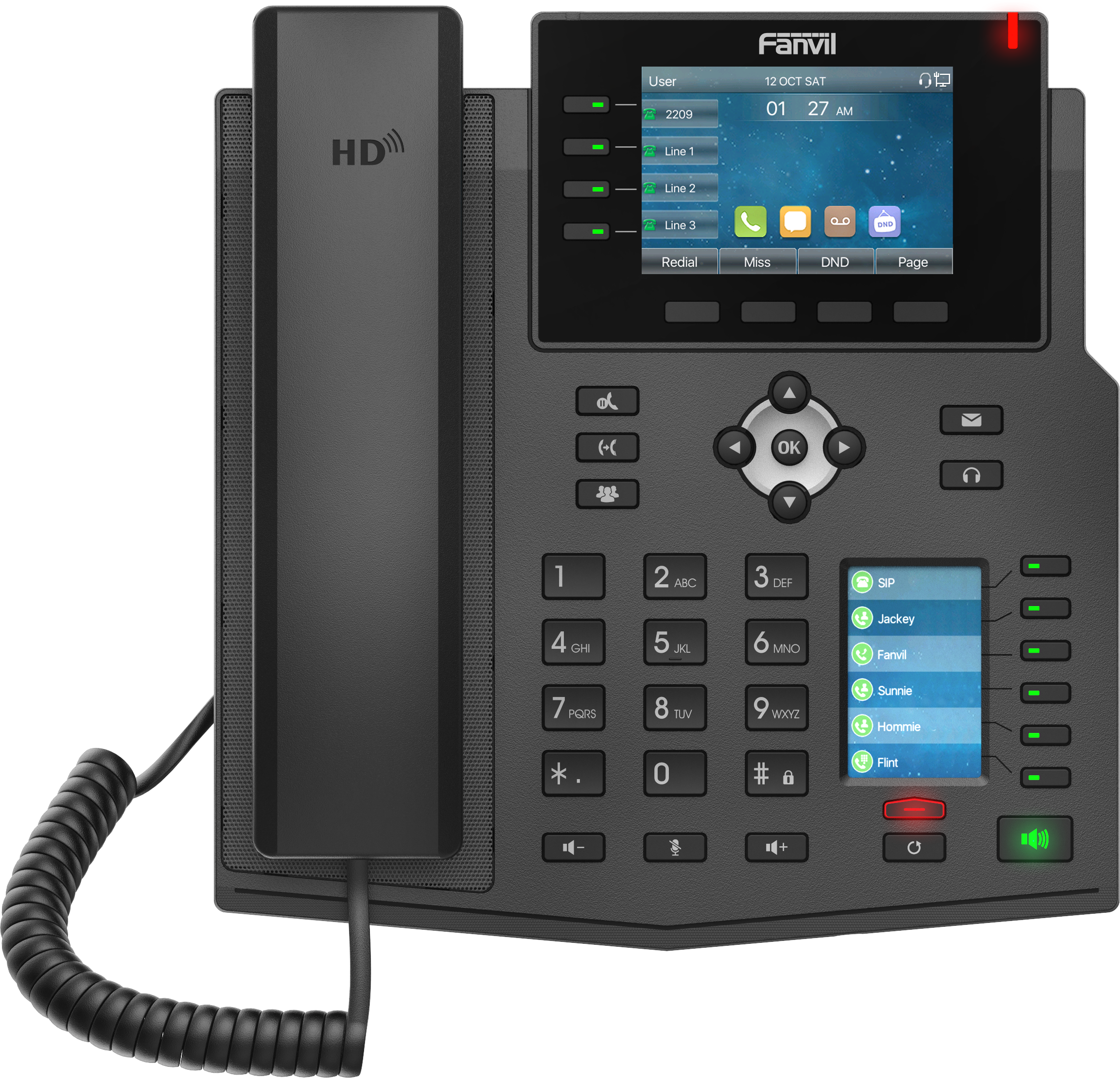
• The Fanvil X5U-V2 16-Line Mid-level IP Phone supports 16 SIP lines with 4 line keys on the main display. • Built-in Bluetooth and top-end Harman speakers provide crisp and clear HD audio on both the handset and speakerphone. • The phone can be used as a SIP hotspot, expanding SIP accounts to other IP phones for group ringing in LAN. Key Features: • 16 SIP lines • HD audio with Harman speaker and wideband codec • G.722 and Opus support • 30 DSS keys, 4 line keys with LED light • Dual Gigabit port, PoE integrated • Support built-in Bluetooth • Support EHS wireless headset • Support WiFi via WiFi dongle • Support IPv4 , IPv6 protocol
About This Product
The Fanvil X5U-V2 is a desk phone built for busy professionals who manage a high volume of calls but prefer hardware keys to a touchscreen-driven interface. With room for 16 SIP lines and 30 programmable DSS keys, it suits receptionists, executive assistants, and power users in law firms, medical offices, and mid-sized businesses. The addition of built-in Bluetooth and Harman speaker hardware moves it a step above entry-level desk phones, making it a viable choice for users who take calls through a wireless headset or listen to voicemails and intercom pages regularly throughout the day.
This model pairs well with hosted VoIP platforms that support multiple line appearances and busy lamp field functionality. In a Canadian small business environment—such as a dental practice or a real estate brokerage in the GTA—the X5U-V2 can replace several simpler phones by acting as a central call-handling station. The optional WiFi dongle and EHS wireless headset support add flexibility for desk setups where Ethernet cabling is limited or where the user frequently steps away but needs to answer calls wirelessly.
A practical limitation to keep in mind is that the main display shows only four line keys at a time, even though 16 SIP lines are supported. Users who need simultaneous visibility of all active lines may need to rely on the physical DSS key layout and LED indicators rather than on-screen line status. The hotspot feature, while useful for expanding SIP accounts across other Fanvil phones on the same LAN, is not a full multi-phone synchronization system and works best in simple group-ringing scenarios rather than complex call distribution.
For a sole proprietor or a home office with one or two lines, this phone is overkill—a simpler model like a Fanvil X3 or X4 series would suffice. At the other extreme, a large call center or enterprise reception area that demands touchscreen call management and advanced queue visibility will find the X5U-V2 underpowered. It lands squarely in the middle: a solid, multi-line workhorse for a dedicated call handler who needs reliable one-button access to many monitored extensions. PoE support and dual Gigabit ports help it drop into most modern office networks without extra power adapters or switch complications.
This model pairs well with hosted VoIP platforms that support multiple line appearances and busy lamp field functionality. In a Canadian small business environment—such as a dental practice or a real estate brokerage in the GTA—the X5U-V2 can replace several simpler phones by acting as a central call-handling station. The optional WiFi dongle and EHS wireless headset support add flexibility for desk setups where Ethernet cabling is limited or where the user frequently steps away but needs to answer calls wirelessly.
A practical limitation to keep in mind is that the main display shows only four line keys at a time, even though 16 SIP lines are supported. Users who need simultaneous visibility of all active lines may need to rely on the physical DSS key layout and LED indicators rather than on-screen line status. The hotspot feature, while useful for expanding SIP accounts across other Fanvil phones on the same LAN, is not a full multi-phone synchronization system and works best in simple group-ringing scenarios rather than complex call distribution.
For a sole proprietor or a home office with one or two lines, this phone is overkill—a simpler model like a Fanvil X3 or X4 series would suffice. At the other extreme, a large call center or enterprise reception area that demands touchscreen call management and advanced queue visibility will find the X5U-V2 underpowered. It lands squarely in the middle: a solid, multi-line workhorse for a dedicated call handler who needs reliable one-button access to many monitored extensions. PoE support and dual Gigabit ports help it drop into most modern office networks without extra power adapters or switch complications.
Services We Provide
- Professional Installation & Configuration
- Ongoing Maintenance & Support
- Troubleshooting & Repairs
- System Upgrades & Updates



