
Fanvil X7 Touch Screen Enterprise Color IP Phone
AIM Telecom provides troubleshooting and configuration support for this product to businesses across Toronto and the GTA. Contact us to confirm whether the issue can be handled by phone or requires on-site service.
Get Support Call 416-312-4819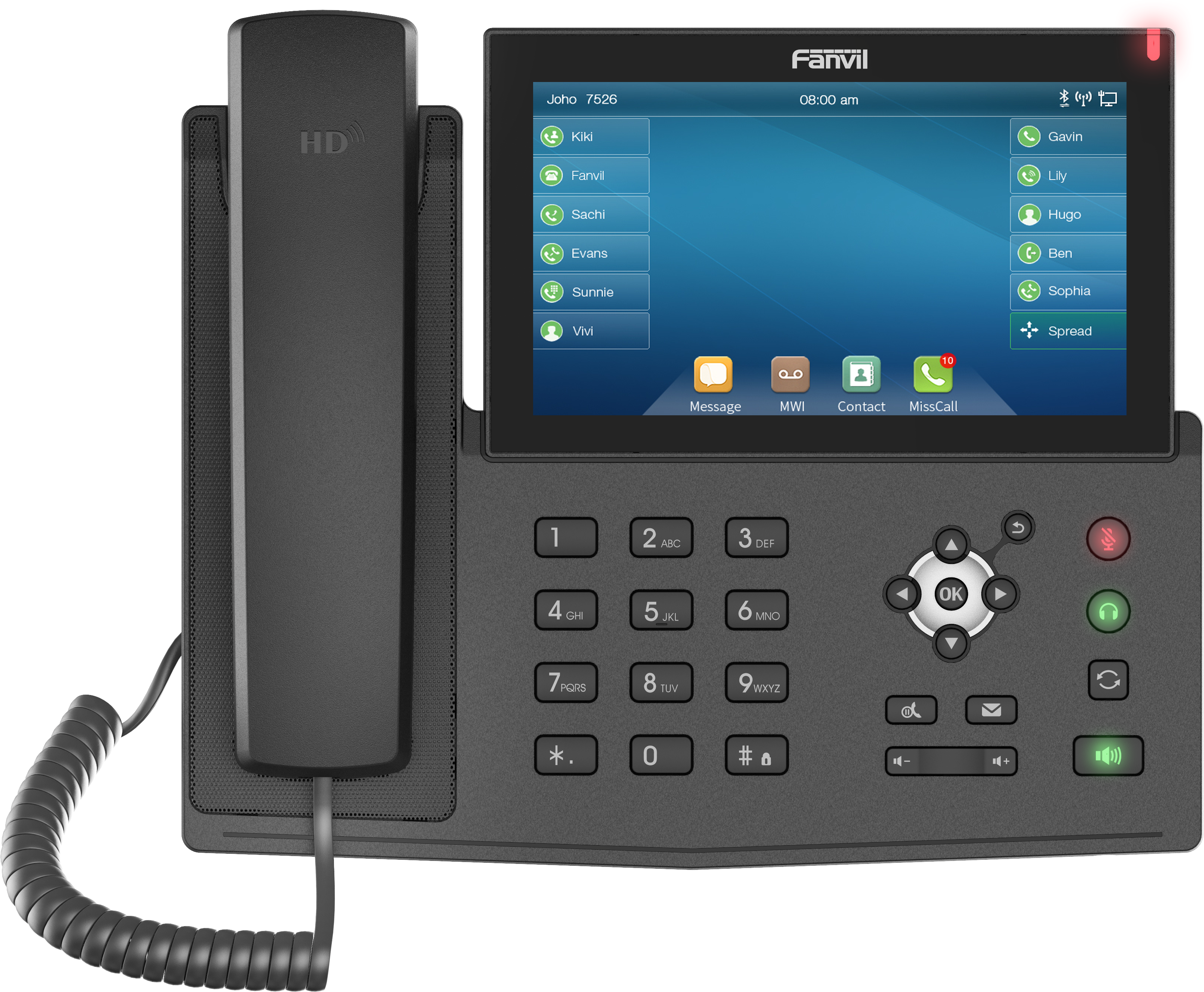
Common issues and fixes
Reviewed troubleshooting steps are not yet available for this model.
Ask AIM Telecom about this productAbout this product
• The Fanvil X7 Touch Screen Enterprise Color IP Phone is a high-end enterprise phone with an intelligent DSS key corresponding display screen, improving working efficiency with advanced design and high-cost performance.
• 127 DSS keys available at the display.
• Key Features:
• 20 SIP lines
• 3-way conference, hotspot 7" capacity color touch-screen
• HD audio on speakerphone and handset
• Up to 127 DSS keys entries available
• Built-in Bluetooth for connecting Bluetooth headset
• Wi-Fi connectivity (via Wi-Fi dongle)
• Video codec H.264 support for receiving video calls
• Adjustable stand with 2 angles of 40 and 50 degrees
• Support EHS headset
• Dual Gigabit ports, integrated PoE
• Can be used as a mini PBX to form small DIY communication and security solutions
• For a full list of specifications, please refer to the product datasheet.
• 127 DSS keys available at the display.
• Key Features:
• 20 SIP lines
• 3-way conference, hotspot 7" capacity color touch-screen
• HD audio on speakerphone and handset
• Up to 127 DSS keys entries available
• Built-in Bluetooth for connecting Bluetooth headset
• Wi-Fi connectivity (via Wi-Fi dongle)
• Video codec H.264 support for receiving video calls
• Adjustable stand with 2 angles of 40 and 50 degrees
• Support EHS headset
• Dual Gigabit ports, integrated PoE
• Can be used as a mini PBX to form small DIY communication and security solutions
• For a full list of specifications, please refer to the product datasheet.
More product details
The Fanvil X7 is designed for business professionals who need quick access to a high volume of contacts or lines — think receptionists, executive assistants, or team leaders in a busy office. Its large colour touchscreen and 127 programmable DSS keys make it easy to monitor call queues, speed-dial colleagues, or manage multiple calls at once without getting bogged down in menus. The phone pairs well with most SIP-based PBX systems and can even act as a mini PBX for a small team or a DIY intercom setup. For Canadian offices, the X7 works reliably with standard SIP carriers available in the GTA and across the country, and its built-in PoE simplifies cabling in typical cubicle or desk layouts.
On the practical side, the touch interface is intuitive but may feel less familiar to users accustomed to hard button phones. The 7-inch screen is generous, but the phone has a larger footprint, so be mindful of desk space. Wi-Fi requires an optional dongle (not included), so plan for wired Ethernet unless you add that accessory. The X7 can receive video calls via H.264, but it lacks a camera — so it’s really for monitoring video from a door station or another device, not for two-way video conferencing.
Where the X7 really shines is in high-touch environments where every second matters. It would be overkill in a call centre that only uses softphones or in a home office with just one line. Conversely, it is not a replacement for a dedicated video conference unit; its video capability is peripheral. If you need a feature-rich desk phone that reduces the need to toggle between screens, the X7 delivers without the premium price tag of some competitors.
On the practical side, the touch interface is intuitive but may feel less familiar to users accustomed to hard button phones. The 7-inch screen is generous, but the phone has a larger footprint, so be mindful of desk space. Wi-Fi requires an optional dongle (not included), so plan for wired Ethernet unless you add that accessory. The X7 can receive video calls via H.264, but it lacks a camera — so it’s really for monitoring video from a door station or another device, not for two-way video conferencing.
Where the X7 really shines is in high-touch environments where every second matters. It would be overkill in a call centre that only uses softphones or in a home office with just one line. Conversely, it is not a replacement for a dedicated video conference unit; its video capability is peripheral. If you need a feature-rich desk phone that reduces the need to toggle between screens, the X7 delivers without the premium price tag of some competitors.