
Fanvil X7C Enterprise Color IP Phone
Frequently Asked Questions
First, verify that the SIP server address, port, and authentication credentials (username and password) are entered correctly in the phone's account settings. Double-check that your network allows outbound SIP traffic and that the phone has a valid IP address. If the issue persists, a Toronto-based VoIP support provider can usually resolve this remotely.
Check that the power adapter or PoE switch is functioning by testing with another device. If using PoE, ensure the Ethernet cable is securely connected to both the phone's LAN port and the switch, and that the switch port is enabled and providing power. Also confirm that the phone's power input is set to PoE (via the settings menu) if no external adapter is attached.
Start by checking the handset and headset connections – ensure they are firmly plugged in and not damaged. Then verify that the volume is turned up using the phone's physical volume keys. If the issue occurs only on speakerphone, test a wired headset to isolate whether the speaker is faulty or the audio path is blocked.
This is often a cabling or switch issue. Reseat the Ethernet cable at both ends and try a different port on your switch. If the phone is using Wi-Fi via the optional dongle, move it closer to the access point or reduce interference. Also check if the phone's IP address is set to static – a misconfigured DHCP lease could cause intermittent drops.
Access the phone's web interface through its IP address (found in Settings > Network > Information). Navigate to Account and enter your SIP credentials provided by your VoIP provider. You may also upload a configuration file (e.g., XML or CFG) from your PBX if auto-provisioning is supported. Ensure the phone is on the same VLAN as your voice traffic if your network segments voice and data.
First, confirm that the DSS keys have been properly programmed in the phone's web interface under Function Keys or DSS Keys. If they are programmed but inactive, verify that the associated extension or speed dial is actually registered and functional. A quick power cycle of the phone can reset the key state – unplug power for 10 seconds and reconnect.
Yes, the X7C supports Bluetooth headsets. Go to Settings > Bluetooth, enable Bluetooth, and pair your headset. For DECT or other wireless models, you may need a USB dongle or a wired EHS cable. Note that the phone's built-in Bluetooth profiles are designed for headsets, not for file transfer or tethering.
Begin by checking your network bandwidth and latency – run a speed test from a computer on the same LAN. Echo often results from speakerphone volume being too high or a bad headset; try lowering the volume or using a headset with a noise-cancelling microphone. If jitter persists, enable QoS marking on your router or switch for the phone's VLAN, and set the phone's audio codec preference to a more robust option like G.711 or Opus.
Navigate to Settings > Account and confirm that your SIP account is enabled and the server details are correct. If the phone was previously working, check whether your PBX or hosted provider is experiencing an outage. Power cycling the phone and your router can resolve temporary SIP registration timeouts.
Yes, the X7C is a standard SIP phone and will work with any carrier that provides SIP credentials. For business use with carriers such as Rogers Business Phone or Bell Voice, you will need to configure the account with the specific proxy and outbound proxy addresses they provide. Some carriers may require a specific codec or STUN server – check their documentation for SIP settings.
IP Phones
Fanvil X7C Enterprise Color IP Phone
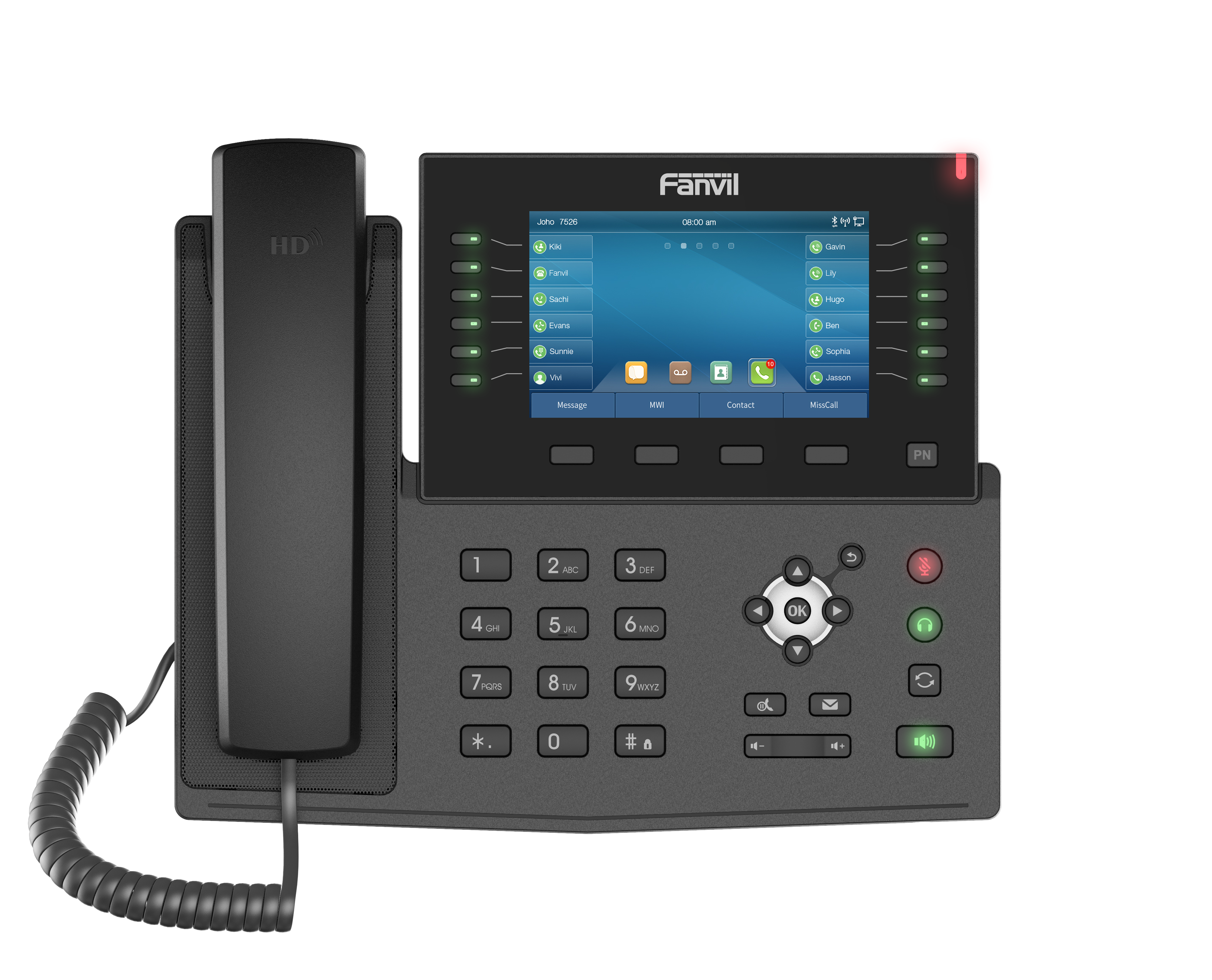
• The Fanvil X7C Enterprise Color IP Phone is a high-end enterprise phone with an intelligent DSS key corresponding display screen, greatly improving working efficiency with advanced design and high-cost performance. • 60 DSS keys, including 12 physical keys • Features: • HD Audio with Opus • 5-inch color display • Built-in Bluetooth • Wi-Fi Connectivity • Adjustable screen • Dual Gigabit ports • Up to 60 DSS key entries (5 pages) • WiFi via WiFi dongle (sold separately) for additional connectivity • Can be used as a mini PBX to form small DIY communication and security solutions
About This Product
The Fanvil X7C is designed for busy professionals who manage a high volume of calls, such as receptionists, executive assistants, or team leaders in a corporate office. Its 60 DSS keys, distributed across physical keys and virtual pages, allow for one-touch access to extensions, speed dials, and line appearances, reducing the time spent navigating menus. This phone fits naturally into a multi-line environment, pairing well with hosted VoIP services or on-premise PBX systems common in GTA office deployments. The 5-inch color display and adjustable screen angle improve usability during long shifts, while built-in Bluetooth and optional Wi-Fi dongle support add flexibility for wireless headsets or network connectivity where cabling is limited. A practical tradeoff to consider is its physical footprint: the X7C is larger than typical desk phones, so it may not suit cramped workstations or hot-desking setups. For users who only handle a few calls daily, the DSS key capacity is overkill; such buyers would be better served by a simpler model. Conversely, in environments with heavy call volume and rapid extension dialing, the X7C avoids the clutter of multiple phone units. Its dual Gigabit ports and Opus HD audio ensure reliable voice quality, but the phone does not include a PoE injector, so power over Ethernet requires a compatible switch or midspan. Overall, this is a capable choice for power users who need efficient call handling without resorting to a desktop softphone.
Services We Provide
- Professional Installation & Configuration
- Ongoing Maintenance & Support
- Troubleshooting & Repairs
- System Upgrades & Updates



