
Grandstream GRP2612G 4-Line 2-SIP Carrier-Grade IP Phone, Gigabit Ethernet

Frequently Asked Questions

First, check that the phone can reach the internet by looking at the network status in the phone's settings menu. If the IP address shows 0.0.0.0 or the phone cannot ping an external address, the issue is likely network-related (bad Ethernet cable, wrong VLAN, or DHCP failure). If the network is fine, verify that the SIP credentials (username, password, server address) entered in the phone's account settings exactly match what your provider gave you. Many Canadian VoIP providers require a specific transport protocol (UDP, TCP, or TLS) or a specific registration expiry; check your provider's documentation.
Start by reseating the handset cable at both the phone and the handset—this is the most common cause. If that does not help, try a different handset cable or a known-good headset to rule out the cable or the handset itself. Also, check the volume settings on the phone: press the volume rocker during an active call to make sure the earpiece volume is not turned all the way down. If the issue persists but you can hear audio through the speakerphone, the handset port may be faulty.
This is often caused by a failed firmware update or a corrupted configuration file. Unplug the power and Ethernet cable, wait 30 seconds, then reconnect only the power. If it still hangs, try a safe boot: hold down the 'OK' button while powering on until the phone displays a menu, then select 'Factory Reset' only after confirming with your IT admin that a reset will not break your provisioning. If the phone was provisioned by a service provider, do not reset it yourself—contact them first.
First, check that the handset cord is fully inserted and not damaged, as a loose connection can cause echo. If using a headset, try a different headset to rule out the accessory. Next, reduce the speakerphone volume or move the phone away from reflective surfaces like windows and metal desks. If the problem is only on certain calls, it may be a network issue—check if someone is streaming video or doing a large file transfer on the same network, as that can cause jitter and audio dropouts.
Most Canadian providers will give you SIP credentials and a server address. On the phone, press the Menu button, go to Accounts > Account 1, and enter the SIP server, SIP user ID, and Authenticate ID exactly as provided. For Rogers, you may need to set the transport to UDP, and for Telus, TCP is often required. If the phone does not register, contact the provider's support to confirm the correct registration expiry and whether they require a STUN server for NAT traversal.
Make sure you are using the power adapter that came with the phone (12V, 0.5A) or a PoE switch that provides at least 802.3af PoE. If using PoE, verify that the switch port is PoE-enabled—try a different PoE port. If the phone still shows no signs of life, disconnect all cables, wait 30 seconds, then reconnect only the power. If it remains blank, the power supply or the phone itself may be defective.
BLF (Busy Lamp Field) keys are configured through the phone's web interface or your provisioning server. Log into the phone's web UI (find its IP address on the phone's screen under Status > Network), go to Settings > DSS Keys, and assign each key to a specific extension or feature. For example, to monitor a colleague's extension, set the key type to 'BLF' and enter their extension number. The phone supports up to 16 such keys, but they will only work if your PBX supports BLF subscriptions.
First, check the Ethernet cable—try a different cable and make sure it is securely clicked in at both ends. If the phone is connected through a PoE switch, try a direct connection to a wall jack to rule out a faulty switch port. Next, log into the phone's web interface and look at the Network > Advanced settings to see if the phone has a static IP that conflicts with another device on the network. A common cause is a bad cable or a flaky switch port; if the issue persists, try a different power source (AC adapter instead of PoE) to see if power fluctuations are causing the NIC to reset.
Verify that the provisioning server URL is correctly entered in the phone's settings under Maintenance > Upgrade and Provisioning. The URL must be reachable from the phone's network—try pinging the server from the phone's network test tool. If the server requires authentication, make sure the username and password are correct. For encrypted provisioning, confirm that the server supports HTTPS and that the phone's date and time are accurate (check under Settings > Time). If it still fails, your server may be using a different config file extension than the phone expects (Grandstream phones look for a .cfg file named after the phone's MAC address).
IP Phones

Grandstream GRP2612G 4-Line 2-SIP Carrier-Grade IP Phone, Gigabit Ethernet
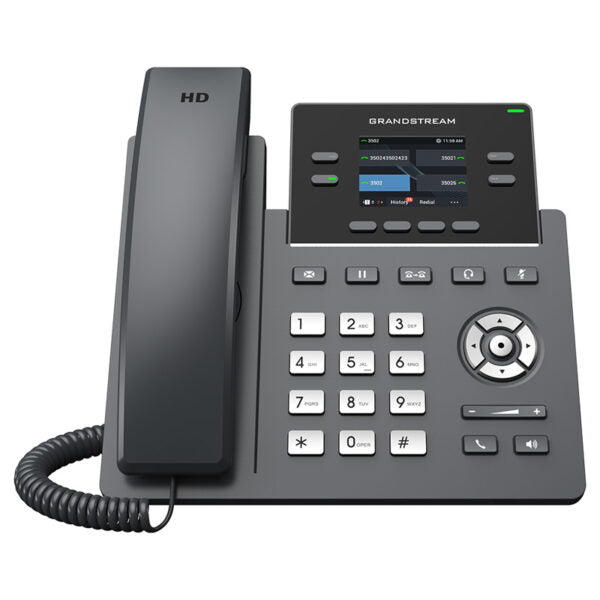
• A powerful 4-line carrier-grade IP phone with zero-touch provisioning for mass deployment and easy management • Sleek design with Wi-Fi support (GRP2612W), 16 virtual multi-purpose keys, color LCD with swappable face plates for logo customization • Enterprise-level security features, including secure boot, dual firmware images, and encrypted data storage • Supported by Grandstream’s Device Management System (GDMS) for centralized management and provisioning • Built for desktop workers and designed for easy deployment by enterprises, service providers, and other high-volume markets Key Features: • 4-line display • 2-SIP Account • Gigabit Ethernet ports • Swappable faceplate • Equipped with noise shield technology • HD audio • Up to 16 digital BLF Keys • Enterprise-level protection Weight: 2.1 lbs Dimensions: 12 × 9 × 4 in Brand: Grandstream Phone Type: Desk

About This Product

The Grandstream GRP2612G is a straightforward, no-frills desk phone aimed at businesses that need reliable, multi-line voice communication without the complexity of a full-featured video or collaboration terminal. It is a strong fit for reception areas, shared workspaces, or any desk where an employee handles multiple calls but does not require advanced telephony features like programmable keys or a large touchscreen. The device pairs naturally with a hosted VoIP service or an on-premises PBX, and its Gigabit Ethernet ports mean it can sit in a daisy-chain with a computer without slowing down the network.

A practical tradeoff is that while the phone supports up to four lines, it only has two SIP accounts, so each account can handle two concurrent calls. This is fine for most small-office or front-desk scenarios, but a power user managing six or more simultaneous calls would quickly outgrow it. The swappable faceplate is a nice touch for branding in a lobby or retail environment, but the phone lacks Bluetooth and Wi-Fi (the GRP2612W variant adds Wi-Fi), so it must be wired to the network.

For a Canadian small business or a Toronto office deployment, the GRP2612G is a solid entry-level choice—it is affordable, easy to provision via the Grandstream Device Management System, and works with most Canadian SIP carriers without special configuration. It would be overkill for a single-line home office, where a basic ATA or a single-line phone would suffice, and underpowered for a busy call centre where agents need dozens of BLF keys and headset integration beyond the basic RJ-9 port. The phone supports up to 16 digital BLF keys, but those require a compatible PBX and proper provisioning to be useful.
Services We Provide
  • Professional Installation & Configuration
  • Ongoing Maintenance & Support
  • Troubleshooting & Repairs
  • System Upgrades & Updates



