
Grandstream GRP2613W 6-Line Carrier-Grade IP WiFi Phone

Frequently Asked Questions

Start by verifying the signal strength on the phone’s display; moving the handset closer to the access point or away from metal shelving often stabilizes the link. Double‑check that your SSID is broadcasting on a supported band (2.4 GHz or 5 GHz) and that MAC address filtering isn’t blocking the phone. If the problem persists, test with an Ethernet cable; a stable wired connection usually means the issue is in the wireless environment, not the phone itself.
First confirm that the SIP server address, username, and password match exactly what your provider gave you—typos are the most common cause. Then check your firewall or router: SIP ALG (Application Layer Gateway) can rewrite packets and break registration, so try temporarily disabling it. If the phone is behind a double NAT, outbound calls might succeed while inbound fail; asking your provider about STUN or a Session Border Controller can help in that situation.
Choppy audio over Wi‑Fi often traces back to network congestion or interference. Reboot the phone and your access point, then test a call with a laptop or other devices temporarily disconnected to see whether bandwidth is the culprit. If the problem only occurs on 2.4 GHz, switch the phone to the 5 GHz band where there is usually less interference. A Toronto‑based VoIP support provider can usually diagnose this remotely if the issue continues.
Make sure the headset is in pairing mode and that no other device is currently connected to it. On the phone, navigate to Settings > Bluetooth, enable Bluetooth, and scan for devices; if the headset doesn’t appear, restart both the phone and the headset and try again. Remember that older Bluetooth profiles may not be supported, so checking your headset’s compatibility with Bluetooth 5.x can save time.
Verify that each BLF key is configured with the correct extension number and the proper ‘eventlist BLF’ or ‘dialog-info’ subscription method as required by your PBX. On some systems, the PBX itself needs to permit subscriptions from this phone’s IP address. A quick test is to watch the phone’s SIP logs (if enabled) while you toggle a colleague’s line state; missing NOTIFY messages usually point to a provisioning or PBX permission issue.
Reseat the Ethernet cable and confirm the switch port shows link lights. Then check that your DHCP server has available leases and hasn’t exhausted its pool. If the phone is connected via Wi‑Fi and still fails, temporarily connect an Ethernet cable—even just for boot—to see whether the issue is with wireless DHCP or with the DHCP server itself.
From the phone’s LCD menu, go to Settings > Advanced Settings (default password is usually ‘admin’) > Provision, and enter the full HTTPS URL of your provisioning server. If your network uses DHCP option 66 or 160 to deliver the URL automatically, you can first check the phone’s network status page to see whether it received that option. After saving, reboot the phone so it fetches the configuration.
The GRP2613W is designed to use one active network path at a time; it will typically prefer the wired connection when an Ethernet cable is plugged in. Connecting both doesn’t create a bonded or failover link—it just drains power and may confuse switching logic. For added reliability, focus on solid Wi‑Fi coverage or stick with the wired Gigabit port.
IP Phones

Grandstream GRP2613W 6-Line Carrier-Grade IP WiFi Phone
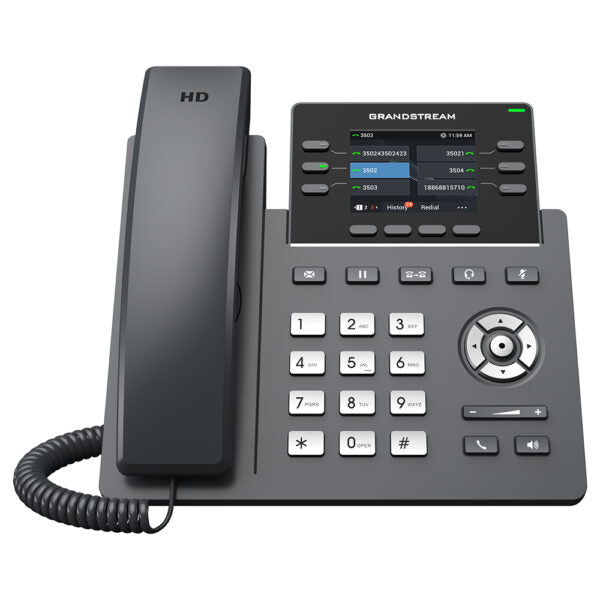
• Powerful 6-line carrier-grade IP phone with zero-touch provisioning for mass deployment and easy management • Sleek design with a suite of next-generation features, including: • 24 virtual multipurpose keys (VPKs) • Integrated Wi-Fi (GRP2613W) • Dual Gigabit ports • Color LCD with swappable face plates for easy logo customization • Enterprise-level security features, including: • Secure boot • Dual firmware images • Encrypted data storage • Centralized management and cloud provisioning via Grandstream’s Device Management System (GDMS) • Supports up to 4 SIP accounts (GRP2613), 6 SIP accounts (GRP2613W) and 6 multi-purpose line keys • Dual switched auto-sensing 10/100/1000 Mbps Gigabit Ethernet ports with integrated PoE • Swappable faceplate to allow for easy logo customization • Equipped with noise shield technology to minimize background noise • HD audio supporting all major codecs, including wideband codecs G.722 and Opus • Up to 24 digital BLF keys • Integrated dual-band (2.4GHz and 5GHz) Wi-Fi 6 (802.11a/b/g/n/ac/ax) and Bluetooth (GRP2613W only) • Enterprise-level protection, including secure boot, dual firmware images, and encrypted data storage • Weight: 2.38 lbs • Dimensions: 11.10 × 8.33 × 2.56 in • Phone Type: Desk, WiFi / WiFi Capable

About This Product

The Grandstream GRP2613W is a phone for organizations that manage fleets of devices centrally. It makes the most sense in mid-sized to large businesses, healthcare clinics, law offices, or educational campuses where IT staff rely on Grandstream’s Device Management System to provision and secure hundreds of endpoints. Its onboard Wi‑Fi 6 means you can place it in a huddle room or executive desk that lacks Ethernet, but you’ll need a well‑designed wireless network to avoid call‑quality surprises. For Canadian deployments, the dual Gigabit ports make it a clean pass‑through choice in offices where a single cable drop serves both a workstation and the phone.

This model fits naturally into environments that value security and uptime. Secure boot, dual firmware images, and encrypted storage are not marketing fluff on a carrier‑grade platform; they help protect regulated workloads. The swappable faceplate is practical when you need room‑specific branding or simply want a uniform look across a multi‑generation phone estate. It’s not a phone that wants to be hand‑configured one by one—if you’re still managing extensions manually, you’re better served by a simpler model with fewer accounts.

Where the GRP2613W reaches its limit is in heavy‑attendant situations. Twenty‑four BLF keys are generous for a desk phone, but a receptionist who monitors dozens of extensions or queue members will find that capacity tight. Likewise, it’s a bit oversized for a basic warehouse check‑in station or a kitchen phone that only ever uses one line. In those roles, the Wi‑Fi 6 capability and six SIP accounts become features that sit idle while you pay for hardware you don’t need.
Services We Provide
  • Professional Installation & Configuration
  • Ongoing Maintenance & Support
  • Troubleshooting & Repairs
  • System Upgrades & Updates



