
Grandstream GRP2650 14-Line Professional Carrier-Grade IP Phone

Frequently Asked Questions

Start by verifying that the SIP account credentials (username, password, and domain) are entered correctly in the phone’s web interface under Account settings. Next, confirm your network allows outbound SIP traffic—some corporate firewalls block ports 5060/5061. Temporarily testing with a static IP on the same subnet as your router can isolate DHCP or VLAN issues. If the problem continues, a Toronto-based VoIP support provider can usually review your settings remotely.
First, check that your network switch supports Power over Ethernet (802.3af/at) and that the port is enabled for PoE. Try a different port or a known-working PoE cable. The GRP2650 also comes with a 12V power adapter—plugging that in confirms whether the phone itself powers up. If it does but PoE still fails, the cable run may be too long or the switch may not be delivering enough wattage.
Wireless interference is the most common cause. Move the phone closer to your access point or switch to a 5GHz band if your network supports it. Also, check for other high-bandwidth devices (streaming, large downloads) on the same network. For business-critical calls, using the wired Ethernet port with PoE will give you the most reliable audio.
Each line key can be assigned to a specific SIP account. In the phone’s web UI, go to the 'Keys' section, choose a line key, and set it to 'Line' mode. Then assign a SIP account number (1-6). You can have multiple keys tied to the same account, or different accounts on different keys. The phone supports up to 6 SIP accounts total, so you can mix personal and business lines if your provider allows it.
Start by rebooting both the phone and the switch or router. Check the Ethernet cable connection—try a different cable or port. If using PoE and the phone didn't power up properly, the network link may not initialize. Access the phone’s local menu via the LCD (Menu > Network) to see if it obtained an IP address. If it shows 0.0.0.0 or a 169.254.x.x address, your DHCP server isn’t responding; verify that DHCP is enabled on your router.
Yes, the GRP2650 supports Electronic Hookswitch (EHS) for Plantronics headsets, which lets you answer and end calls from the headset itself. You’ll need a compatible EHS cable (typically the Plantronics APV-63 or similar). The phone also has a dedicated USB port for USB headsets, so you have wired, wireless, and Bluetooth options.
One-way audio usually points to a firewall or NAT problem blocking RTP traffic. Confirm that SIP ALG is disabled on your router—many Canadian ISP-provided modems have this on by default and it causes issues. On the phone itself, check that the 'Use NAT' and 'STUN' settings are configured correctly for your network. If your provider offers a session border controller, enable it for easier traversal.
Provisioning settings control automatic firmware updates. Log into the phone’s web interface and navigate to Settings > Upgrade. If you have a provisioning server URL configured, check that it’s reachable and that the firmware file is correct for your model. For manual updates, you can upload the firmware file directly, but first verify that you’re using the official Grandstream firmware for the GRP2650.
Those keys appear on the screen as additional pages (use the left/right arrow keys). In the web UI under 'Keys' settings, you can assign each key a function like Speed Dial, Busy Lamp Field (BLF), or Call Park. For BLF, you’ll need to know the extension number you’re monitoring. After programming, the phone must be rebooted for changes to take full effect.
This is often intermittent electrical noise from poor grounding or interference from nearby electronics. Try moving the phone’s power adapter away from other devices, or use a quality shielded Ethernet cable if going wired. If using PoE, ensure the switch is properly grounded. Also disable any DND or call waiting tones via the web interface to see if the sound is system-generated.
IP Phones

Grandstream GRP2650 14-Line Professional Carrier-Grade IP Phone
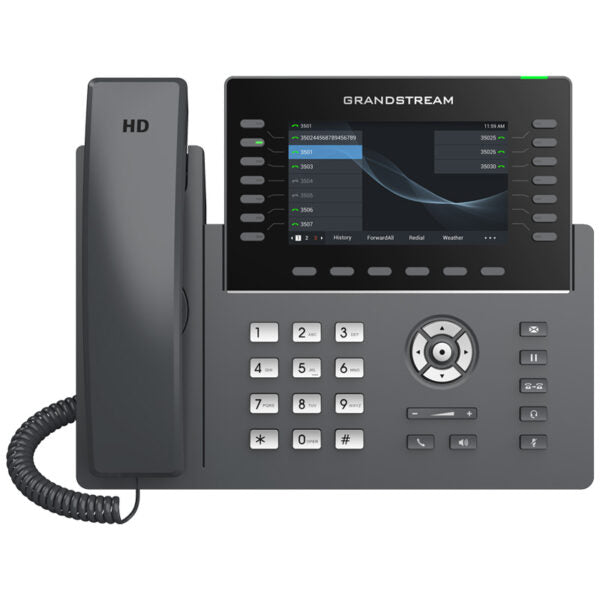
The GRP2650 is a professional 14-line model designed with zero-touch provisioning for mass deployment and easy management. It features a sleek design and a suite of next-generation features, including: • 5-way voice conferencing to maximize productivity • Integrated PoE & Wi-Fi • Full HD audio on both the speaker and handset for utmost clarity • EHS support for Plantronics headsets • Integrated USB headset support This phone offers enterprise-level security, including secure boot, dual firmware images, and encrypted data storage. It is supported by Grandstream's Device Management System (GDMS), which provides a centralized interface to configure, provision, manage, and monitor deployments of Grandstream endpoints. Key features include: • 56 Virtual Multi-Purpose Keys • 5-inch color LCD screen • Support for Bluetooth, EHS (Plantronics), and USB headsets Weight: 3.57 lbs Dimensions: 10.35 × 7.91 × 3.23 in Phone Type: Desk, WiFi / WiFi Capable Technical specifications include: • Graphic Display: 5.0 inch (1280×720) TFT color LCD • Network Interfaces: 2x auto-sensing Gigabit Ethernet ports with integrated PoE • Wi-Fi: Yes, integrated dual-band WiFi 802.11 a/b/g/n/ac (2.4Ghz & 5Ghz) • Bluetooth: Yes, integrated • Feature Keys: 14 line keys with up to 6 SIP accounts Package content includes: GRP2650 phone Handset with cord Phone stand 12V power adapter Network cable Quick Installation Guide

About This Product

The Grandstream GRP2650 is a professional-grade IP phone designed for users who manage high call volumes and need quick access to multiple lines, speed dials, or BLF keys. It fits naturally in a busy office environment—think reception desks, executive suites, or any role where call handling and multitasking are critical. The phone’s 14 line keys and 56 virtual multi-purpose keys make it a strong upgrade from a basic 2- or 4-line desk phone, especially for teams that rely on presence monitoring or shared extensions.

Where this phone really shines is in a managed deployment. Its zero-touch provisioning and support for Grandstream’s GDMS mean an IT team can preconfigure dozens or hundreds of units and ship them to desks without hands-on setup. This makes it a solid choice for a growing GTA-based business that needs to roll out phones quickly across multiple offices. The integrated Wi-Fi and Bluetooth are convenient for flexible desk arrangements, but for the most reliable call quality, a wired PoE connection is still recommended in a permanent setup.

One practical tradeoff to consider is the phone’s size and weight—it’s a substantial desktop device, so it may not suit a cramped hot-desk or home-office setting. It also lacks a built-in camera, so it’s not a video conferencing endpoint on its own. For a single-line user who rarely needs more than a call and hold function, this phone would be overkill and overly complex. On the other hand, for a power user handling multiple concurrent calls while monitoring team status, the GRP2650 offers a very capable, carrier-tested platform that can integrate with standard Canadian SIP trunk providers without special configuration.
Services We Provide
  • Professional Installation & Configuration
  • Ongoing Maintenance & Support
  • Troubleshooting & Repairs
  • System Upgrades & Updates



