
Grandstream GXP1630 IP Phone-New in Open Box
Frequently Asked Questions
First, double-check that the SIP server address, account name, and password entered in the phone’s web interface exactly match the details provided by your provider. Ensure the network connection is active and that the phone has obtained a valid IP address; you can test this by pinging the SIP server from a PC on the same subnet. If the issue persists, confirm that your firewall is not blocking SIP or RTP ports—many Canadian business-grade internet connections require specific port forwarding or an ALG setting disabled.
If you’re using PoE, check that the switch or injector is supplying power and that the Ethernet cable is securely connected. With the included power adapter, verify the adapter is firmly plugged into the phone and a working outlet. Try a different known-good cable and power source before concluding the unit is faulty; a loose connection or dead outlet accounts for most power issues.
Begin by checking your network bandwidth and latency—streaming or large file transfers on the same LAN can cause jitter. Verify that the phone’s firmware is up to date through the Grandstream support site. Also, ensure you are using a quality headset or handset; if the issue appears only on speakerphone, try lowering the volume and moving the phone away from other electronics that might introduce interference.
Access the phone’s web interface and go to the 'Account' or 'DSS Keys' section. For each BLF key you want to use, assign it as a Busy Lamp Field and enter the extension number you want to monitor. Save the settings and reboot the phone. Make sure your PBX supports BLF and that the monitored extension is provisioned correctly on the server side.
Yes, the GXP1630 works over any broadband connection that provides a standard SIP service. For home or small office use, ensure your router has QoS enabled for voice traffic and that UPnP is turned off to avoid port conflicts. Most Canadian ISPs (Rogers, Bell, Telus) will work fine as long as you have a static or reliable dynamic IP and a SIP-compatible account.
First, make sure your headset is physically connected to the headset port and that the phone is not in handset or speaker mode. If you are using a Plantronics headset with EHS, verify that the EHS cable is plugged into the headset base and the phone’s EHS port, and that the 'Headset Type' setting in the phone’s web interface is set to 'EHS' or 'Plantronics'. Try a different headset if possible to rule out a cable or compatibility issue.
Only perform a factory reset if you are absolutely sure you have backed up your configuration or are prepared to reconfigure from scratch. To reset, press and hold the 'Menu' key while the phone is idle, navigate to 'Reset' or 'Factory Reset', and confirm. Alternatively, you can reset via the web interface under 'Maintenance' > 'Factory Reset'. After the reset, re-enter your settings; if you are unsure, contact your VoIP support provider first.
Check that call waiting is enabled on the phone: go to 'Settings' > 'Call Features' and ensure 'Call Waiting' is set to 'Yes'. Also confirm that your SIP service provider has call waiting provisioned on your account. If it is still silent, try a different handset or headset to rule out a hardware problem, and verify that the phone’s firmware is current.
Yes, the GXP1630 is SIP-compatible and works with most open-source and commercial PBX systems. You will need to enter the PBX IP address, port, and extension credentials in the phone’s web interface under 'Accounts'. For Auto Provisioning, you can point the phone to a provisioning server URL via DHCP option 66 or manually. Many Canadian ITSPs provide pre-configured profiles for Grandstream phones.
First, check whether the issue affects all calls or only calls to certain numbers, as this can indicate a network or provider problem. Update the phone’s firmware to the latest version from Grandstream’s site, as older firmware may have unstable RTP handling. If the drops happen during heavy network usage, enable QoS on your router to prioritize voice traffic and consider moving the phone to a dedicated VLAN for VoIP.
IP Phones
Grandstream GXP1630 IP Phone-New in Open Box
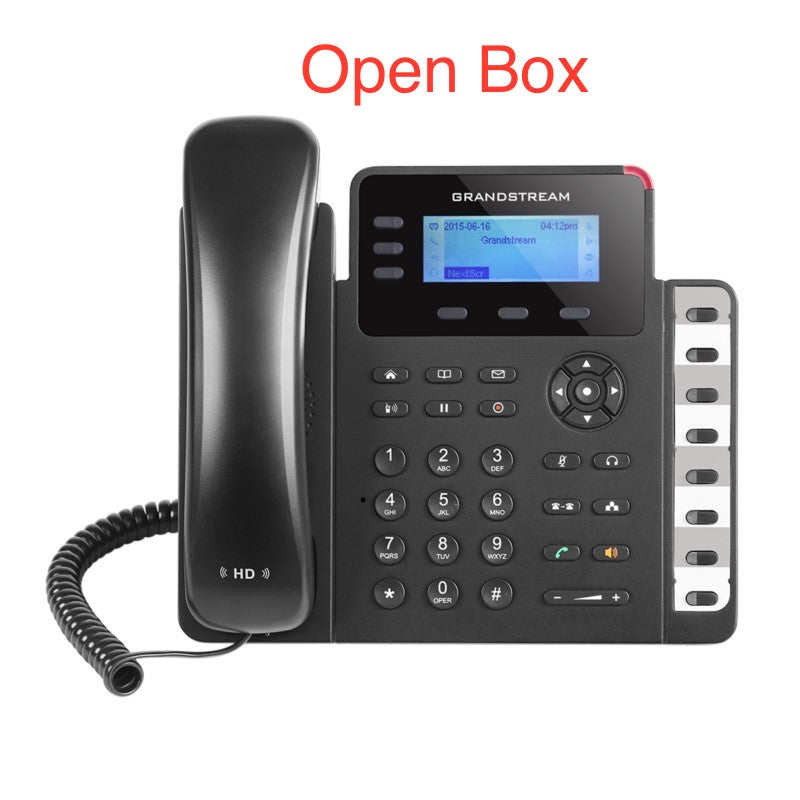
* Powerful Linux-based IP phone for small-to-medium businesses * Key features: • 3 lines, 3 XML programmable soft keys, 8 BLF keys and 4-way conferencing • Dual-switched gigabit network ports, integrated PoE and HD audio • Multi-language support, call-waiting, integrated PoE and EHS support for Plantronics headsets • Up to 1000 contacts, call history up to 200 records, customizable phone book and flexible dial plan • Backlit LCD screen with 132×64 (2.98’’) display area • Compatible with SIP RFC3261 protocols and standards, including TCP/IP/UDP, RTP/RTCP, HTTP/HTTPS, and more • Weight: 1.8 lbs, Dimensions: 12 × 9 × 4 in
About This Product
The Grandstream GXP1630 is a practical fit for small-to-medium business offices where desk phones are used primarily for internal and external calls. It works well as a direct replacement for basic single-line phones, offering three lines and eight BLF keys that make it suitable for receptionists or managers who need to monitor a handful of extensions. The dual gigabit ports let it sit between a workstation and the network without compromising speed, and integrated PoE simplifies cabling by eliminating the need for a separate power adapter. While it packs HD audio and EHS support for Plantronics headsets, its 2.98-inch backlit LCD and limited line count mean it is not designed for heavy call-center use or users who need dozens of programmable buttons. Deployed in a standard GTA office with a hosted SIP trunk or an on-premise PBX like FreePBX, it delivers reliable voice quality and basic collaboration features such as four-way conferencing and a 1,000-contact directory. At its price point, it represents a cost-effective choice for environments that require a solid, feature-rich desk phone without the overhead of a high-end model.
Services We Provide
- Professional Installation & Configuration
- Ongoing Maintenance & Support
- Troubleshooting & Repairs
- System Upgrades & Updates



