
Grandstream GXP2135 Multi-Line IP Phone-New in Open Box
AIM Telecom provides troubleshooting and configuration support for this product to businesses across Toronto and the GTA. Contact us to confirm whether the issue can be handled by phone or requires on-site service.
Get Support Call 416-312-4819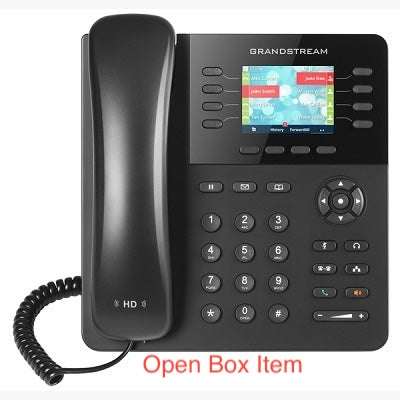
Common issues and fixes
Reviewed troubleshooting steps are not yet available for this model.
Ask AIM Telecom about this productAbout this product
The GXP2135 is an enterprise-grade IP phone that supports Gigabit speeds and up to 32 virtual BLF/speed-dial keys, making it ideal for busy workers. Key features include:
• Up to 8 lines/line keys and 4 SIP accounts
• 2.8 inch (320 x 240) color display LCD with full HD audio
• Integrated PoE and dual Gigabit network ports
• Built-in Bluetooth for syncing headsets and mobile devices
• 32 digitally programmable and customizable BLF/speed-dial keys
Additional information includes:
• Weight: 3 lbs
• Dimensions: 11 × 10 × 4 in
• Brand: Grandstream
• Phone Type: Desk
Technical specifications include:
• General Info:
+ Model: GXP2135
+ Box Contents:
- Phone Main case
- Handset
- 12v power Adapter
- Ethernet Cable
- High Stand
- Wall Mount Bracket
- Quick Installation Guide
- GPL License
• Network:
+ Dual switched auto-sensing 10/100/1000 Mbps Gigabit Ethernet ports with integrated PoE
+ Bluetooth: Yes, integrated
• Audio:
+ HD audio: Yes, HD handset and speakerphone with support for wideband audio
Please refer to the product datasheet for a full list of specifications.
• Up to 8 lines/line keys and 4 SIP accounts
• 2.8 inch (320 x 240) color display LCD with full HD audio
• Integrated PoE and dual Gigabit network ports
• Built-in Bluetooth for syncing headsets and mobile devices
• 32 digitally programmable and customizable BLF/speed-dial keys
Additional information includes:
• Weight: 3 lbs
• Dimensions: 11 × 10 × 4 in
• Brand: Grandstream
• Phone Type: Desk
Technical specifications include:
• General Info:
+ Model: GXP2135
+ Box Contents:
- Phone Main case
- Handset
- 12v power Adapter
- Ethernet Cable
- High Stand
- Wall Mount Bracket
- Quick Installation Guide
- GPL License
• Network:
+ Dual switched auto-sensing 10/100/1000 Mbps Gigabit Ethernet ports with integrated PoE
+ Bluetooth: Yes, integrated
• Audio:
+ HD audio: Yes, HD handset and speakerphone with support for wideband audio
Please refer to the product datasheet for a full list of specifications.
More product details
The Grandstream GXP2135 is built for the busy professional who handles a steady volume of calls and needs instant visual awareness of their team. It fits naturally on the desk of a receptionist, executive assistant, or sales lead in a mid-sized office. The high-resolution color screen and the large block of programmable keys are the core of its value, letting you monitor colleagues’ lines and dial them with a single touch. This makes it a strong choice for environments like a law firm, medical practice, or any GTA-based business where staff need to quickly transfer calls and see who is available.
It pairs well with a cloud-based VoIP platform or an on-premise Grandstream UCM-series PBX. The integrated Bluetooth is a practical touch for using a wireless headset without a dongle, and the dual Gigabit ports simplify cabling by letting your computer share the single network drop at the desk. Power over Ethernet support means one less cable to manage if your network switch supports it. For a small office already invested in the Grandstream ecosystem, this phone slots in seamlessly.
A buyer should be aware of its position in the lineup. While it delivers strong call handling and a good display, it is a step below models with larger touchscreens or built-in video. The 32 programmable keys are virtual, meaning you scroll through pages to see them all, rather than having physical buttons for every function. For a user who needs to see all 32 contacts at a glance without tapping a page button, a model with a physical sidecar expansion module might be a better long-term fit, though it will cost more.
For a home office or a user with only one or two lines, this device is overkill; a simpler phone would suffice. Conversely, this is underpowered for a busy receptionist handling dozens of lines across multiple sites without an expansion module. It hits a sweet spot as the primary phone for a power user within a connected team.
It pairs well with a cloud-based VoIP platform or an on-premise Grandstream UCM-series PBX. The integrated Bluetooth is a practical touch for using a wireless headset without a dongle, and the dual Gigabit ports simplify cabling by letting your computer share the single network drop at the desk. Power over Ethernet support means one less cable to manage if your network switch supports it. For a small office already invested in the Grandstream ecosystem, this phone slots in seamlessly.
A buyer should be aware of its position in the lineup. While it delivers strong call handling and a good display, it is a step below models with larger touchscreens or built-in video. The 32 programmable keys are virtual, meaning you scroll through pages to see them all, rather than having physical buttons for every function. For a user who needs to see all 32 contacts at a glance without tapping a page button, a model with a physical sidecar expansion module might be a better long-term fit, though it will cost more.
For a home office or a user with only one or two lines, this device is overkill; a simpler phone would suffice. Conversely, this is underpowered for a busy receptionist handling dozens of lines across multiple sites without an expansion module. It hits a sweet spot as the primary phone for a power user within a connected team.