
Grandstream GXP2140 Enterprise IP Phone

Frequently Asked Questions

Start by confirming that the account credentials (SIP server address, username, and password) are entered exactly as your provider supplied them. Then verify that the phone is getting a valid IP address from your network—check under Status > Network Status. If the IP looks correct but registration still fails, ensure your firewall or router isn't blocking SIP port 5060 and the RTP port range your provider uses.
First, check that the handset or headset is firmly seated in its port. On a call, press the Speaker button to see if audio works through the speakerphone—if it does, the issue may be with the handset or headset. Also confirm that the phone’s volume is not muted or set to zero, and that any headset has sufficient battery if it’s a Bluetooth model.
Unplug the Ethernet cable and plug it back in, then check the switch’s port LED to see if it lights up. Try a different known-working PoE port on the same switch, and if possible test the phone with a PoE injector to rule out the switch. Also verify the Ethernet cable—a damaged or low-quality cable can prevent the device from receiving power.
Place the headset and phone within a few feet of each other and remove other nearby Bluetooth devices that could cause interference. In the phone’s LCD menu, go to Settings > Bluetooth and delete the existing pairing, then re-pair from scratch. If the problem continues, try pairing a different Bluetooth headset to see if the issue follows the phone or the headset.
A stalled provisioning screen often means the phone cannot reach your provisioning server. Power-cycle the phone by unplugging the Ethernet cable, waiting ten seconds, and plugging it back. While it reboots, verify that your network is up and that the provisioning URL is reachable from another device on the same subnet. If you use zero-touch provisioning, confirm that the MAC address is still assigned correctly in your server.
Log into the phone’s web interface, go to the Programmable Keys section, and find the soft keys tab. For each key you want to use, choose Speed Dial as the mode and enter the name and number. After saving, the soft key labels on the phone’s screen will update immediately.
Test the call with the handset, speakerphone, and a headset to see if echo happens on all of them. If it’s only on the speakerphone, lower the speaker volume slightly and avoid pointing the phone directly at a wall. If echo persists across all modes, check with your VoIP provider to see if they can adjust echo cancellation settings on their side, as local phone adjustments are limited and safe to leave untouched.
Press and hold the Home button for a few seconds to see if the phone returns to the home screen. If not, try a soft reboot by unplugging the Ethernet cable, waiting fifteen seconds, then plugging it back—this simply restarts the phone without changing any settings. Avoid any factory reset steps until you have ruled out simpler causes, as a reset would erase your configuration.
Yes, if the headset comes with a base that connects via the phone’s RJ9 headset jack or the EHS port. The EHS port allows compatible headsets to answer and end calls directly. Check your headset’s manual for GXP2140 compatibility—many Plantronics and Jabra wireless headsets that support EHS will work with an adapter cable.
One-way audio often points to a firewall or NAT issue. Look at your router’s SIP ALG setting—if it’s enabled, try turning it off temporarily as ALG can sometimes break RTP streams. If your provider supports it, switch to a TCP or TLS transport for SIP instead of UDP, which can help with NAT traversal without changing firewall rules.
IP Phones

Grandstream GXP2140 Enterprise IP Phone
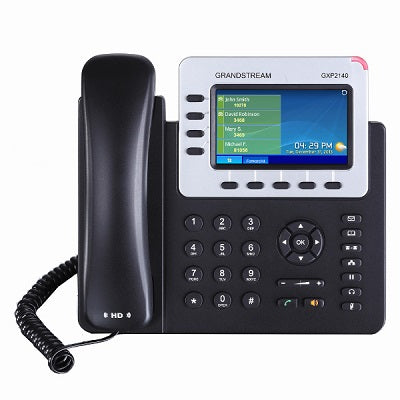
• The Grandstream GXP2140 is a versatile Linux-based Enterprise IP phone, featuring 4 lines, 5 programmable soft keys, and 5-way conferencing. • Key features include: • • 4.3 inch (480 x 272) color LCD screen with HD audio • • Bluetooth, USB, and EHS capabilities for flexibility • • Pre-loaded weather & currency exchange apps • • Compatibility with GXP2200EXT modules for up to 160 lines • • Dual Gigabit ports with integrated PoE • The phone supports: • • 4 SIP accounts and 5-way voice conferencing • • HD audio on speakerphone and handset • • Bluetooth V2.1 for use with headsets and mobile devices • Additional information includes: • • Weight: 2.6 lbs • • Dimensions: 15 × 10 × 4 in • • Brand: Grandstream • • Phone Type: Desk • Technical specifications include: • • Protocols/Standards: SIP RFC3261, TCP/IP/UDP, RTP/RTCP, HTTP/HTTPS, ARP, ICMP, DNS (A record, SRV, NAPTR), DHCP, PPPoE, SSH, TELNET, TFTP, NTP, STUN, SIMPLE, LLDP, LDAP, TR-069, 802.1x, TLS, SRTP, IPv6, CDP/SNMP/RTCP-XR • • Network Interfaces: Dual switched auto-sensing 10/100/1000 Mbps Gigabit Ethernet ports with integrated PoE • • Graphic Display: 4.3 inch (480×272) TFT color LCD • • Bluetooth: Yes, Bluetooth V2.1 • • Feature Keys: 11 dedicated function keys for various functions

About This Product

The GXP2140 fits the desk of a busy professional who juggles several lines and wants quick access to colleagues, customers, or departments without paging through menus. Its four SIP accounts and five programmable soft keys make it a natural choice for reception areas, sales floors, or shared workspaces where call volume is steady and visual call management counts. The color screen and dedicated function keys strike a balance between a simple key phone and a full touchscreen console, giving you one-touch operations that speed up answering, transferring, and conferencing.

When paired with GXP2200EXT expansion modules, the phone scales from a handful of extensions to a robust multi-line attendant setup, easily handling the needs of a busy Toronto medical office or a downtown law firm where clients expect to be routed quickly and professionally. The dual Gigabit ports with PoE simplify cabling in a modern office; you can tuck the phone into a standard network drop without adding power bricks, which is especially practical in open-plan GTA offices that favor clean desktops.

There are tradeoffs. The Bluetooth is version 2.1, which is stable but limits range and simultaneous connections compared to newer standards; it works well with a cordless headset nearby but is not designed to stream music or pair with multiple devices at once. The phone handles four SIP accounts natively, so if your workflow requires six or eight accounts without an expansion module, this model will feel cramped. It also lacks built-in Wi-Fi, so every GXP2140 needs a wired Ethernet connection—something to plan for in retrofit spaces where only Wi-Fi is available.

For a small team member who needs just one or two lines and occasional conferencing, the GXP2140 is more than necessary; a simpler model would cost less and do the job. On the other hand, if you need a large touchscreen, video calling, or a full Android-based phone, this isn't that device. It shines in environments where structured call flow matters more than flash, and where reliability on a proven Linux platform counts.
Services We Provide
  • Professional Installation & Configuration
  • Ongoing Maintenance & Support
  • Troubleshooting & Repairs
  • System Upgrades & Updates



