
Grandstream GXV3450 IP Video Phone for Android

Frequently Asked Questions

First confirm the phone is getting an IP address by checking the status screen; if it shows a 169.254.x.x address, the DHCP server isn’t responding—try reseating the cable and rebooting the phone. If the IP is valid, log into the web UI and verify that the SIP server address, username, and password exactly match the details from your VoIP provider. A Toronto‑based VoIP support team can often spot a typo or provisioning mismatch remotely.
Check the physical camera shutter that slides across the lens at the top of the phone; it’s easy to leave it closed after a private moment. If the shutter is open, go to the Android settings under Apps → Camera and ensure the Grandstream video app has camera permissions enabled. Rebooting the phone will also restart the camera service if it hung.
After pairing, the headset should appear as ‘Connected’ in the Android Bluetooth menu, but you also need to select it as the audio route during a call—tap the speaker icon on the call screen and choose the Bluetooth headset. If it still doesn’t work, forget the device and pair again within one metre of the phone to avoid interference, then test with a quick internal call.
Move the phone closer to the access point temporarily to rule out signal strength; the GXV3450 works best with at least two bars on the 5 GHz band for video calls. In the Wi‑Fi settings, turn off any power‑saving or ‘sleep’ options that might disconnect the radio, and if your office uses band steering, try connecting to the 5 GHz network explicitly instead of a combined SSID.
Lower the speaker volume slightly—often the microphone is picking up its own output at high levels. If the problem persists, enable Noise Shield in the phone’s audio settings (it’s usually on by default) and test with the handset to see if the echo is only on speaker, which would point to the room acoustics or the phone’s position near a reflective surface.
Not yet. Hold down the power button for about ten seconds until the screen goes black, then release and press it again to restart—this forces a cold boot without wiping any settings. If the phone freezes repeatedly only when a specific Android app is open, uninstall that app first before considering any deeper reset.
Try a different Ethernet cable known to work, as a faulty patch cable can stop PoE negotiation. If the port has a power‑scheduling or LLDP setting, make sure it’s not disabled. Connecting the optional power adapter, if you have one, will quickly tell you whether the phone itself is fine and the issue is strictly the switch’s PoE delivery.
Press the ‘Accounts’ icon on the home screen or navigate to the phone’s web interface. Select an empty account slot, enter the display name, SIP server address, user ID, and password exactly as provided by your VoIP carrier, then save and wait for the status to change to ‘Registered’. To avoid manual entry on multiple phones, you can use the auto‑provisioning feature with a configuration server URL.
The phone runs Android 11, so you can install the Teams or Zoom app from the Google Play Store if your account allows it. Native SIP calling won’t integrate with those apps, but you can use the phone for standard telephony and the app for video meetings separately. For full direct routing to a Teams SIP trunk, some additional configuration through a certified SBC partner is required.
The built‑in camera captures 720p at 30 fps, so in a well‑lit room the image should be clear. If it appears grainy, check if you are in a low‑light environment—adding a desk lamp aimed at your face often helps dramatically. Also confirm the call hasn’t fallen back to a lower resolution due to limited bandwidth; you can verify the current video call stats in the phone’s call information screen.
IP Phones

Grandstream GXV3450 IP Video Phone for Android
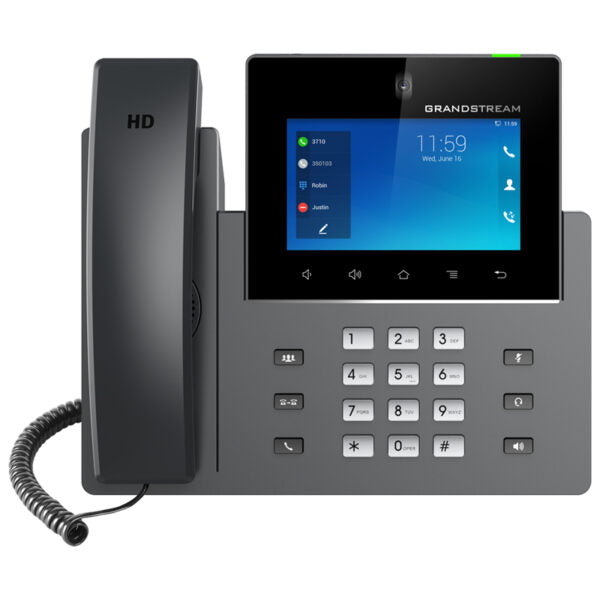
• The GXV3450 IP Video Phone for Android combines a 16-line IP video phone with a multi-platform video collaboration solution and the functionality of an Android tablet, offering an all-in-one communications solution. • Key features: • 16 lines with up to 16 SIP accounts • Built-in 2 MP CMOS camera for video calling with privacy shutter • Runs on Android 11 OS • Built-in Bluetooth 5.0 • Dual-switched autosensing 10/100/1000mbps network ports • Integrated dual-band Wi-Fi 5 (2.4GHz & 5GHz) • Built-in PoE/PoE+ • Dual MIC & HD speakerphone with noise shield 2.0 • Quad-core 1.8GHz ARM Cortex A55 processor with 2GB RAM and 16GB eMMC Flash • 5.0” (1280×720) capacitive 5-point touch screen IPS LCD • Peripherals include USB3.0, USB2.0, RJ9 headset with EHS • 10-way audio conferencing & 3-way 720p 30fps HD video conferencing capability • Weight: 4.58 lbs • Dimensions: 14.8 × 9.7 × 4.13 in • Phone Type: Desk, Video, WiFi / WiFi Capable

About This Product

The Grandstream GXV3450 targets professionals and front‑desk roles where a desk phone needs to double as a compact video conferencing endpoint and a light Android tablet. It fits naturally in executive offices, huddle spaces, or reception counters where face‑to‑face communication adds value, but where a full‑room system would be too large or expensive. With 16 SIP accounts it can also serve a coordinator who manages multiple lines or tenants, such as a property manager or shared‑office operator.

Pair it with a Grandstream UCM PBX or any standards‑based SIP platform, and you get an all‑in‑one device that replaces a separate phone, webcam, and secondary tablet. Its dual‑band Wi‑Fi and PoE+ support mean it can be deployed quickly in a Toronto office without pulling extra cabling, and the privacy shutter on the camera addresses the common concern of always‑on video in personal workspaces.

The built‑in 5‑inch touchscreen is crisp, but its size makes it a better fit for one‑on‑one calls or quick three‑way video check‑ins rather than hour‑long team meetings. Performance is generally smooth for telephony and a few selected Android apps, but loading heavy productivity suites in the background can occasionally slow the interface—this is primarily a phone with Android convenience, not a full tablet replacement.

In call‑centre or high‑volume voice‑only environments the GXV3450 is overkill; a simpler Gigabit IP phone would do. Conversely, a large boardroom that expects 1080p multi‑party video with pan‑tilt‑zoom cameras will need a dedicated conferencing system. The sweet spot is the knowledge worker who wants high‑quality audio, occasional video, and a familiar Android touch experience right on the desk.
Services We Provide
  • Professional Installation & Configuration
  • Ongoing Maintenance & Support
  • Troubleshooting & Repairs
  • System Upgrades & Updates



