
Grandstream GXV3470 IP Video Phone for Android

Frequently Asked Questions

Make sure the camera’s privacy shutter is fully open and the camera hasn’t been disabled in the call or account settings. Confirm that the current call uses a video codec (H.264 or VP8) and that the remote party also supports video. If you’re using a UC app, verify in Android settings that the app has permission to use the camera.
Double-check the SIP server address, username, and password entered in the account settings. Confirm the phone has a working network connection—try opening the web browser to a known site. If your firewall or NAT hides the phone, ensure SIP ALG is off and the correct UDP/TCP port is open. If registration still fails, a Toronto-based VoIP support provider can verify server‑side settings remotely.
First, clean the screen with a soft, dry cloth to remove any residue that might block touch. Disconnect the Ethernet cable (or power adapter) for a few seconds, then reconnect to restart the phone. If the problem persists, remove any third‑party screen protector and test again.
Test on a wired connection if you’re currently using Wi‑Fi, since video calls demand more stable bandwidth. In the phone’s audio settings, temporarily turn off Noise Shield 2.0 to see if aggressive noise cancellation is causing audio gaps. Also check that your network isn’t congested with large downloads or streaming during the call.
Try moving the phone closer to the access point or switching to the 5 GHz band if available. If your access point supports Wi‑Fi 6, ensure it’s running the latest firmware. For a definitive test, switch to a wired connection—if the problem disappears, you know the issue is with the wireless environment, not the phone.
Confirm the handset cord is fully plugged into the base. Check that the handset volume is not set to zero and that the audio path isn’t accidentally routed to Bluetooth or speaker. Try making a call using the speakerphone—if that works, the issue is likely the handset or its cord. If the problem continues, a local Toronto VoIP specialist can help diagnose the audio path.
Go to Settings > Accounts and add a new account. Enter the SIP server address, user ID, authentication name, and password supplied by your VoIP provider. Set the account to active and choose your preferred transport (UDP, TCP, or TLS). The phone will attempt to register immediately—a green indicator confirms success.
Because it runs Android 11, you can install the Teams or Zoom app from the Google Play Store if your administrator allows it. The phone’s camera and microphone work with those apps just like on an Android tablet. For native Teams voice integration via SIP, you’d need a Direct Routing gateway—your IT team can advise on the best approach.
Enable Bluetooth in the Android Settings menu, then put your headset in pairing mode. Tap the headset’s name when it appears in the device list. After pairing, during a call you can switch the audio path to Bluetooth using the phone’s call‑screen controls. The built‑in Bluetooth 5.0 works reliably with most modern headsets.
Yes, it supports both PoE (802.3af) and PoE+ (802.3at). Simply connect the network cable to a PoE‑enabled switch or injector, and the phone will power on without needing the optional AC adapter. If you’re using Wi‑Fi only, you still need a power source—either PoE through the LAN port or the separate power supply.
IP Phones

Grandstream GXV3470 IP Video Phone for Android
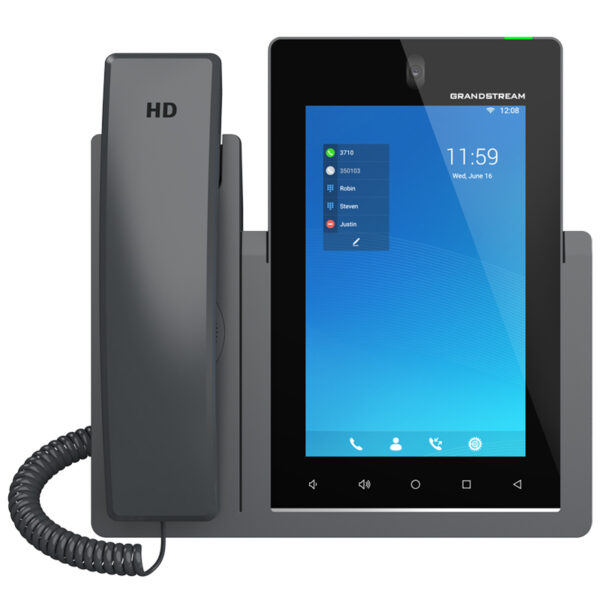
The GXV3470 is a powerful desktop video phone for enterprise users, offering an all-in-one communications solution. This IP video phone delivers a powerful experience through its 7-inch 1280×800 capacitive touch screen, advanced megapixel tilt-able camera, dual microphones and support for HD video conferencing. Key Features: • Supports up to 16 SIP accounts • Built-in 2 mega-pixel CMOS camera • Runs on Android 11 OS • Integrated Bluetooth 5.0 • Dual-switched auto-sensing 10/100/1000mbps network ports • Integrated dual-band Wi-Fi 6 (2.4GHz & 5GHz) • Built-in PoE/PoE+ • Dual MIC & HD speakerphone with noise shield 2.0 • Quad-core 2.0GHz ARM Cortex A55 processor with 2GB RAM and 16GB eMMC Flash This desktop video phone combines a state-of-the-art IP video phone, an advanced video collaboration solution, and the functionality of an Android tablet, offering businesses worldwide a powerful desktop communication and productivity solution. Additional Information: • Weight: 4.58 lbs • Dimensions: 14.8 × 9.7 × 4.13 in • Brand: Grandstream • Phone Type: Desk, Video, WiFi / WiFi Capable

About This Product

The Grandstream GXV3470 is aimed at executives, team leads, and shared meeting spaces where crisp video collaboration matters. It replaces the need for a separate webcam, tablet, and IP phone on the desk, functioning as a single Android-powered endpoint. That Android layer means you can run familiar unified communications apps natively, but it also introduces a smart-device complexity that may feel heavier than a standard SIP phone for users who only need voice.

This model fits best in mid-sized to large Canadian offices that already standardize on Grandstream’s UCM or a third-party IP PBX. It can also stand alone with a hosted VoIP provider, provided the SIP trunk supports video codecs. Its gigabit Ethernet and dual-band Wi‑Fi 6 give flexible connectivity, but for stable HD video we recommend a wired LAN connection whenever possible. The built‑in PoE+ support simplifies cabling in corporate suites, like the typical GTA office tower, where PoE switches are already deployed.

Buyers should weigh the cost against their actual video call frequency. A call centre agent or receptionist who rarely uses video is better served by a simpler Grandstream GRP model. On the other hand, a financial advisor or remote team leader doing screen‑shares and face‑to‑face meetings throughout the day will benefit from the dedicated camera, touch screen, and multiple SIP accounts.

Bear in mind that while the phone can run third‑party Android apps, not all are optimized for the 7‑inch form factor, and IT departments may need to manage app updates and security policies just as they would for tablets. That extra management overhead is worth the gain in productivity only when video collaboration is a core part of the workflow.
Services We Provide
  • Professional Installation & Configuration
  • Ongoing Maintenance & Support
  • Troubleshooting & Repairs
  • System Upgrades & Updates



