
Grandstream GXV3480 IP Video Phone for Android

Frequently Asked Questions

First, verify that the SIP account credentials (username, password, and server address) are entered correctly in the phone's account settings under Settings > Accounts. Also confirm that the phone has a stable network connection—try pinging the SIP server from the phone's network tools. If the issue persists, check with your provider that the account is active and not blocked.
Ensure the phone is receiving adequate power. If using PoE, verify that your switch provides PoE+ (802.3at) as the GXV3480 requires more power than standard PoE. If using the power adapter, check that it is plugged in securely and that the outlet is working. Try a different Ethernet cable or port to rule out a physical connection issue.
Go to Settings > Network & Internet > Wi-Fi and enable Wi-Fi. Select your network from the list and enter the password. Note that for the best call quality, a wired Ethernet connection is recommended; Wi-Fi may introduce latency or packet loss, especially on busy networks.
Check your network connection—if using Wi-Fi, try switching to a wired Ethernet connection. Also, ensure that no other devices are heavily using bandwidth (like streaming video or large downloads) during calls. You can also try reducing the audio codec to G.711 in the phone's account settings, as it uses less bandwidth than higher-compression codecs.
Yes, the GXV3480 has built-in Bluetooth 5.0. Pair your headset by going to Settings > Connected devices > Bluetooth and selecting your headset from the list. Once paired, you can switch audio to the headset during a call using the phone's interface.
First, check that the camera privacy shutter is open—slide it to the side. Then, in the video call app, ensure the camera is enabled and not blocked by permissions. Go to Settings > Apps & notifications > [your video app] > Permissions and allow camera access. If the issue continues, restart the phone.
A factory reset will erase all settings and data. Before proceeding, confirm that you have exhausted other options, such as contacting your VoIP provider for account recovery. To reset, power off the phone, then press and hold the reset pinhole button (located on the back) while powering it on, and release when the screen shows the reset prompt. Contact your VoIP support provider before doing this if you are unsure.
Clean the screen with a soft, dry cloth to remove any dirt or moisture. If the issue persists, try a soft reboot by power cycling the phone (unplug power, wait 10 seconds, and plug back in). If the problem continues, the touchscreen may need calibration or replacement—contact your VoIP support provider for assistance.
Yes, the GXV3480 is a standard SIP phone and should work with any SIP-based VoIP provider in Canada, including Telus, Rogers, and many smaller providers. You will need to configure the SIP account settings provided by your carrier. For enterprise deployments in the GTA, a Toronto-based VoIP support company can assist with provisioning and troubleshooting.
Firmware updates can be performed through the phone's web interface or via provisioning. To update manually, go to Settings > About phone > System updates and check for updates. Alternatively, your VoIP provider may push updates automatically if they use a provisioning server. Always ensure the phone is on a stable power and network connection during the update to avoid corruption.
IP Phones

Grandstream GXV3480 IP Video Phone for Android
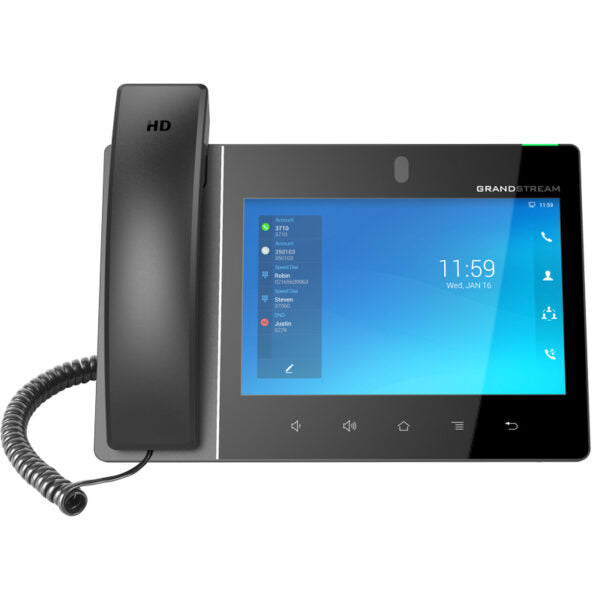
• The GXV3480 IP Video Phone for Android combines a 16-line IP video phone with a multi-platform video conferencing solution and the functionality of an Android tablet, offering an all-in-one communications solution. Key Features: • 16 lines with up to 16 SIP accounts • Built-in 2 mega-pixel camera • Android 11 Operating system • Built-in Bluetooth 5.0 • Dual-switched autosensing 10/100/1000mbps network ports • Integrated dual-band Wi-Fi 6 (2.4GHz & 5GHz) • Built-in PoE/PoE+ • Dual MIC & HD speakerphone with noise shield 2.0 • Quad-core 2.0GHz ARM Cortex-A55 processor • 4GB RAM and 16GB eMMC Flash • 8.0” (1280×800) capacitive 10-point touch screen IPS LCD • Peripherals include HDMI-in/out, USB, Type-C, 3.5mm headset jack, EHS Additional Information: • Weight: 4.58 lbs • Dimensions: 14.8 × 9.7 × 4.13 in • Brand: Grandstream • Phone Type: Desk, Video, WiFi / WiFi Capable Technical Specifications: • Network Interfaces: • Dual switched 10/100/1000 Mbps ports with integrated PoE/PoE+ • Graphic Display: • 8.0 inch 1280×800 capacitive touch screen (10 points) IPS LCD • Camera: • Tiltable 2 mega-pixel CMOS camera with privacy shutter, 1080P@30fps • Bluetooth: • Yes, integrated Bluetooth 5.0 • Wi-Fi: • Yes, dual-band (2.4GHz & 5GHz) with 802.11 a/b/g/n/ac/ax, 2T2R, Wi-Fi Display & AirPlay • Auxiliary Ports: • RJ9 headset jack (allowing EHS with Plantronics headsets), 3.5mm stereo headset with microphone, USB 3.0 port, Type-C, HDMI-out, HDMI-in • Feature Keys: • 2 function touch keys VOLUME+/-, 3 dedicated Android touch keys HOME, MENU and BACK • Android: • Runs Android 11

About This Product

The Grandstream GXV3480 is an Android-based IP video phone designed for users who need more than just a desk phone. It functions as a 16-line SIP phone, a video conferencing endpoint, and a full Android tablet, making it suitable for receptionists, executives, or anyone in a busy office who benefits from having a unified communications device on their desk. The large 8-inch touchscreen and built-in camera support both voice and video calls, while the Android OS allows for running business apps like calendar, email, or CRM tools directly on the phone.

This device pairs well with a hosted PBX or an on-premise SIP server and can replace a separate desk phone and tablet setup. It includes Wi-Fi 6 and Bluetooth 5.0 for flexible connectivity, though for the most reliable voice and video quality, a wired Ethernet connection with PoE+ is recommended. The GXV3480 supports up to 16 SIP accounts, so it can handle multiple lines for a busy desk or even serve as a shared device in a small team.

A practical tradeoff is that the Android interface, while powerful, may introduce more complexity than a traditional desk phone. Users accustomed to a simple handset might find the touchscreen and app-based navigation less intuitive at first. Additionally, while the camera is adequate for video calls, it is not meant for large conference rooms; it is best for one-on-one or small group video calls at a desk. The phone is overkill for a simple extension that only makes and receives calls, but it is a strong fit for a power user who wants a single device for communication and light productivity.

For Canadian businesses, especially those in the GTA, this phone is a practical choice for modern offices that want to integrate VoIP with Android productivity tools. It works with most SIP-based Canadian VoIP providers and can be provisioned for use with local hosted PBX systems. The PoE+ support simplifies installation in offices with existing PoE switches, reducing cable clutter.
Services We Provide
  • Professional Installation & Configuration
  • Ongoing Maintenance & Support
  • Troubleshooting & Repairs
  • System Upgrades & Updates



