
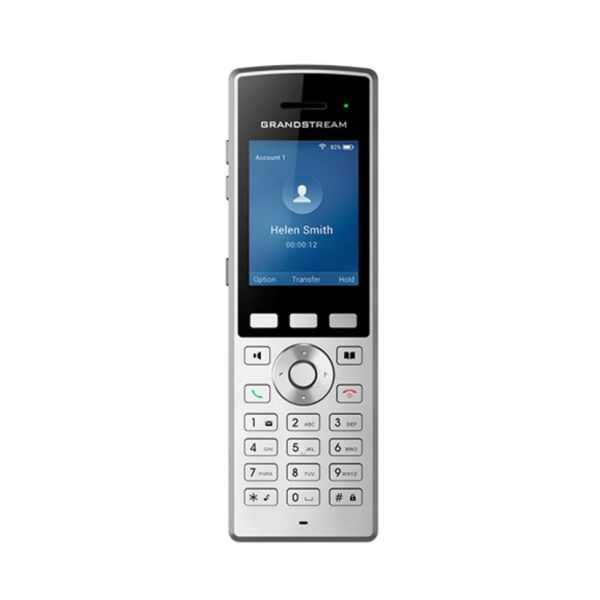
Grandstream WP822 WiFi IP Phone
Frequently Asked Questions
First, verify that the Wi-Fi network credentials are correct and that the phone has a valid IP address. Then double-check the SIP account settings (server address, username, password) entered in the web interface or phone menu. If everything looks correct, ensure your SIP server or firewall isn't blocking ports 5060 or 5061. Restart the phone and router to rule out temporary glitches.
Start by moving the phone closer to the access point to see if signal strength is the issue. Check that the phone's Wi-Fi band (2.4GHz or 5GHz) matches your network's capability and that the network isn't overloaded. If roaming is enabled, disable it temporarily to test stability. If the problem persists, try changing the Wi-Fi channel on your access point to reduce interference.
First, ensure you're using the original charger and cable, as third-party ones may not charge optimally. Reduce screen brightness and turn off Bluetooth if not in use. Check if the phone is stuck in a poor Wi-Fi area where it constantly tries to reconnect, which drains battery faster. If you've had the phone for a while, the battery may need replacement—contact your VoIP support provider.
Start by lowering the handset volume slightly—sometimes echo is acoustic feedback from high volume. If using the speakerphone, switch to the handset or a Bluetooth headset to isolate the issue. Also check that the phone isn't near a source of electrical interference, like a large metal object or another wireless device. If the problem only occurs with certain callers, ask them to check their own audio settings.
Ensure the headset is in pairing mode and that no other Bluetooth device is already connected to the phone. Go to the WP822's Bluetooth menu and scan for devices—select the headset when it appears. If pairing fails, try resetting the headset by turning it off and on. Note that the WP822 supports Bluetooth 4.0; older headsets may not be compatible. If it still doesn't work, consult the headset manual for any additional passcodes.
The PTT button is configurable through the phone's web interface or LCD menu. Navigate to Settings > Button Programming and assign the button to a PTT function. You'll need to set it up with a SIP multicast or a dedicated PTT server; your VoIP provider can guide you on the correct settings for your system. Once configured, the button will allow immediate one-to-one or group voice communication.
First, check that the firmware update completed successfully—look at the phone's system info for the version number. If the update failed, try re-downloading the correct firmware from the Grandstream support site and reinstalling via the web interface. A common cause is incorrect server settings reset during the update; re-enter your SIP account credentials. If the phone still shows 'No Service', power cycle it and check your network configuration.
Yes, the WP822 is a standard SIP phone and should work with any provider that offers SIP trunking, including Canadian carriers like VoIP.ms, TekSavvy Business, or Rogers Business Voice. You'll need the correct SIP server address and authentication details from your provider. For a smooth setup, especially in a Toronto office, ensure your network supports VLAN or QoS if voice traffic is mixed with data.
The WP822 supports up to two SIP accounts. For multiple users, you'll either need one phone per user or configure a shared line with a mechanism like call pickup. To provision, use Grandstream's UCM series PBX or a third-party provisioning server to push settings automatically. Alternatively, configure each phone manually via the web interface, but that's impractical for many devices. A local VoIP integrator can set up mass provisioning.
IP Phones
Grandstream WP822 WiFi IP Phone
• The WP822 is a portable Wi-Fi IP phone designed for enterprises and vertical market applications in retail, logistics, medical, and security. Key Features: • Integrated dual-band 802.11a/b/g/n/ac Wi-Fi with efficient antenna design and advanced roaming support • HD voice and dual MIC design with AEC and Noise Shield Technology • Rechargeable 2000mAh battery, 8 hour talk time, 200-hour standby • Integrated Bluetooth for connecting headsets • Configurable button for push-to-talk • Micro USB port and 3.5mm headset jack Technical Specifications: • Display: 2.4″ TFT color LCD • SIP Accounts: 2 lines • Line Keys: 2 • Local Conferencing: 3-WAY • WiFi: 802.11 ac • Bluetooth: Yes, integrated • HD Audio: YES
About This Product
The Grandstream WP822 is a portable Wi-Fi IP phone built for environments where desk phones aren't practical. It's ideal for retail staff, warehouse pickers, medical personnel on the move, or security officers who need to stay connected without being tethered to a desk. The dual-band Wi-Fi with roaming support lets it move across a building or campus without dropping calls, making it a natural fit for large GTA warehouses, hospital wings, or multi-floor office retail spaces. It replaces the need for a clunky two-way radio or a cell phone on a cellular plan, instead plugging into your existing VoIP phone system. The integrated push-to-talk button and Bluetooth headset support further tailor it to team communication, though you should note that Wi-Fi coverage and quality can vary—a strong, properly configured network is essential for reliable call quality. While the 8-hour talk time covers a full shift, heavy users may need to recharge during a lunch break, and the phone is overkill for a static desk role where a wired IP phone would be cheaper and more reliable. It may also be underpowered for call center agents handling high call volumes with complex feature needs, but for mobile workers who just need to take and make calls on the go, it's a solid choice.
Services We Provide
- Professional Installation & Configuration
- Ongoing Maintenance & Support
- Troubleshooting & Repairs
- System Upgrades & Updates



