
Grandstream WP836 Ruggedized Wi-Fi IP Phone

Frequently Asked Questions

First, double-check that the SSID and password are entered correctly in the phone's Wi-Fi settings. Ensure the network supports WPA2 or WPA3 and that the phone is within range of a dual-band access point. If the issue persists, reboot both the phone and the access point, then try again.
Start by checking the Wi-Fi signal strength indicator on the phone—if it's low, move closer to an access point or reduce interference from other devices. You can also enable Opus HD voice codec in the phone's settings for better audio quality. If the problem continues, verify that AI noise reduction is not overly aggressive; try adjusting or disabling it temporarily.
Check for any firmware updates, as battery management improvements are sometimes included. Lower the screen brightness and reduce the backlight timeout in the phone's display settings. Also, disable Bluetooth or Wi-Fi scanning when not needed, and avoid running the phone in extreme temperatures.
Verify that the SIP server address, username, and password are entered correctly in the account settings. Make sure the phone has a valid IP address and can reach the internet (try browsing to a website). Also, confirm that your firewall or router is not blocking SIP traffic on ports 5060/5061.
This usually means the SIP account is not registered. Go to Settings > Accounts and check the registration status. If it shows 'Unregistered', re-enter your credentials and ensure the SIP server is reachable. If you're using a hosted VoIP provider, verify that your account is active and not suspended.
PTT requires configuration both on the phone and on your PBX or PTT server. First, go to the phone's settings and assign the programmable button to PTT mode. Then confirm that the PTT server address and group settings are correct. Test with another PTT-enabled device to isolate the issue.
Yes, the WP836 is a standard SIP phone and works with any SIP-compatible PBX. You'll need to configure the SIP account details (server, extension, password) either manually through the phone's web interface or via auto-provisioning. Many Canadian businesses run it with Grandstream UCMs or hosted VoIP services without issues.
Enable Bluetooth on the phone by going to Settings > Bluetooth and turning it on. Put your headset into pairing mode, then select it from the list of available devices on the phone. Once paired, you can set it as the default audio device for calls.
Yes, the WP836 is carrier-agnostic and works with any SIP trunk provider, including Canadian carriers like Rogers Business or Telus Business Connect. Just ensure your SIP credentials are correct and that your network allows outbound SIP traffic. A Toronto-based VoIP support provider can help with carrier-specific settings if needed.
The man-down alarm is a safety feature that triggers if the phone remains motionless for a set period. Go to Settings > Alarm and enable the man-down option, then configure the timer and the target number to alert. Test it by laying the phone flat for the duration you set—it should send an alert. If the issue persists, a Toronto-based VoIP support provider can usually resolve this remotely.
IP Phones

Grandstream WP836 Ruggedized Wi-Fi IP Phone
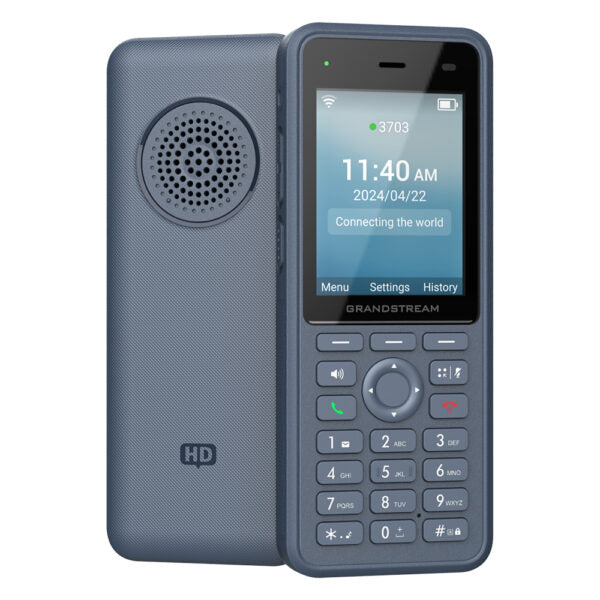
• The WP836 is a cordless Wi-Fi IP phone suitable for enterprise and vertical market applications, including offices, retail, logistics, healthcare, security, and more. • This high-end cordless Wi-Fi phone features integrated dual band Wi-Fi 6, an advanced antenna design, roaming support, 4-way voice conferencing, AI-based noise reduction, and support for the Opus HD voice codec. • The WP836 provides up to 10 hours of talk-time and 200 hours of standby time through a 3000mAh battery, driving employee productivity. • Withstand any weather environment thanks to the IP67 weatherproof design, which provides exceptional waterproof and dustproof performance. • Key features include: • Dual-band Wi-Fi 6 with efficient antenna design and advanced roaming support • 3 SIP accounts, 3 lines, 4 conferences • HD voice & dual MIC design with AEC, Noise Shield Technology, and AI Noise Reduction • Integrated Bluetooth to connect headsets, Type C USB port (fast charging) • Rechargeable 3000mAh battery, up to 10 hours talk time, and 240-hour standby • Configurable button for Push-to-Talk • Alarm functions include push-button, man-down, no-movement, running, ambient sound • IP67 Rated - Waterproof, dust-proof, cleaning chemical resistant, antibacterial casing • Weight: 1.01 lb • Dimensions: 7.22 × 4.65 × 3.03 in • Phone Type: DECT, WiFi / WiFi Capable

About This Product

The Grandstream WP836 is a ruggedized Wi-Fi IP phone built for environments where durability and mobility are non-negotiable. It suits workers in logistics, healthcare, security, retail, and field operations who need a reliable cordless phone that can handle dust, water, and drops. With Wi-Fi 6 and advanced roaming, it fits best in facilities that already have a strong wireless network—warehouses, hospitals, or large office floors where users move between access points. It pairs naturally with any SIP-based PBX, such as a Grandstream UCM or a hosted VoIP service, and can replace older Wi-Fi or DECT phones where Wi-Fi coverage is reliable.

A key tradeoff is that the WP836 depends entirely on Wi-Fi, so call quality and reliability hinge on your network design. It offers only three SIP accounts, making it a poor fit for heavy multi-line call center agents, but it shines for mobile staff who need one or two lines plus push-to-talk and safety alarms. The IP67 rating means it can survive rain, dust, and even cleaning chemicals, which is a real advantage for Canadian outdoor workers or GTA warehouse environments. However, battery life (up to 10 hours talk time) is solid for a shift but may require mid-day charging for heavy users. For a desk-bound employee, this phone is overkill; for a security guard patrolling a campus, it is exactly the right tool.
Services We Provide
  • Professional Installation & Configuration
  • Ongoing Maintenance & Support
  • Troubleshooting & Repairs
  • System Upgrades & Updates



