
Grandstream WP856 Wi-Fi Smartphone with built-in scanner, 5.5 inches Screen

Frequently Asked Questions

First, verify the device has a stable Wi-Fi connection by opening a web page or pinging your server. Then confirm the SIP account credentials—username, password, and server address—are entered exactly as provided by your provider. Double-check the port number (usually 5060 for UDP or 5061 for TLS). If registration still fails, check if your firewall or router blocks SIP traffic; many VoIP providers offer a port-forwarding guide. If the issue persists, a Toronto-based VoIP support provider can usually resolve this remotely.
The built-in scanner can be set to work as a keyboard wedge, meaning it types scanned data into any text field that is selected. Open the scanner settings app (pre-installed) and enable Keyboard Wedge mode. Then select the input field in your app (like a search bar or form) and press the scan button—the data should auto-populate. For apps that need the scanner to send keystrokes, ensure the app is running in the foreground.
Start by checking the Wi-Fi signal strength in the area where calls drop. If the signal is weak, move closer to the access point or reduce obstructions. On the WP856, go to Wi-Fi settings and disable any aggressive roaming features if available—sticking to one strong access point improves call stability. Also try switching between 2.4 GHz and 5 GHz bands; 5 GHz offers faster speeds but shorter range, while 2.4 GHz penetrates walls better. If issues continue, test with a different access point to rule out network problems.
Yes, because the WP856 runs Android 13 and is certified with Google Mobile Services, you can install apps from the Google Play Store or side-load APKs. However, for custom enterprise apps, you should test them on a single unit first—pay attention to compatibility with the scanner API (the device uses a proprietary scanning service) and screen resolution (1440×720). Most standard inventory or workforce apps work without modification, but some may require minor configuration to receive scanned data.
Check which apps are consuming power in Settings > Battery. Reduce screen brightness or enable auto-brightness, and turn off Bluetooth and GPS when not in use. Lower the screen timeout to 30 seconds. If you are scanning frequently, note that the scanner light and camera use power. Enable the device’s battery saver mode to limit background activity. If the battery still drains unusually fast, it may need calibration (fully drain then charge uninterrupted) or replacement after heavy daily use.
Go to Settings > Bluetooth and turn it on. Put your headset in pairing mode, then select it from the list on the WP856. Once paired, the headset should be available as an audio device during calls—you can select it from the call screen or set it as the default for phone audio in Bluetooth settings. If calls cut out or quality is poor, try unpairing and re-pairing, or test with a different headset to rule out compatibility. Many Plantronics and Jabra models work well with this device.
This is often caused by the earpiece volume being too high or the phone being too close to your ear while the microphone picks up sound. Lower the volume during the call and hold the device normally. Check if speakerphone is accidentally on—switch to handset mode. In the WP856’s audio settings (accessible from the dialer menu), ensure Acoustic Echo Cancellation is enabled. If echo persists, have the other party reduce their volume as well. Rarely, a defective unit may require service.
First, inspect the USB-C port for debris or damage. Use the included quick charger and a good-quality cable—the device supports 5V/3A, 9V/2A, and 12V/1.5A, so a standard phone charger may work slowly but a fast charger is best. Try a different outlet and cable. If the battery indicator is stuck, restart the device. If charging still fails or the battery level jumps erratically, the battery or charging circuit may need professional diagnosis; contact support before attempting any internal repair.
Yes, as long as you have a Wi-Fi connection. The device has no cellular modem, so it requires a local wireless network. Before traveling, verify that your VoIP provider permits registration from international IP addresses—some block non-Canadian traffic for security. In that case, you may need a VPN that connects to a Canadian server. Otherwise, the WP856 works the same as at home: log into Wi-Fi and make calls. Be aware that network latency over a foreign internet link can cause slightly delayed audio.
The WP856 is rated IP65, so it resists water jets and dust but is not intended for submersion. If it gets wet, turn it off immediately and dry the entire device with a soft, lint-free cloth—pay special attention to the screen edges and speaker grille. Do not use heat. After it is completely dry, try tapping the screen. If responsiveness is still poor, moisture may have seeped under the display; place the device in a dry, well-ventilated area (not a rice bag) for 24 hours. If the issue remains, contact support for further inspection.
IP Phones

Grandstream WP856 Wi-Fi Smartphone with built-in scanner, 5.5 inches Screen
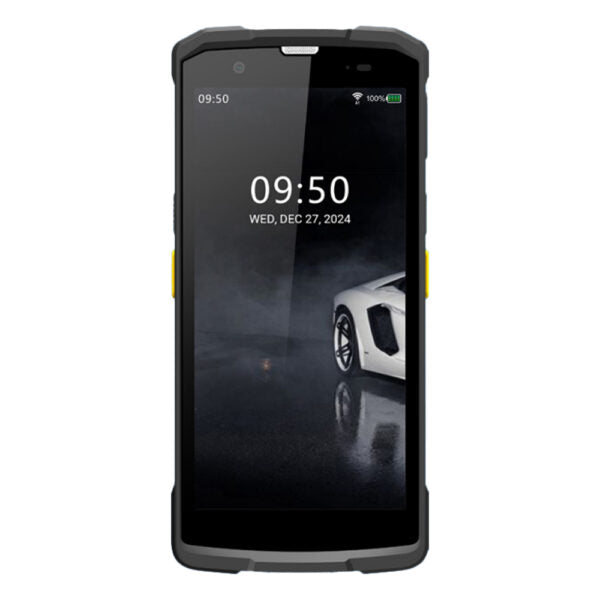
• Wi-Fi smartphone with built-in scanner for scanning 1D and 2D barcodes, providing a powerful communication and productivity solution for users on the go. • Runs Android version 13 and is certified with Google Mobile Services, offering an easy-to-use interface with access to millions of Android apps. • Supports integrated dual-band Wi-Fi 6 and advanced antenna design for reliable and stable connections in all environments. • Features: • Built-in scanner for scanning 1D and 2D barcodes • HD voice with advanced Acoustic Echo Cancellation & Noise Shield Technology • 5.5-inch HD multi-touch capacitive touch screen with 2.5D Corning 3rd generation glass • Rechargeable 5000mAh battery providing up to 20 hours talk time and 200 hours standby • IP65-rated waterproof and dustproof, drop-safe from up to 1.5-meter height • Runs Android version 13, certified with Google Mobile Services, access to Google Play Store, and supports custom Android apps • Additional Information: • Weight: 1.54 lb • Dimensions: 7.70 × 4.39 × 3.03 in • Phone Type: Video, WiFi / WiFi Capable • Technical Specifications: • Processor: 2.2G octa-core 64-bit processor • Memory: RAM: 4GB, ROM: 64GB • Interface: Type-C 2.0 OTG, supports USB Type-C headset • Wi-Fi: Dual-band (2.4GHz and 5GHz) Wi-Fi 6 with advanced antenna design • Bluetooth: Yes, Bluetooth 5.2, supports Bluetooth Low Energy (BLE) • Telephony Features: Supports up to 6 SIP accounts and 6 lines, HD voice with advanced Acoustic Echo Cancellation & Noise Shield Technology • Security: User and administrator level passwords, MD5 and MD5-sess based authentication, 256-bit AES based secure configuration file • Display: 5.5-inch (1440×720) multi-point capacitive touch screen with up to 450 NIT brightness • Camera: Rear camera: 13MP, auto focus, with LED flashlight; Front camera: 5MP, fixed focus • GPS: Supports GPS, Galilieo, and Beidou • SD Card: Supports Micro SD cards (up to 256GB) • AC Adapter: Quick charger (Output: 5V-3A/9V-2A/12V-1.5A Input: AC 100~240V, 50/60Hz)

About This Product

The Grandstream WP856 is built for workers who need both a reliable communication tool and a barcode scanner in one rugged handheld. It fits naturally in warehouse floors, retail backrooms, field service, and logistics environments where a separate phone and scanner would slow you down. Because it runs Android 13 with Google Mobile Services, it supports the same apps you’d use on a modern smartphone, letting you run custom inventory, time-tracking, or dispatch software without juggling multiple devices. For a Canadian business, this unit is especially practical in GTA distribution centers or retail operations where dust, drops, and occasional splashes are routine—its IP65 rating and drop protection mean it can survive a typical workday. On the flip side, the WP856 relies entirely on Wi-Fi; it has no cellular modem, so it is not suited for outdoor-only roles without a reliable hotspot or on-premises network. With 4 GB of RAM, it handles standard VoIP and scanning apps well, but heavy multitasking or demanding graphics may feel sluggish. This device shines as a dedicated voice-and-scan tool in an existing Wi-Fi infrastructure, but it would be overkill for a desk-bound employee who only needs a phone and underpowered for someone running processor-heavy applications.
Services We Provide
  • Professional Installation & Configuration
  • Ongoing Maintenance & Support
  • Troubleshooting & Repairs
  • System Upgrades & Updates



