
GRP2601P Essential IP Phone

Frequently Asked Questions

Ensure the phone is getting network connectivity and that the SIP server address and credentials are correct. Check the phone’s web interface under Account settings; the most common issue is a mistyped domain or authentication password, especially after bulk provisioning. Reboot the phone and confirm the network is providing an IP address via DHCP. If using GDMS, verify the provisioning template is correctly assigned. If the issue persists, a Toronto-based VoIP support provider can usually resolve this remotely after a quick check of your provisioning and network setup.
First, confirm that the phone is receiving enough power—if using PoE, the switch must provide 802.3af or higher. Try a different Ethernet cable and switch port to rule out a bad connection. If you’re using a power adapter (sold separately), test with a known-good adapter. A blank display can also indicate a firmware issue; power cycle the phone and, if the problem persists, contact support to avoid data loss before attempting any recovery procedure.
Check the handset connection, then test with a headset or speakerphone to isolate whether the issue is with the handset cord or audio routing. Verify that the volume is not muted or turned down to zero. On rare occasions, a codec mismatch can cause one-way audio; confirm with your VoIP provider that G.711µ/a-law is selected if G.722 isn’t supported. Reboot the phone and try another Ethernet cable on the LAN port.
This is often a network configuration issue. Ensure the phone’s network settings haven’t been manually set to use a static IP with incorrect gateway or subnet; if using NAT, the router must have SIP ALG disabled or properly configured. Try switching the audio codec to G.711 and disable VAD/comfort noise in the web interface. If the echo persists, re-plug all cables and test on a different network segment, as a faulty switch or long cable run can introduce latency.
First, inspect the Ethernet cable and PoE power source. A faulty switch port or insufficient power can cause intermittent reboots. If using an external power supply (not included), try a different adapter with the correct voltage. Check the firmware version; an unstable release can cause reboots. If the problem continues, temporarily move the phone to a known-good network jack and see if the behaviour stops before attempting any factory reset.
Confirm the phone has internet access and can reach the GDMS server; check that the MAC address is correctly assigned to a provisioning profile. The phone needs to be on the same subnet as the DHCP server offering Option 66/160 or have a static provisioning server URL set. Reboot the phone while holding the proper key combination to trigger a config retrieval, or manually enter the provisioning URL in the web interface. If you’ve verified these steps and the phone still won’t provision, a local VoIP specialist can often troubleshoot the configuration remotely.
EHS requires a compatible headset adapter cable. Confirm your headset model supports EHS and the cable matches the GRP2601P (Grandstream EHS cable or compatible adapter). In the phone’s web interface, navigate to Headset Settings and ensure EHS Headset is enabled and the adapter type is set correctly. Test by pressing the headset key; if still no audio, re-seat the adapter and reboot the phone.
During an active call, press the Conference soft key, dial the second party, and after they answer, press Conference again to join. Repeat for up to five participants (including yourself). The phone supports one local conference; to add more than three parties, the PBX must also support multi-party conferencing. If the option disappears, check that the call feature codes are not restricting conference building.
The GRP2601P can be daisy-chained with a computer via its PC Ethernet port, but it doesn’t function as a USB audio device for a softphone. If you want to use a headset for both desk phone and PC, look for a headset with a desktop base that switches between the two. The phone’s EHS port only manages hook switch control, not PC audio.
Press the Menu button, navigate to Settings > Basic Settings > Language, then choose from the available languages. The phone supports multiple languages out of the box, including English and French, which is useful for bilingual Canadian workplaces. You can also set a default language in the provisioning template via GDMS for bulk deployments.
IP Phones

GRP2601P Essential IP Phone
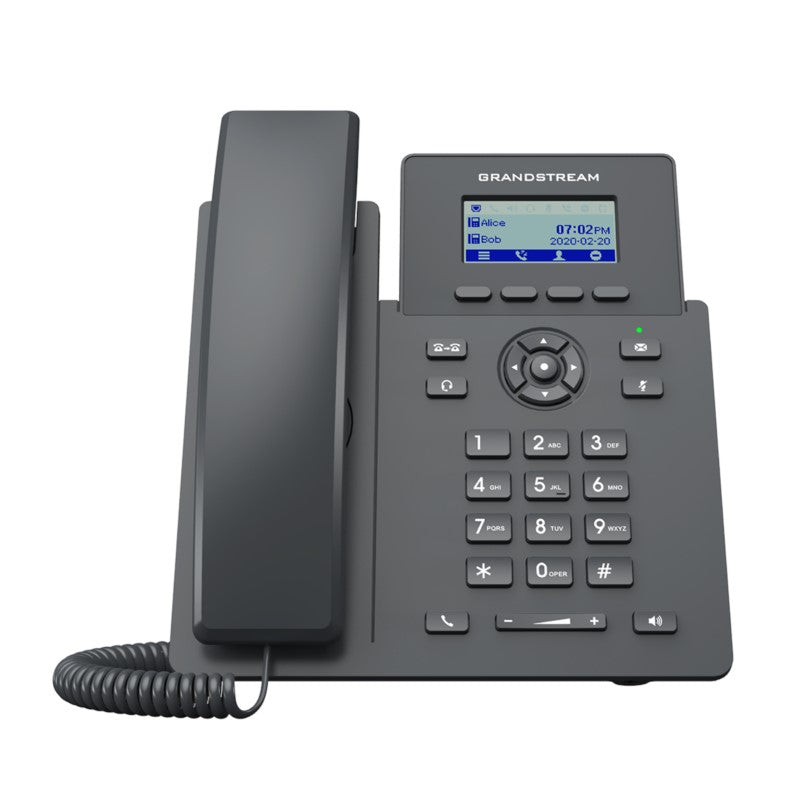
• Carrier-Grade IP Phone designed for mass deployment and easy management • 2-line model with zero-touch provisioning for simplified setup • Features: • 5-way voice conferencing for improved productivity • Integrated PoE (GRP2601P) or EHS support for Plantronics, Jabra, and Sennheiser headsets • Multi-language support for global accessibility • Enterprise-level security features, including secure boot and dual firmware images • Supported by Grandstream’s Device Management System (GDMS) for cloud provisioning and centralized management • Key specifications: • Network Interfaces: Dual switched auto-sensing 10/100 Mbps Ethernet ports, integrated PoE (GRP2601P only) • Graphic Display: 132 x 48 (2.41’) LCD display • Voice Codecs and Capabilities: Support for G.729A/B, G.711µ/a-law, G.726, G.722(wide-band), and more • Telephony Features: Hold, transfer, forward, 5-way conference, call park, call pickup, downloadable phonebook, and server redundancy Note: Power adapter is not included.

About This Product

The Grandstream GRP2601P is designed for organizations that need to deploy a large number of reliable, no-frills desk phones without complicated per-unit configuration. It fits well in open-plan offices, shared spaces, or branch locations where each user needs just two lines and standard calling features. Zero-touch provisioning and cloud management via GDMS mean that even a remote IT team can roll out hundreds of units with minimal on-site effort, which is particularly valuable for companies with multiple locations across the Greater Toronto Area.

Because it draws power over Ethernet, the GRP2601P eliminates the clutter of separate adapters (though a power brick is not included, it’s rarely required in a properly equipped LAN). EHS support makes it easy to pair with wireless Plantronics, Jabra, or Sennheiser headsets, so call centre agents or employees who need to move around their desk can stay connected. The integrated 5-way conferencing is a handy extra for small huddles that don’t need a full conference phone.

There are deliberate tradeoffs. The 2.41-inch monochrome display and basic interface are spartan; users accustomed to colour touchscreens or visual presence indicators may find it limiting. The dual Ethernet ports are 10/100 Mbps, not Gigabit, so if a PC is daisy-chained through the phone, throughput will be capped at 100 Mbps—acceptable for most office tasks but not for bandwidth-intensive cloud applications. For call centres that need multiple line appearances, programmable BLFs for dozens of contacts, or high-resolution colour displays, a more advanced model would be a better fit.

In a Canadian business context, the GRP2601P works seamlessly with hosted PBX services from major providers and supports server redundancy for failover, which is prudent for companies that cannot afford extended downtime. For a small law firm in downtown Toronto or a retail chain across Ontario, it hits a sweet spot between affordability and enterprise manageability.
Services We Provide
  • Professional Installation & Configuration
  • Ongoing Maintenance & Support
  • Troubleshooting & Repairs
  • System Upgrades & Updates



