
GRP2601W- 2 Lines, 2 SIP Accounts, 2.4 GHz WiFi 6 IP Phone

Frequently Asked Questions

First, confirm that the SIP server address, username, and password entered in the phone's account settings exactly match what your provider gave you. A common mistake is a typo in the server URL or a missing realm. If the credentials are correct, check that the phone has a valid IP address and can reach the internet—try pinging a public address from the phone's network tools if available.
Make sure you are entering the correct Wi-Fi password and that the network is broadcasting on the 2.4 GHz band—this phone does not support 5 GHz. Also verify that the router's DHCP server is enabled and has available addresses. If the network uses MAC address filtering, you will need to add the phone's MAC address to the router's allowed list.
This is usually a microphone or audio path issue. First, check that the handset cord is fully plugged into both the phone and the handset. If you are using a headset, try the handset instead to isolate the problem. Also confirm that the phone's volume settings for the microphone are not muted or turned all the way down.
Connect the phone to power using the included power adapter or a PoE injector (the GRP2601W does not support PoE from a switch). Once powered, the phone will boot and prompt you to select a language and time zone. If your VoIP provider supports zero-touch provisioning, the phone may auto-configure after you enter a provisioning URL; otherwise, you will need to manually enter SIP account details in the Settings menu.
Choppy audio on a Wi-Fi connected phone is often due to wireless interference or a weak signal. Move the phone closer to the Wi-Fi access point or reduce the number of devices on the same channel. If the phone is on a busy 2.4 GHz network, try changing the router's channel to one with less congestion. For wired connections, ensure the Ethernet cable is not damaged and is plugged into a working switch port.
Yes, the GRP2601W is a standard SIP phone and will work with any provider that offers SIP trunking or hosted VoIP, including major Canadian carriers and independent providers. You will need to enter the SIP server details and credentials provided by your carrier. Some providers may require you to configure a specific codec or STUN server for NAT traversal, so check their setup guide.
'No Service' typically means the phone cannot reach the SIP server. Verify that the phone has a valid IP address and can ping the SIP server's domain or IP. If the server is reachable, double-check the SIP account settings, especially the port number (usually 5060 for UDP). If you are behind a firewall, ensure that SIP and RTP traffic are allowed through.
The easiest method is to use the Grandstream Device Management System (GDMS) if your phone is enrolled. Alternatively, you can download the latest firmware from Grandstream's support site, host it on a TFTP or HTTP server, and point the phone to that server in its maintenance settings. Always back up your configuration before updating, and ensure the phone stays powered during the process.
Random reboots are often caused by power issues. If you are using PoE, make sure the switch or injector provides enough power (the GRP2601W requires a PoE+ injector if not using the AC adapter). If using the AC adapter, check that it is the correct model and that the connection is secure. A faulty Ethernet cable can also cause intermittent power loss on PoE setups.
Yes, the GRP2601W has a dedicated headset port (RJ9) on the side of the phone. You can use a standard analog headset with a 2.5mm or RJ9 connector. For wireless headsets, you will need a model that connects via the headset port or a Bluetooth adapter, as the phone does not have built-in Bluetooth.
IP Phones

GRP2601W- 2 Lines, 2 SIP Accounts, 2.4 GHz WiFi 6 IP Phone
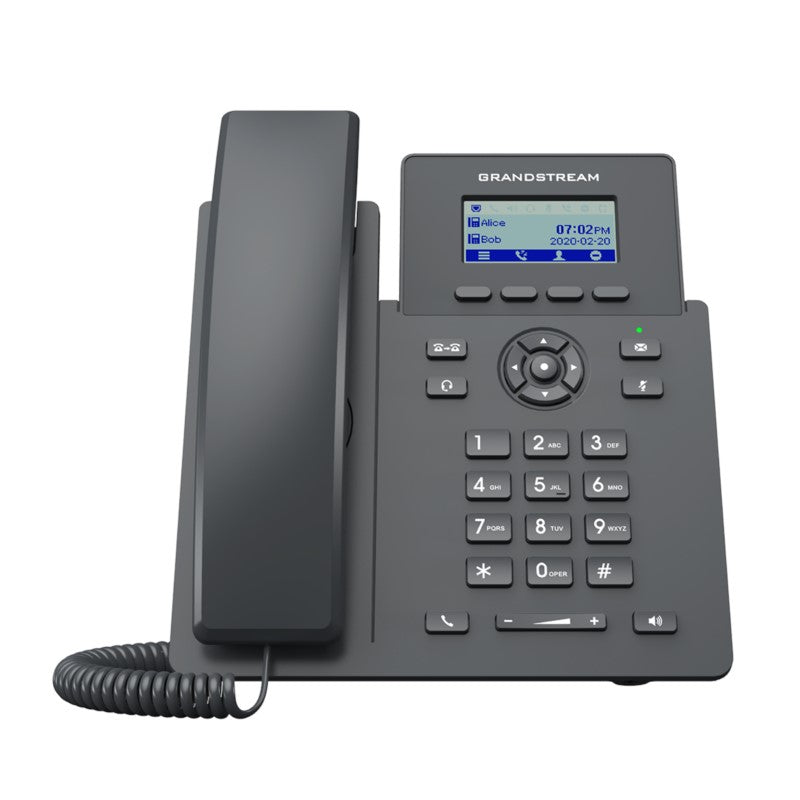
• The GRP2601 is a 2-line carrier-grade IP phone designed for mass deployment and easy management, featuring zero-touch provisioning and 5-way voice conferencing to maximize productivity. Key Features: • Zero-touch provisioning for easy setup • 5-way audio conferencing for seamless conference calls • Integrated PoE (GRP2601P) and Wi-Fi support (GRP2601W) • GDMS online device management and provisioning • Enterprise-level protection including secure boot, dual firmware images, and encrypted data storage Additional Information: • Weight: 1.44 lb • Dimensions: 8.2 × 7.1 × 2.5 in • Phone Type: Desk, WiFi / WiFi Capable • Box Contents: GRP2601W phone, handset with cord, base stand, network cable, Quick Installation Guide Technical Specifications: • SIP RFC3261, TCP/IP/UDP, RTP/RTCP, RTCP-XR, HTTP/HTTPS, ARP, ICMP, DNS(A record, SRV, NAPTR), DHCP, PPPoE, SSH, TFTP, NTP, STUN, SIMPLE, LLDP, LDAP, TR-069, SNMP, 802.1x, TLS, SRTP, IPv6 Network Interfaces: • Dual switched auto-negotiation 10/100 Mbps Ethernet ports • GRP2601W includes 2.4G single-band Wi-Fi 6 Graphic Display: • 132 x 48 (2.41’) LCD display

About This Product

The GRP2601W is a straightforward, two-line desk phone aimed at businesses that need a reliable, low-cost endpoint without sacrificing modern connectivity. Its standout feature is built-in 2.4 GHz Wi-Fi 6, which makes it a good fit for offices where running Ethernet to every desk is impractical—think shared workspaces, temporary desks, or smaller offices in the GTA that rely on a solid wireless network. The phone pairs naturally with a hosted VoIP service or an on-premises PBX that supports zero-touch provisioning, so IT staff can deploy units without touching each one individually. Keep in mind that the display is a small monochrome LCD (132x48 pixels), so this is not a phone for heavy call-center use or for users who need a large, feature-rich interface. The Ethernet ports are limited to 10/100 Mbps, which is fine for voice traffic but means the phone won't benefit from a gigabit LAN. For a reception desk or a manager who needs only basic call handling and conferencing, this phone is a sensible, cost-effective choice; for a power user who juggles multiple active calls or needs a color touchscreen, it would feel underpowered.
Services We Provide
  • Professional Installation & Configuration
  • Ongoing Maintenance & Support
  • Troubleshooting & Repairs
  • System Upgrades & Updates



