
GRP2602 2-line IP Phone

Frequently Asked Questions

Start by checking that the phone has a valid IP address on your network and can reach the internet. Next, confirm the SIP server address, username, and password in the account settings match exactly what your provider gave you—typos here are common. If everything looks correct, try rebooting the phone and your router; a stale registration can sometimes be cleared that way.
Make sure the account you’re using is registered successfully—look for a green indicator on the display or check the account status in the web menu. Also, confirm the handset cord is fully seated in both the phone and the handset; reseating it often fixes a silent line. If you’re using a headset instead, try switching to the handset temporarily to rule out headset‑related issues.
Move the phone closer to the access point and see if dropouts continue; physical distance and obstacles are common culprits. In the phone’s network settings, try switching from the 2.4 GHz band to 5 GHz (or vice versa) to avoid local interference. If your deployment relies on Wi‑Fi, ensure the access point’s firmware is up to date and that its channels are not crowded by neighbouring networks.
First, confirm the power adapter or PoE source is actually delivering power—test with another device if possible. If you’re using PoE, make sure the Ethernet cable is connected to a PoE‑enabled switch port and that the cable is not damaged. A simple power cycle (unplug for 10 seconds then reconnect) often wakes a screen that appears blank due to a temporary glitch.
Choppy audio usually points to network congestion or jitter. Check that your internet connection has enough upload bandwidth for the number of simultaneous calls you make, and if your router supports QoS, prioritize voice traffic. As a quick test, try a call while other devices on the network are idle to see if the issue disappears.
Do not unplug the phone while the update is in progress unless it has been stuck for an unusually long time—normally, patience resolves it. If the phone remains unresponsive for more than 15 minutes, power cycle it and then check whether it boots normally. Should it fail to boot, you’ll likely need to reload the firmware via the recovery mode; contact your IT administrator or support provider before attempting that step.
Log into the phone’s web interface, go to the Account tabs, and fill in the SIP server, user credentials, and display name for each additional account you want to add. You can assign different ring tones or line keys to each account so users can distinguish calls at a glance. Once configured, the phone can handle calls on all accounts simultaneously, limited only by the 4‑account ceiling.
Connect the EHS cable between the headset base and the dedicated EHS port on the back of the phone. Then, in the phone’s web interface, navigate to the Headset settings and enable Electronic Hook Switch support, selecting the appropriate headset manufacturer. After that, the phone’s headset key should let you answer and end calls remotely.
First, verify that DHCP option 66 is correctly set on your network so the phone knows where to find the provisioning server. If that’s already in place, manually enter the provisioning server URL in the phone’s web interface under Maintenance > Provisioning, and then trigger a re‑provisioning. If the issue persists, a Toronto‑based VoIP support provider can often help you troubleshoot server‑side details remotely.
While on an active call, press the Conference soft key, dial a second party, and press Send. Once the second party answers, press Conference again to merge the calls. Repeat this process to add the third, fourth, and fifth participants, but note that the conference terminates automatically if the initiator hangs up.
IP Phones

GRP2602 2-line IP Phone
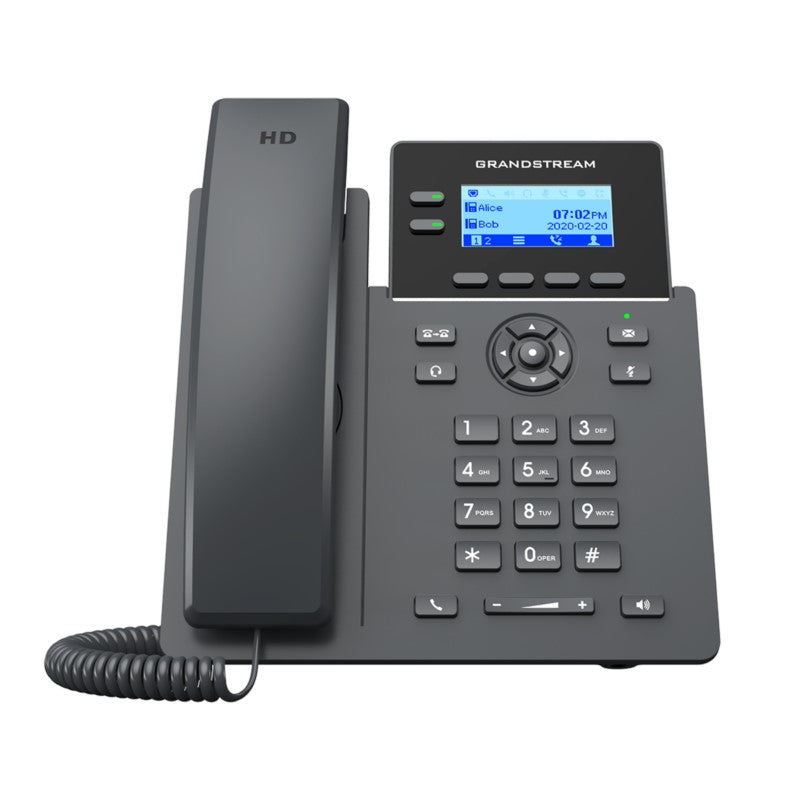
• The GRP2602 is a 2-line carrier-grade IP phone designed for mass deployment and easy management. It features full HD audio, EHS support for Plantronics, Jabra, and Sennheiser headsets, and multi-language support. • Key features include: • Zero-touch provisioning for easy setup • Support for 5-way audio conferencing and 4 SIP accounts • Electronic Hook Switch (EHS) support for high-quality headset integration • Full-duplex speakerphone with HD audio • Enterprise-level security features, including secure boot, dual firmware images, and encrypted data storage • Wi-Fi connectivity with integrated dual-band technology • A backlit graphical LCD display with customizable keys • Weight: 1.93 lbs • Dimensions: 9.96 × 8.13 × 2.72 in • Brand: Grandstream • Phone Type: Desk

About This Product

The GRP2602 is a practical choice for small to midsize businesses that need a reliable, no‑frills desk phone that can handle a couple of lines but still support multiple SIP accounts. It fits well in branch offices, retail counters, and reception areas where call volume is moderate and setup time should be minimal. Its integrated dual‑band Wi‑Fi also gives it a place in locations where Ethernet wiring is inconvenient, so it can follow your workspace rather than the other way around.

The trade‑offs are straightforward: you won’t find a colour touchscreen, Bluetooth, or advanced call‑centre dashboards here. What you get instead is a solidly engineered phone with full‑duplex speakerphone, secure boot, and encrypted storage—things that matter to IT teams rolling out dozens or hundreds of units. The four SIP account capacity may seem generous for a two‑line phone, but that pairing makes the most sense when users need to switch between providers or maintain separate personal and company identities without swapping phones.

Businesses that rely on zero‑touch provisioning will appreciate how easily the GRP2602 settles into a managed environment. For a Toronto‑area office that moves frequently or spins up temporary desks, the combination of Wi‑Fi and remote provisioning can cut deployment overhead significantly. Just be aware that the phone leans on its provisioning server for initial configuration; if you’re planning an entirely manual setup, you’ll spend extra time in the web interface.

This model is overkill for a one‑line home user who simply needs a basic handset to take VoIP calls, and it tops out before you reach the demands of a busy contact centre that needs programmable sidecars, contact‑centre integrations, or a large colour display. For a standard desk phone across many identical seats, however, it strikes an agreeable balance between cost and capability.
Services We Provide
  • Professional Installation & Configuration
  • Ongoing Maintenance & Support
  • Troubleshooting & Repairs
  • System Upgrades & Updates



