
Snom D150 SIP Desk Phone

Frequently Asked Questions

First, verify that the phone has a valid IP address by checking the network settings in the phone's menu. If it doesn't, confirm that your Ethernet cable is securely connected and that your switch or router is providing DHCP. Next, double-check the SIP credentials (username, password, and server address) entered in the account settings—a single typo can prevent registration.
Ensure the handset cord is firmly plugged into both the phone and the handset itself. Then check that the phone is registered with your provider (look for a registration status icon on the display). If it's not registered, follow the registration troubleshooting steps. A simple power cycle (unplug the Ethernet cable for 30 seconds) often resolves temporary glitches.
Start by checking your network connection: if the phone is on Wi-Fi through an adapter, try a wired connection instead. Ensure there's no heavy bandwidth usage (like large file downloads) on the same network during calls. You can also try lowering the audio codec priority in the phone's settings to a less bandwidth-intensive codec like G.711 if G.722 is causing issues.
First, confirm that your network switch or PoE injector actually supports PoE and that it's enabled on the port. Try a different port or cable. If the phone still doesn't power on, connect the included power adapter (if you have one) to rule out a PoE issue. If it works with the adapter, the problem is likely with the PoE source.
Check the backlight settings in the phone's menu under Display settings—it may be set to a very low brightness or turned off. If the display is completely blank and the phone is powered on (you hear dial tone), try a power cycle. If that doesn't help, the display may have a hardware fault, and you should contact your supplier for a replacement.
Access the phone's web interface by entering its IP address in a browser (default credentials are usually admin/admin). Navigate to the SIP account settings and enter the PBX's server address, your extension number, and password. For 3CX, you can also use the phone's auto-provisioning feature by entering the provisioning URL provided by 3CX in the phone's management settings.
The D150 has a standard RJ9 headset port, which works with most corded headsets. For wireless headsets, you'll need an RJ9-to-wireless adapter (often available from headset manufacturers). Bluetooth is not supported, so a USB Bluetooth adapter won't work either.
Start by checking the Ethernet cable—replace it if it's old or damaged. Ensure the switch port is not set to a lower speed or experiencing errors. If the phone is connected through a PoE injector, the injector might be overheating or underpowered. Try plugging the phone directly into a known-good switch port with a short cable.
Download the latest firmware from Snom's support website (look for the D150 model). Then log into the phone's web interface, go to the Firmware Update section, and upload the file. Alternatively, you can set up a TFTP or HTTP server and point the phone to that URL for automatic updates. Always back up your configuration before updating.
This usually means the phone cannot reach the provisioning server or the configuration file is invalid. First, confirm the provisioning URL is correct in the phone's settings. If you're using a local server, ensure the phone can ping that server (check network connectivity). If the server requires authentication, verify the username and password. A temporary workaround is to manually configure the phone via its web interface.
IP Phones

Snom D150 SIP Desk Phone
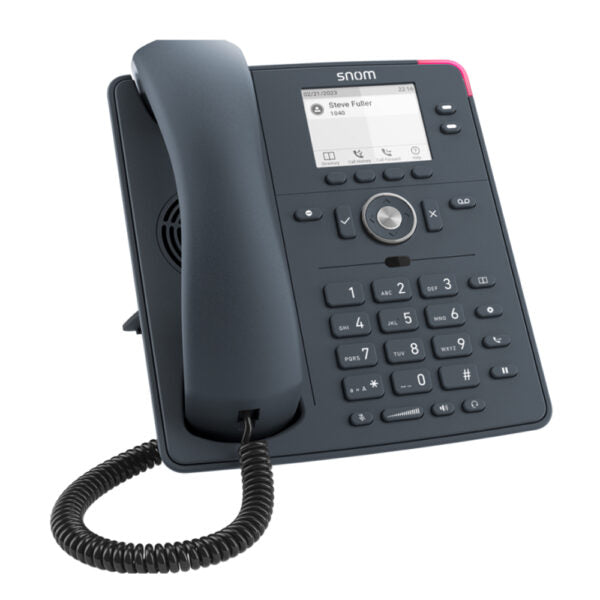
• Sleek slate grey design, ideal for modern work environments • Combines cutting-edge technology with exceptional voice quality at an unbeatable price • Features a highly visible, backlit LED display to monitor information on calls and features • Equipped with a gigabit switch with PoE support and an RJ9 headset port Key features: • Gigabit Ethernet connectivity for high-speed data transfer • Low power consumption (PoE Class 1) for energy efficiency • 360° notification display for enhanced call monitoring • IPv6 & IPv4 compatibility for seamless network integration • HD audio quality for crystal-clear voice communication • Headset connectable for flexible collaboration options • On-screen smart labels for easy feature access • OpenVPN support for secure remote access • Power over Ethernet (PoE) for convenient device charging Weight: 3 lb Dimensions: 10 x 11 x 5 in Phone Type: Desk Operating system: Linux Colour: Slate gray Additional information: • Phone comes with a footstand, corded receiver, and quick installation guide • GNU General Public License included Technical specifications: • Model: D150 • APN: 80-S189-00 • Box contents include IP desk phone, footstand, corded receiver, Ethernet cable, and quick installation guide

About This Product

The Snom D150 is a straightforward, no-fuss SIP desk phone designed for budget-conscious offices that need reliable voice communication without paying for features they won't use. It fits naturally in small to medium-sized businesses, branch offices, or shared workspaces where every desk just needs a solid phone. The gigabit switch and PoE support make it easy to deploy—just one cable for power and data—and the HD audio ensures calls sound clear. This phone pairs well with any standard SIP PBX, whether hosted or on-premises, and can replace older analog phones or basic IP phones that lack gigabit networking.

That said, the D150 has real limits. Its display is small and monochrome, with no touchscreen or color, and it lacks programmable line keys, so it's not suited for receptionists or power users who need to manage multiple calls or monitor many extensions at once. The headset port is RJ9, which is common but not universal, and the phone has no Bluetooth or USB ports. In a busy call center or a executive office, this phone will feel underpowered; in a quiet back office or a meeting room, it's perfectly adequate.

For Canadian businesses, the D150 works with any SIP provider that supports standard VoIP protocols, including major carriers like Rogers, Bell, and Telus, as well as hosted PBX services popular in the GTA. Its OpenVPN support is a nice bonus for remote workers connecting back to the office network, though setup requires some technical know-how. Overall, it's a sensible choice when the goal is a functional, affordable desk phone that won't complicate the network or the user's day.
Services We Provide
  • Professional Installation & Configuration
  • Ongoing Maintenance & Support
  • Troubleshooting & Repairs
  • System Upgrades & Updates



