
Snom D717 Entry-level SIP Color Desk Phone

Frequently Asked Questions

First, check that the phone is connected to the network and has a valid IP address—look at the phone’s display or menu under network status. Confirm the SIP server address, username, and password entered in the phone’s web interface or provisioning file exactly match what your provider gave you. A simple power cycle of the phone and network switch often clears temporary registration glitches.
If you’re using PoE, verify the Ethernet cable is plugged into a PoE-capable port on your switch and that the port is enabled for power delivery. If using an external power supply (sold separately), make sure it’s securely connected and the outlet is working. Try a different cable or switch port to rule out a faulty connection.
Choppy audio often points to network congestion or packet loss. Check that the phone is on a dedicated VLAN for voice traffic and that Quality of Service (QoS) is configured on your router or switch. Temporarily disconnecting other bandwidth-heavy devices can help isolate the issue.
This can happen when a firewall or router is interfering with SIP traffic. Look for a SIP ALG (Application Layer Gateway) setting in your router and try disabling it, as it can corrupt SIP packets. Confirm that the phone’s outbound proxy and registration interval settings match your provider’s recommendations.
The D717 has an ambient light sensor that automatically adjusts brightness. If the room is very dark, the display might dim excessively. Try moving the phone to a better-lit area or temporarily covering the sensor (located near the top of the display) to see if brightness increases. A manual brightness adjustment is available in the display settings menu.
Speed dials are configured through the phone’s web interface under the Function Keys or Speed Dial section. Assign a number to an unused line key, then enter the contact’s name and number. You can also configure them via the phone’s own menu under Call Features or Directory, but the web interface is usually faster for bulk setup.
The D717 is a standard SIP phone, not a native Teams device. It can work with Teams via a SIP gateway or Direct Routing setup provided by your VoIP provider or IT team. Without that integration, it won’t sign directly into a Teams account. If you need a native Teams phone, consider a certified Teams handset instead.
Ensure the phone and your computer are on the same subnet, and that you’re using the correct IP address displayed on the phone’s screen. Disable any browser extensions or VPN that might block local network access. If the issue persists, a quick reboot of the phone often restores web interface responsiveness.
A missing dial tone usually means the phone hasn’t successfully registered with your SIP server. Check the registration status on the display; if it shows ‘unregistered’ or ‘failed’, revisit your account credentials and network settings. Also confirm that your provider’s service is active and that no SIP registration limit has been exceeded.
Check the current firmware version in the phone’s status menu, then compare it with the latest release on Snom’s support site. If an update is needed, you can load the firmware file via the web interface’s firmware update section. Only perform an update when you can confirm your network is stable; if you’re unsure, contact your support team to avoid interrupting service.
IP Phones

Snom D717 Entry-level SIP Color Desk Phone
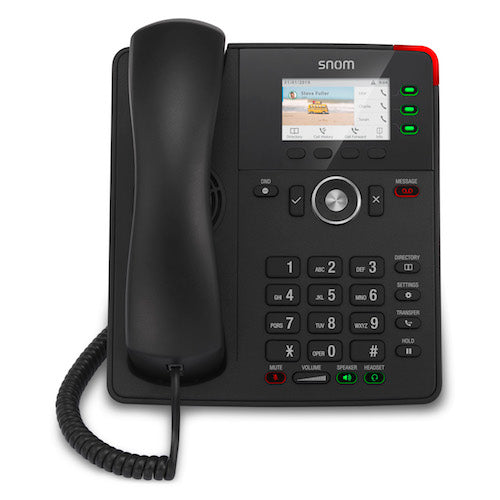
• The Snom D717 is a professional desktop phone that offers cost-effective entry-level VoIP telephony. Features: • High-resolution colour display • Integrated light sensor for automatic brightness and proximity adjustments • Multi-colour LED function keys • Gigabit Ethernet switch with USB port for comprehensive connectivity options • Wideband hands-free talking (speakerphone) and digital signal processor (DSP) enhanced audio quality Note: Power Supply is sold separately. Additional Information: • Weight: 2.4 lb • Dimensions: 9 × 9 × 4 in • Phone Type: Desk Technical Specifications: • Call Features: • Speed dialing • URL dialing • Local dial plan • Automatic redial on busy • Call completion (busy/unreachable) • Caller identification • Call waiting • Call blocking (deny list) • Auto answer • Hold • Music on hold • Blind and attended transfer • Call forwarding • 3-way conferencing on the phone • Extension monitoring, call pickup • Call park, call unpark • Multicast paging • DND mode (do not disturb) • Keyboard lock • Client matter code (CMC) • Unified Communications ready For a full list of specifications, please refer to the product datasheet.

About This Product

The Snom D717 is designed for small offices, home offices, and reception areas that need a reliable SIP desk phone without the complexity or cost of high-end models. Its colour display and gigabit Ethernet make it a practical step up from basic monochrome phones, while the integrated USB port offers flexibility for connecting a headset or other accessories. This phone fits well into environments where voice quality matters but advanced call handling features like large BLF panels or built-in video are not required.

Because the power supply is sold separately, buyers should plan for Power over Ethernet (PoE) from their switch or budget for an external adapter. This is a common approach in entry-level VoIP gear, but it’s worth confirming your network infrastructure supports PoE before ordering. The phone’s lightweight build and straightforward interface also make it a good candidate for hot-desking or shared spaces where users change frequently.

For Canadian businesses, the D717 works well with most hosted VoIP providers and on-premise SIP platforms common in the GTA. It’s not the right choice for call centre agents who need a high volume of programmable keys or for executive desks where a larger touchscreen and video calling are expected. In those cases, stepping up to a more feature-rich model within the Snom lineup would be more appropriate.

The speakerphone and DSP-enhanced audio deliver clear wideband calls, but as with any entry-level device, the acoustic performance in larger or noisy rooms may be limited. If your deployment involves frequent conference calls from the desk, pairing it with a quality USB headset can bridge that gap effectively.
Services We Provide
  • Professional Installation & Configuration
  • Ongoing Maintenance & Support
  • Troubleshooting & Repairs
  • System Upgrades & Updates



