
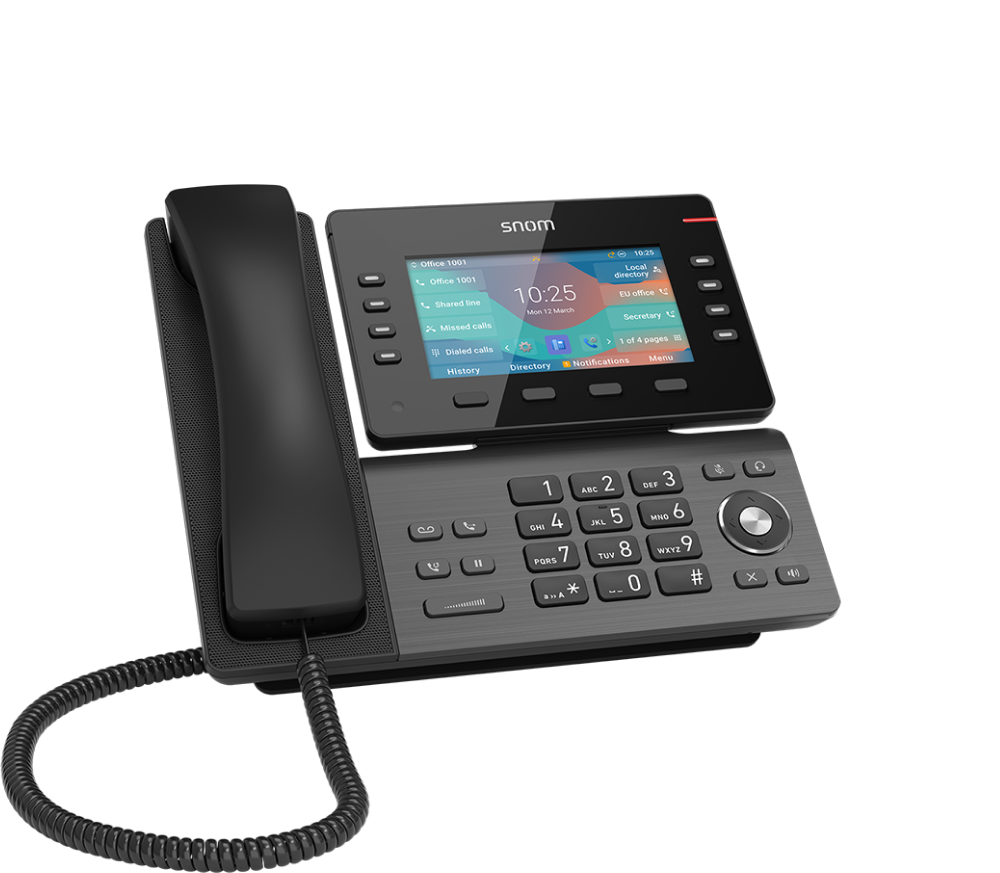
Snom D862 Desk Phone
Frequently Asked Questions
First, check the Ethernet connection—try a different cable and verify the link light. Then log into the web interface and confirm the SIP server address, username, and password match exactly what your provider supplied. If the phone is factory‑fresh, it may need a provisioning URL from your VoIP service; contact them for the correct string. A Toronto‑based VoIP support provider can usually diagnose registration failures remotely.
One‑way audio is nearly always a NAT or firewall issue. On the phone’s web UI, under Network settings, enable STUN if you’re behind a router, or ask your IT team if SIP ALG is enabled on the firewall and try disabling it. Also, make sure the handset cord is firmly seated in the correct port and that no mute button is toggled.
Start with the power source—if you’re using PoE, plug the phone into a different PoE switch port, or test with a compatible DC power adapter, to rule out a failing switch or injector. Next, look for firmware corruption: re‑provision the phone by entering a fresh configuration URL and rebooting. If the restarts continue, note any error codes on the display before contacting support.
Those keys are not active by default. Open the phone’s web UI, go to the Function Keys section, and assign a speed dial, BLF, or other action to each key. After saving the settings, reboot the phone and try a simple test, such as a speed dial to your own voicemail, to confirm the configuration took effect.
Verify the switch port is actually providing PoE (802.3af/at) and that PoE is enabled in the switch settings. Try a known‑good Ethernet cable—a damaged pair can block power. As a safe isolation step, temporarily use a Snom‑approved DC power adapter. If the phone works with the adapter, the PoE source or cabling is the culprit.
This usually points to network jitter or packet loss. Connect the phone directly to your internet router, bypassing any intermediate switches, to see if the problem clears. In the phone’s audio settings, try increasing the jitter buffer size slightly. Also, ensure no heavy uploads or downloads are saturating the data VLAN shared with the phone.
Most providers will give you an auto‑provisioning URL. In the phone’s web interface, navigate to Setup > Advanced > Update, paste the URL, and click Reboot. The phone will download its configuration. Ensure you’ve added the phone’s MAC address in your provider’s admin portal first. For manual entry, fill in your SIP credentials under the Identity 1 tab.
The D862 does not have built‑in Bluetooth. It does include a dedicated RJ9 headset port and supports many corded headsets. If you need wireless, you can connect a Bluetooth adapter that plugs into the headset port, but you must verify the adapter is compatible with Snom’s electronic hook switch (EHS) before purchasing.
Yes. In the web interface, go to the Security section and set an administrator password. Once saved, the phone will prompt for that password before anyone can access advanced network or account settings. This is a good practice for shared desk areas and helps prevent accidental misconfigurations.
Out of the box, the default login is often ‘admin’ with no password. If that doesn’t work, an administrator may have already set a custom password. Should you need to recover access and you have no admin, a factory reset will restore the defaults, but it will erase all current settings—obtain your provisioning details first, or contact a professional support team before taking that step.
IP Phones
Snom D862 Desk Phone
The Snom D862 is a stylish entry-level device of the Snom D8xx series, ideal for any desk with its elegant design. Key features include: • Advanced technology • Excellent voice quality • 5" LCD screen with 40° continuously adjustable display • 8 freely programmable function keys The Snom D862 combines these elements in a single device, providing an attractive and user-friendly experience. For more detailed specifications, please refer to the product datasheet.
About This Product
The Snom D862 is an entry-level SIP desk phone that sits at the accessible end of the D8xx series, designed for professionals who need a reliable, no‑frills voice endpoint with a modern touch. It fits well in open-plan offices, private desks, and small‑to‑medium business environments across Canada—particularly in the GTA, where space‑conscious deployments and hosted VoIP are common. The 5‑inch LCD and its adjustable hinge make the phone practical for varied lighting and seating angles, while eight programmable keys provide just enough speed‑dial or BLF power for most individual users without overwhelming a clean desktop.
Because it’s a standard SIP device, the D862 pairs comfortably with popular Canadian VoIP platforms—hosted PBX services, 3CX, Microsoft Teams SIP Gateway, and on‑premise IP‑PBXs—making it a straightforward replacement for older phones from legacy systems. It’s not, however, a unified‑communications powerhouse. There’s no colour touchscreen, no native video calling, and no built‑in Wi‑Fi or Bluetooth headset support, so it’s best thought of as a focused voice tool. For teams that rely heavily on presence, instant messaging, or hands‑free mobile integration, higher‑tier models in the Snom range or complementary soft clients would be needed.
Buyers should be aware of a few practical limits. The phone does not have a PC‑pass‑through Ethernet port, so a single desk drop means either a separate switch or an additional cable run. Its 8 function keys are adequate for most roles but will feel tight for a busy assistant or a receptionist who needs dozens of monitored extensions. In a contact‑centre or high‑call‑volume scenario the D862 would be under‑powered; similarly, if you need to connect a cordless headset, you’ll likely need an EHS cable or an external adapter, as native wireless audio isn’t part of this model’s design.
Because it’s a standard SIP device, the D862 pairs comfortably with popular Canadian VoIP platforms—hosted PBX services, 3CX, Microsoft Teams SIP Gateway, and on‑premise IP‑PBXs—making it a straightforward replacement for older phones from legacy systems. It’s not, however, a unified‑communications powerhouse. There’s no colour touchscreen, no native video calling, and no built‑in Wi‑Fi or Bluetooth headset support, so it’s best thought of as a focused voice tool. For teams that rely heavily on presence, instant messaging, or hands‑free mobile integration, higher‑tier models in the Snom range or complementary soft clients would be needed.
Buyers should be aware of a few practical limits. The phone does not have a PC‑pass‑through Ethernet port, so a single desk drop means either a separate switch or an additional cable run. Its 8 function keys are adequate for most roles but will feel tight for a busy assistant or a receptionist who needs dozens of monitored extensions. In a contact‑centre or high‑call‑volume scenario the D862 would be under‑powered; similarly, if you need to connect a cordless headset, you’ll likely need an EHS cable or an external adapter, as native wireless audio isn’t part of this model’s design.
Services We Provide
- Professional Installation & Configuration
- Ongoing Maintenance & Support
- Troubleshooting & Repairs
- System Upgrades & Updates



