
Yealink MP54 E2 Zoom Edition IP Phone | 4" Touchscreen, Wi-Fi 6 & Bluetooth-1301120

Frequently Asked Questions

First, confirm that the phone has a working internet connection by checking the network status on the touchscreen. If it’s connected but registration fails, verify that the Zoom Phone license is correctly assigned to the user in the Zoom admin portal and that the phone’s MAC address is provisioned. A simple power cycle often clears transient authentication issues.
Ensure the handset cord is firmly seated at both ends—loose connections are a common cause. If the cord is secure, try switching to speakerphone mode to see if you get a dial tone there; if you do, the handset or its cord may be faulty. Also confirm that the phone shows a registered status on its display.
Start by cleaning the screen with a soft, dry cloth to rule out dirt or moisture interfering with the capacitive touch. If that doesn’t help, disconnect the power (unplug the Ethernet cable if using PoE, or the power adapter) for 30 seconds, then reconnect. This safe reboot will not erase any settings and often restores normal touch response.
Make sure the headset is in pairing mode and within a few feet of the phone. On the MP54, go to Settings > Bluetooth and toggle Bluetooth off and back on, then scan again. If the headset still doesn’t appear, check that it isn’t already connected to another device, and try charging the headset fully—low battery can prevent pairing.
This is often a network quality issue. If you’re using Wi‑Fi, try temporarily connecting via Ethernet to see if the problem disappears; if it does, the Wi‑Fi signal may be weak or congested. For wired connections, check that the Ethernet cable is undamaged and that no QoS settings are stripping voice priority on your switch.
Double-check that you’re selecting the correct SSID and entering the password accurately—the on-screen keyboard can be tricky. If the network uses MAC address filtering, make sure the phone’s MAC address is allowed. Also confirm that your access point supports 2.4 GHz or 5 GHz as needed and that the signal strength is adequate at the phone’s location.
Swipe down from the top of the screen to access the quick settings, tap the Wi‑Fi icon, and select your network from the list. Enter the password when prompted. Once connected, the phone will use Wi‑Fi for all voice and data unless you plug in an Ethernet cable, which takes priority by default.
No, the MP54 E2 does not have an RJ9 headset port. It supports wireless headsets via Bluetooth 5.2, and you can also use USB headsets if they are compatible with Android. For a wired option, the handset itself is the only wired audio path.
During a call, use the volume keys to raise the current call’s audio level—this adjusts the handset, speakerphone, or headset volume independently. If the volume is already at maximum, check the Zoom app’s audio settings for any gain or equalizer adjustments that might be limiting output. If the issue persists, a Toronto-based VoIP support provider can usually resolve this remotely.
The phone typically receives firmware updates automatically from the Zoom provisioning server when they are pushed by your administrator. You can manually check by going to Settings > System Update, but do not interrupt the process or power off the phone while an update is in progress. If an update fails, contact your IT team before attempting any recovery steps.
IP Phones

Yealink MP54 E2 Zoom Edition IP Phone | 4" Touchscreen, Wi-Fi 6 & Bluetooth-1301120
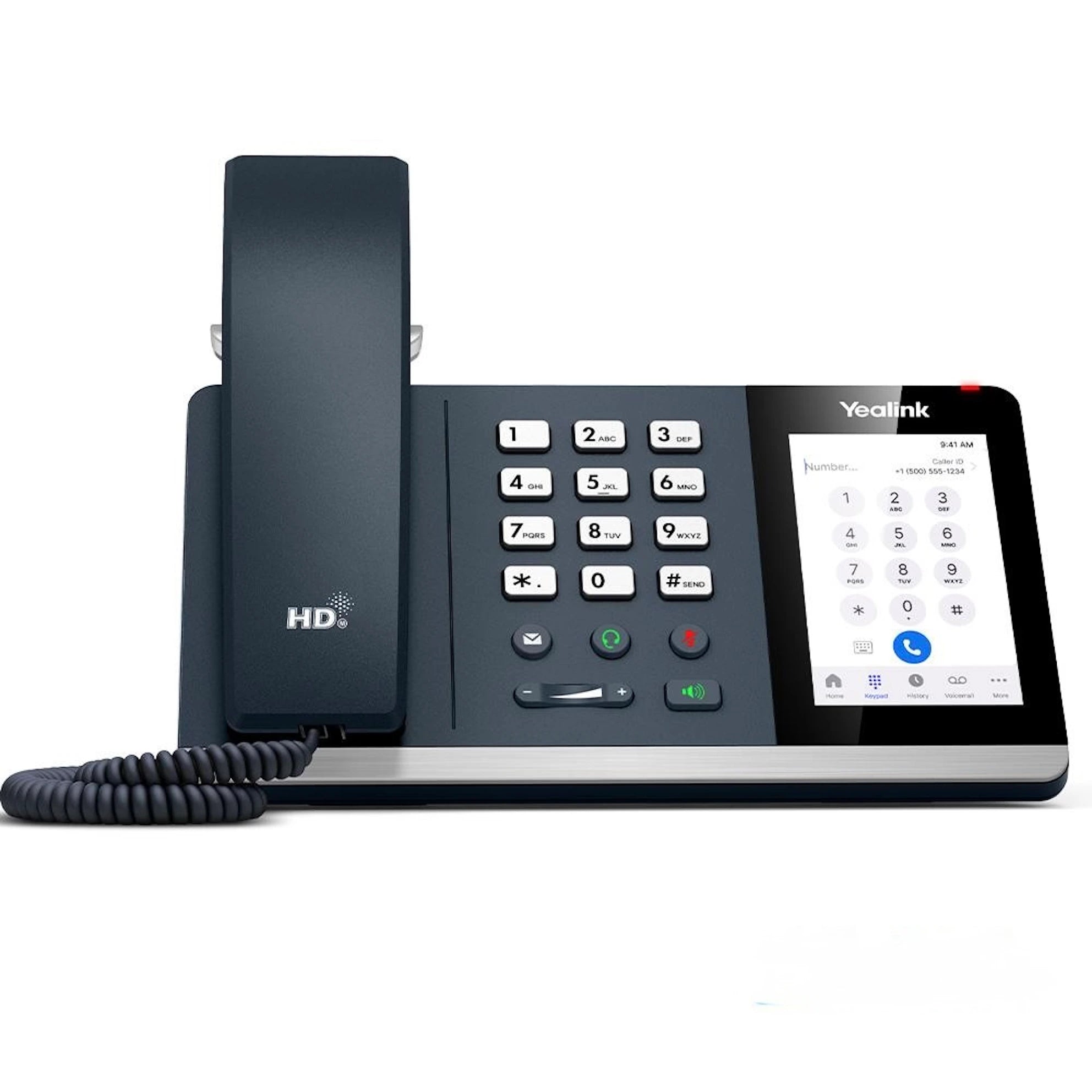
• Android 13-powered desk phone with a sleek hardware design and powerful quad-core processor, delivering a fluid app-like experience. • Vibrant 4-inch capacitive touch screen with integrated wireless technologies for high-speed communication. • Native Zoom Experience: optimized for higher security and faster app performance. • Advanced Audio Features: • Optima HD Voice: delivers crystal-clear, lifelike audio for both the handset and full-duplex speakerphone. • Yealink Noise Proof Technology: actively identifies and suppresses non-human background noises, ensuring your voice is heard clearly. • HAC Compliance: ensures accessibility for all users. • Advanced Connectivity: • Built-in Wi-Fi 6: supports dual-band wireless connectivity (2.4GHz and 5GHz) for easy deployment in areas with limited Ethernet availability. • Built-in Bluetooth 5.2: seamlessly connect professional Bluetooth headsets for hands-free mobility and improved ergonomics. • Gigabit Connectivity: dual-port Gigabit Ethernet ensures high-speed data pass-through to a connected PC. • Package Includes: • Yealink MP54 E2 Zoom IP Phone Unit • Handset with Handset Cord • Desk Stand • Ethernet Cable (2m) • Quick Start Guide (QSG)

About This Product

The Yealink MP54 E2 Zoom Edition is a purpose-built desk phone for organizations that rely on Zoom Phone as their primary voice platform. It suits knowledge workers, reception areas, and private offices where a familiar handset experience is preferred, but the underlying telephony is entirely cloud-based. The Android 13 foundation and quad-core processor give it a responsive interface that feels closer to a smartphone than a traditional desk phone, which can reduce the learning curve for teams already comfortable with mobile apps. Because it runs a native Zoom client, the phone inherits the same security model and feature set as the desktop and mobile apps, making it a natural fit for businesses that want consistency across endpoints.

This device pairs well with professional Bluetooth headsets—particularly models certified for Zoom—and its integrated Wi‑Fi 6 support means it can be placed where Ethernet cabling is inconvenient, such as in an open-plan hot-desking area or a small retail counter. It also works as a straightforward wired phone with Gigabit passthrough to a PC, so a single desk drop can serve both the phone and a workstation. The tradeoff is platform lock-in: the Zoom Edition is not intended to be re-provisioned for generic SIP or competing UC platforms like Microsoft Teams, so it’s a poor choice for a mixed-vendor environment unless you’re prepared to treat it as a single-purpose terminal.

For a typical Toronto office that has standardized on Zoom Phone, the MP54 E2 is a sensible upgrade from older IP phones or softphone-only setups. The built-in noise proof technology helps in shared or street-facing spaces where background sound can be a distraction. However, it’s not a call-center workhorse—there is no expansion module support for sidecars, and the 4-inch screen, while crisp, is not designed for high-volume attendant console duties. In those scenarios, a dedicated operator console or a softphone with a larger display would be more practical.

One practical limit to note is that while Wi‑Fi 6 provides excellent wireless performance, voice quality over Wi‑Fi is still subject to the local RF environment. In a dense downtown high-rise with dozens of competing access points, a wired connection remains the safer choice for mission-critical calls. Similarly, Bluetooth 5.2 is convenient for headsets, but simultaneous Wi‑Fi and Bluetooth operation can occasionally cause interference on the 2.4 GHz band; using a 5 GHz Wi‑Fi connection avoids that entirely. These are not flaws, just deployment considerations that a network-aware purchaser should keep in mind.
Services We Provide
  • Professional Installation & Configuration
  • Ongoing Maintenance & Support
  • Troubleshooting & Repairs
  • System Upgrades & Updates



