
Yealink MP56 E2 Teams IP Phone | 7" Touchscreen, Built-in Wi-Fi & Bluetooth-1301017

Frequently Asked Questions

Start by confirming that the account is licensed for Teams Phone and that modern authentication is permitted by your organization’s conditional access policies. Also check the date and time on the phone; a significant clock drift can cause sign-in failures. If the issue persists, a Toronto-based VoIP support provider can usually resolve this remotely.
Make sure the headset is paired as an audio device, not just discovered, and that no other nearby device is fighting for the same connection. If the range between the phone and the headset is more than a few metres or there are metal obstructions, Bluetooth dropouts are more likely. Try unpairing and re-pairing the headset while standing close to the phone.
Inspect the handset cord to confirm it is fully seated at both ends, then try a test call without the handset using the speakerphone. Verify that nothing is obstructing the microphone port on the handset or the base unit. If the problem only occurs on speakerphone, clear any objects from around the phone that might reflect or block sound.
Disconnect any USB accessory and remove the Ethernet cable briefly so the phone runs on Wi‑Fi, then test the screen again to rule out a peripheral or network conflict. A simple power cycle—unplugging the phone, waiting fifteen seconds, and plugging it back in—often clears temporary performance hiccups. If the lag returns immediately, note whether it happens only within a specific Teams app screen.
Confirm that the SSID is broadcasting on a supported band and that the Wi‑Fi password has been entered exactly as set on the access point. Check whether MAC address filtering or 802.1X authentication is enabled on the wireless network, as either can block the phone without generating an obvious error on the device. Try connecting another client to the same access point to verify the network side is healthy.
The MP56 E2 Teams Edition is built to run the native Teams interface and is not designed for use as a generic SIP desk phone with other platforms. While the underlying hardware shares components with versatile Yealink models, the firmware and licensing are specific to the Teams experience, so repurposing it for a standard PBX is not supported.
Verify that the switch port supplies Power over Ethernet that meets the phone’s requirements; many entry-level switches only provide PoE on a subset of ports or lack PoE entirely. If the switch has PoE enabled, try a known-working patch cable and a different port to rule out a cabling or port-configuration fault. If you are still not getting power, a 48V PoE injector is the simplest next step before assuming a hardware defect.
Presence and contact details are served by Microsoft 365, so the issue usually lies with tenant settings or the signed-in account’s permissions rather than the phone itself. Confirm that the account has access to the Teams address book and that presence privacy settings aren’t blocking visibility. Also check that the phone has a stable internet connection, because a brief drop can stall presence updates until the next refresh.
The MP56 E2 supports up to three Yealink EXP50 expansion modules, each providing extra programmable keys for quick-dial contacts or certain Teams functions. The modules connect through a dedicated port and draw power from the phone, so they only work when the phone itself is powered via PoE or its included power adapter. After physically connecting a module, the extra keys become configurable within the phone’s settings or through Teams Admin Center.
Open the Teams client on a PC, go to Settings, and under Calls confirm that the secondary ringer or simultaneous ring setting is pointing to the desk phone. If the phone is set as the primary device but still remains silent, check the phone’s ringer volume and ensure Do Not Disturb is not active on the handset. A quick test is to sign out of Teams on the PC entirely and call the number again to see whether the phone rings independently.
IP Phones

Yealink MP56 E2 Teams IP Phone | 7" Touchscreen, Built-in Wi-Fi & Bluetooth-1301017
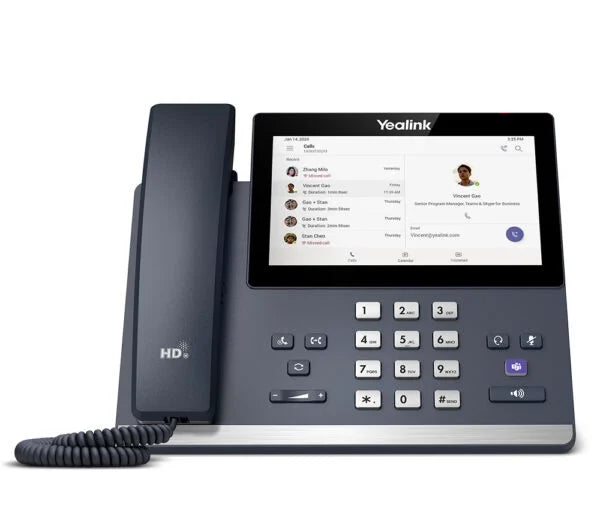
• The Yealink MP56 E2 Teams Edition is an advanced desk phone designed for efficient collaboration within the Microsoft Teams ecosystem. Powered by Android 13.0, it offers a faster and more responsive user experience than its original version. Key Features: • 7-Inch HD Touchscreen with 1024 x 600 resolution capacitive touch screen • Dedicated Teams Button for one-touch access to native Teams interface • Built-in Dual-Band Wi-Fi (2.4G/5G) and Bluetooth 5.2 for wireless connectivity • Optima HD Audio & Noise Proof technology for crystal-clear voice communication • USB-C Port alongside USB-A port, supporting future device mode features and increased flexibility • Gigabit Ethernet and PoE for simplified installation Management and Scalability: • Supports up to three EXP50 Expansion Modules for adding quick-dial and feature keys • Centralized Management compatible with Microsoft Teams Admin Center (TAC) and Yealink's management platforms • Fully compatible with both TAC and Yealink's management platforms for effortless mass deployment and remote configuration Included in the Package: • Yealink MP56 E2 Teams IP Phone Unit • Handset with Handset Cord • Desk Stand • Type-C Cable (2m) • Quick Start Guide

About This Product

The Yealink MP56 E2 is built for workplaces where Microsoft Teams is the primary hub for calls, meetings, and messaging. It fits naturally into mid-sized to large offices that have standardized on Teams and want a desk phone that mirrors the software experience without requiring a computer. A seven-inch touchscreen and a dedicated Teams button make it straightforward for users who are already familiar with the Teams interface, while Android 13 under the hood keeps the device feeling responsive as platform updates roll out.

Because this model includes built-in dual-band Wi‑Fi and Bluetooth 5.2, it accommodates layouts where Ethernet cabling is inconvenient or where desk placement changes often. That wireless flexibility pairs well with open-plan offices and hot‑desking setups, but a Gigabit Ethernet port and PoE are still there for traditional deployments that prioritize wired stability. The USB‑C and USB‑A ports add connectivity headroom, such as linking future accessories or charging a personal device while working.

A practical limit to know is that the MP56 E2 is designed inside the Teams ecosystem; it is not a generic SIP endpoint that can be easily repurposed for an on‑premise PBX running a different platform. For a Canadian business running Teams Phone with Calling Plans or Direct Routing, it integrates seamlessly, but a shop that needs multi-platform flexibility might find the device overqualified for their project. It is also worth noting that while the phone supports up to three EXP50 expansion modules, most users who primarily rely on the Teams client for presence and contact search will not need those sidecars, so that capability is best reserved for reception or assistant roles.

For GTA offices that manage devices through Microsoft Teams Admin Center or Yealink’s cloud management tools, this phone slots into existing workflows without requiring separate provisioning servers. It suits professionals who spend a lot of time on calls and want dedicated hardware with clear audio, but it is overkill for a break room or a rarely‑used common area where a lower‑cost Teams‑certified device or a headset‑and‑app approach would do the job.
Services We Provide
  • Professional Installation & Configuration
  • Ongoing Maintenance & Support
  • Troubleshooting & Repairs
  • System Upgrades & Updates



