
Yealink MP56 E2 Zoom

Frequently Asked Questions

First, verify the phone has a valid network connection by checking the Ethernet or Wi‑Fi status icon. Next, confirm that the Zoom Phone license is correctly assigned to the user in the Zoom admin portal and that the provisioning URL is reachable. If the phone was previously working, a simple reboot often clears transient registration glitches.
Make sure the handset, speakerphone, or headset volume isn't turned all the way down and that the mute button isn't active. If you're using a Bluetooth headset, confirm it's paired and selected as the audio device. Test with the handset to isolate whether the issue is with a specific accessory.
Hold the power button or disconnect and reconnect the power (PoE or power adapter) to force a reboot. This clears temporary UI hangs without affecting your configuration. If the screen remains unresponsive after restarting, check for any physical damage or moisture, and contact support if needed.
Check that the phone is within good range of the access point and that the 2.4 GHz or 5 GHz band is not overly congested. Verify the SSID and password are entered correctly. As a test, try connecting via Ethernet to see if the problem is specific to the wireless network.
Try a different Ethernet cable and a different port on the PoE switch, as a faulty cable or port is often the cause. Confirm that the switch port provides sufficient power (the phone needs up to 6 W). If using a midspan injector, ensure it's rated for Gigabit and 802.3af/at.
Move the headset closer to the phone and away from other active Bluetooth or Wi‑Fi devices that may cause interference. Unpair and re-pair the headset, and if the problem persists, test with a different Bluetooth headset to determine if the issue lies with the headset or the phone.
Swipe down from the top of the screen to access the quick settings, tap the Wi‑Fi icon, and select your network. Enter the password when prompted. For hidden networks, you may need to manually add the SSID via the Android settings menu.
The MP56 E2 is designed specifically for Zoom and runs a custom Zoom UI. While it is an Android device, loading third-party SIP applications or using it as a generic VoIP phone is not officially supported and may lead to unpredictable behaviour. For mixed-platform environments, a standard SIP phone is a safer choice.
Check that the Ethernet cable is securely connected at both ends and that the switch port shows link activity. If using Wi‑Fi, verify the network password and that DHCP is enabled on the router. Reboot the phone and the network switch or access point. If the issue persists, a Toronto-based VoIP support provider can usually resolve this remotely.
The phone typically receives firmware updates automatically through the Zoom provisioning service. You can manually check for updates by navigating to the device settings and looking for a system update option, but ensure the phone has a stable internet connection first. Do not attempt to downgrade or sideload firmware unless directed by support.
IP Phones

Yealink MP56 E2 Zoom
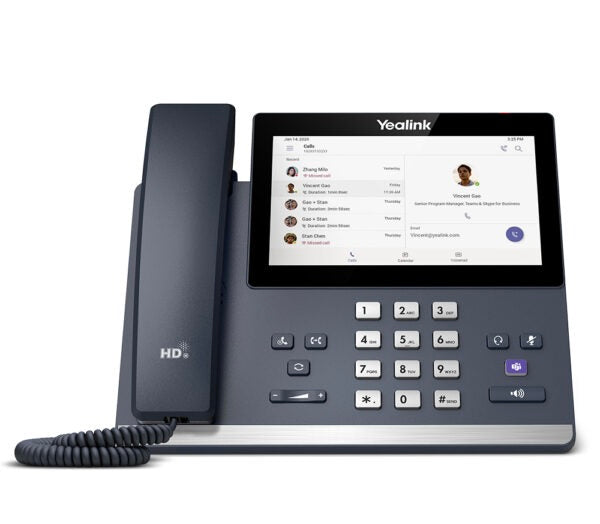
• The MP56 E2 is a Zoom-tailored IP phone featuring an Android 13.0 operating system, 7-inch capacitive touch screen, and Yealink Optima HD voice. • Key features include: • High-quality collaboration capabilities with magnet handset, Bluetooth connectivity to headsets, and Wi-Fi • Support for USB headsets and flash drives via a single USB Type-A port • Gigabit Ethernet, dual-band 2.4G/5G Wi-Fi, and built-in Bluetooth • Full-duplex hands-free speakerphone with AEC and wall mountability • Zoom UI and presence integration for seamless communication • Technical specifications include: • Android 13.0 operating system • 7-inch capacitive touch screen with multi-touch surface • Gigabit Ethernet, dual-band 2.4G/5G Wi-Fi, and built-in Bluetooth • USB Type-A port for headsets and flash drives • Wall mountability and support for Yealink Device Management Platform • Presence integration, presence status control, and corporate directory access • Dimensions: 250.4 × 168.7 × 174.4 × 44.5 mm, weight: 3 lb • Operating temperature range: -10-50°C (+14-122°F), operating humidity: 10-95% • Power consumption: 1.5-4.5 W (PSU) and 2.3-6.0 W (PoE) • Compatibility with Yealink Redirection and Provisioning Service (RPS)

About This Product

The Yealink MP56 E2 is built for organizations that live inside Zoom, particularly teams that rely on Zoom Phone for daily calling and presence. Its Android 13 foundation and 7-inch touchscreen make it feel more like a compact tablet than a traditional desk phone, which suits hybrid workers who switch between calls, chat, and quick meeting join actions without wanting to reach for a computer. The dedicated Zoom UI strips away generic SIP complexity, so common tasks like checking a colleague's availability or joining a scheduled meeting are front and centre.

This phone fits naturally into mid-sized Canadian offices, co-working spaces, or executive desks where a reliable, always-on Zoom endpoint is valued. It pairs well with the Yealink Device Management Platform for remote provisioning, and its Wi-Fi and Bluetooth flexibility can simplify cabling in open-plan environments common in the GTA. However, because it is purpose-built for Zoom, it is not the right choice if your telephony environment mixes multiple UC platforms or if you need a phone that also runs native Teams or generic SIP services without workarounds.

Buyers should understand that the MP56 E2 is a voice-first device with collaboration touches, not a full video room system. The single USB-A port can connect a headset or a flash drive for call recording storage, but don't expect to drive an external camera or run a heavy video meeting from the phone itself. Audio quality benefits from Yealink's Optima HD and full-duplex speakerphone, so hands-free calls in a private office are clear, but in a noisy open area a headset is still recommended.

For a small Zoom Phone rollout, the MP56 E2 offers a polished, low-management experience. In larger deployments, it shines when configured through RPS and paired with a PoE switch that can deliver the required power budget. If your needs are basic (occasional calls, no presence or touchscreen reliance), a simpler corded phone may be more cost-effective. Conversely, if every desk runs full Zoom Rooms with video, this phone might feel underpowered and a dedicated room appliance would be a better fit.
Services We Provide
  • Professional Installation & Configuration
  • Ongoing Maintenance & Support
  • Troubleshooting & Repairs
  • System Upgrades & Updates



