
Yealink MP58-WH E2 Zoom Phone | Android 13 Wireless Handset IP Business Phone-1301122

Frequently Asked Questions

Start by placing the BTH58 handset in its charging cradle for at least 10 minutes to ensure it has enough battery. On the phone, go to the Bluetooth settings and confirm the handset is in pairing mode; if it isn’t listed, turn Bluetooth off and back on, then restart the phone by unplugging the PoE cable for a few seconds. If the issue continues, verify that the phone’s firmware is current through Zoom Device Management.
Check that the Ethernet cable is securely connected and the phone has a valid IP address from your network. In the Zoom web portal, confirm the device is assigned to the correct user and that the provisioning URL is reachable. A simple power cycle—unplugging the network cable for 10 seconds—often re‑triggers registration. If the problem persists, your Toronto‑based VoIP support provider can usually verify the provisioning setup remotely.
First, test the call with a wired Ethernet connection if you are currently using Wi‑Fi, as local wireless interference often causes packet loss. Lower the speaker volume slightly and ensure the phone is not placed near reflective surfaces or close to a wall that could bounce sound back into the microphone. If you are using the wireless handset, try the speakerphone instead to see if the issue follows the handset; switching audio paths narrows down the cause.
Perform a soft reboot by disconnecting the Ethernet cable (which removes PoE power) for about 15 seconds, then plugging it back in. Avoid pressing hard on the screen while it is frozen, as that can damage the digitizer. Once the phone restarts, check for any pending Android system updates under the settings menu.
Make sure the handset firmware is up to date, as early software versions sometimes had aggressive power‑state behaviour. Turn off unused Bluetooth connections on the phone itself (for example, if you are not using a Bluetooth headset, disable that radio) to reduce background scanning. If you regularly take long calls, keep the handset in its charger between uses; the charger is designed to support active calls while docked.
Check the Wi‑Fi signal strength in the phone’s network status screen; if it’s below -70 dBm, the connection will be fragile. Try moving the access point closer or switching the phone to the 5 GHz band if available, as that is typically less congested in office environments. Additionally, set a static IP on the phone’s Wi‑Fi interface to eliminate any DHCP lease renewal hiccups.
The MP58‑WH E2 was designed specifically for Zoom Phone and is managed through Zoom Device Management. While the underlying Android OS may permit some generic SIP configuration, most deployments lock down the interface to Zoom’s provisioning. If you need a phone that works natively with a different UCaaS provider or an on‑premise PBX, a standard SIP model like a Yealink T54W or T57W may be a better fit.
Yes, the built‑in Bluetooth radio can pair with most Bluetooth headsets. In the phone’s settings, enable Bluetooth and put your headset into pairing mode, then select it from the discovered devices list. Once paired, you can answer and end calls directly from the headset’s controls. This is a popular setup for staff who want the desk phone experience but prefer a headset over the wireless handset.
IP Phones

Yealink MP58-WH E2 Zoom Phone | Android 13 Wireless Handset IP Business Phone-1301122
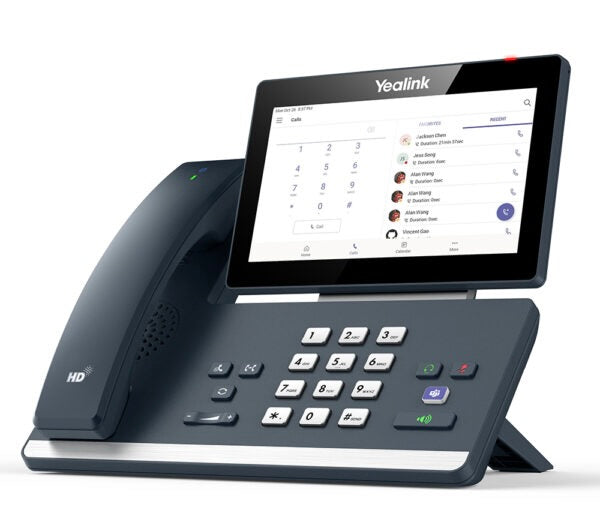
The MP58-WH E2 is a zoom-tailored IP phone designed for mobile office scenarios. It features a 7-inch capacitive touch screen and rotatable LCD design, providing fast response speed. This phone supports the new Bluetooth wireless handset BTH58, offering high-definition voice communication while improving personal efficiency. Key features include: • Wireless Handset with High-Definition Voice Communication • 7-inch Multi-Touch Screen with Rotatable LCD Design • Android 13.0 OS for Faster Response Speed • Full-Duplex Hands-Free Speakerphone with Noise Cancellation and AEC • Built-in Bluetooth, Wi-Fi, and Dual USB Ports for Headset Expansion • Gigabit Ethernet with PoE Support for Reliable Connectivity • Zoom UI and Yealink/Zoom Device Management Platform for Easy Management For a full list of specifications, please refer to the product datasheet.

About This Product

The Yealink MP58-WH E2 is built for users who rely on Zoom Phone as their primary communication platform but still want the familiarity of a desk phone with a wireless handset. The rotatable touch screen and Bluetooth handset make it a strong fit for hybrid workers or offices with hot-desking arrangements where staff move between workstations throughout the day. The Android 13 operating system provides a responsive interface and access to future Zoom Phone features as they roll out. For Toronto-area businesses migrating to Zoom’s UCaaS, this model offers a ready-to-deploy endpoint that integrates directly with Zoom Device Management without third-party middleware.

While the wireless handset (BTH58) delivers clear audio, it does introduce a battery that needs routine charging; heavy users may want to keep the charging dock nearby. The device’s Zoom-centric provisioning means it is not a drop‑in replacement for a generic SIP phone—if you need to register to an on-premise PBX or a non‑Zoom cloud provider, this handset will require extra configuration or may not be fully supported. In contrast, traditional Yealink T5‑series phones may offer broader PBX compatibility if that flexibility matters.

The MP58‑WH E2 shines in personal workspace deployments where the 7‑inch screen and touch gestures streamline call handling and directory access. Its dual USB ports and Bluetooth radio let you connect a wired or wireless headset, so call centre agents who prefer a headset over the wireless handset can still benefit. However, the phone lacks the sidecar expansion modules that receptionists sometimes need for monitoring many lines, so it is better suited to individual contributors than high‑volume attendant roles.

For Canadian offices subject to CRTC regulations or requiring E911 location granularity with Zoom Phone, the phone’s Wi‑Fi capability brings some install flexibility, but Ethernet with PoE remains the recommended path for reliability. Businesses in co‑working spaces or older Toronto office buildings with unpredictable network drops will appreciate the Gigabit pass‑through and the option to fall back to Wi‑Fi if a cable fails, though audio quality over Wi‑Fi depends heavily on the local RF environment.
Services We Provide
  • Professional Installation & Configuration
  • Ongoing Maintenance & Support
  • Troubleshooting & Repairs
  • System Upgrades & Updates



