
Yealink SIP-T31G Entry Level Gigabit 2-Line IP Phone-1301044

Frequently Asked Questions

First, double-check that the phone is getting a network connection: look for an IP address on the screen or in the web interface. If the IP is fine, verify the SIP server address, username, and password exactly as provided by your provider—typos are the most common cause. Also confirm that your firewall or router is not blocking SIP port 5060 or the provider's custom port. If the issue persists, a Toronto-based VoIP support provider can usually resolve this remotely.
Start by ensuring the handset cord is firmly plugged into both the handset and the phone base. If you're using the speakerphone, make sure the volume is not muted or turned all the way down using the volume keys. Test with a different call to rule out a problem on the far end. If audio is still missing, reboot the phone by unplugging its Ethernet cable for 10 seconds, then plug it back in.
Confirm that the Ethernet cable is connected to a PoE-enabled switch port and that the port provides enough power (the T31G requires standard 802.3af PoE). Try a different known-good cable and port. If the switch shows no power draw, the phone's PoE module may not be receiving power; try using a compatible 5V DC adapter (sold separately) to see if the phone powers up that way.
Echo is often caused by the remote party's equipment, but first lower the speaker volume on your phone to see if it improves. If the echo persists, check that the handset is not too close to the speaker and that the phone's firmware is up to date, as updates can include echo cancellation tuning. You can also enable Acoustic Echo Cancellation in the phone's web interface under the audio settings if it is not already active.
Intermittent issues usually point to network instability. Check the Ethernet cable and switch port for physical damage or loose connections. Re-register the account by disabling and re-enabling the line in the web interface. If your network uses a SIP application layer gateway (ALG) on the router, try disabling it, as it can corrupt SIP packets. A Toronto-based VoIP support provider can often diagnose this remotely if the problem continues.
Log into the phone's web interface using its IP address, then go to the Account tab. Choose Account 2, set it to Enabled, and fill in the server address, username, password, and label provided by your second VoIP provider. After saving, the phone will register the new line. You can assign a line key to Account 2 in the DSS Key settings so it shows on the screen.
Yes, most Canadian hosted VoIP providers support Yealink auto-provisioning. In the phone's web interface under Settings > Auto Provision, enter the provisioning URL given by your provider. The phone will download its configuration on the next reboot or at the interval you set. Make sure the phone has internet access and can resolve the provisioning server's hostname.
You can adjust the contrast and backlight brightness from the phone's menu: press the Menu soft key, go to Basic > Display, and modify the contrast and backlight settings. For the 2.3-inch LCD, increasing the contrast can make text sharper. If the screen still appears washed out, check if the phone is in direct sunlight, which can wash out monochrome displays.
During an active call, press the Conf soft key to place the current call on hold and get a dial tone. Call the second party, then press Conf again to join all parties. Repeat for the third and fourth participants—the phone supports up to five total callers including yourself. All participants must be on the same line (account) for local conferencing.
First, do not unplug the phone during a failed update recovery; it may still be attempting to finish. Wait at least 10 minutes. If the phone remains unresponsive, try a safe reboot by disconnecting the Ethernet cable for 30 seconds and reconnecting. If it still does not boot normally, contact your VoIP provider or a support professional before attempting any manual recovery steps—incorrect actions can make the phone permanently unusable.
IP Phones

Yealink SIP-T31G Entry Level Gigabit 2-Line IP Phone-1301044
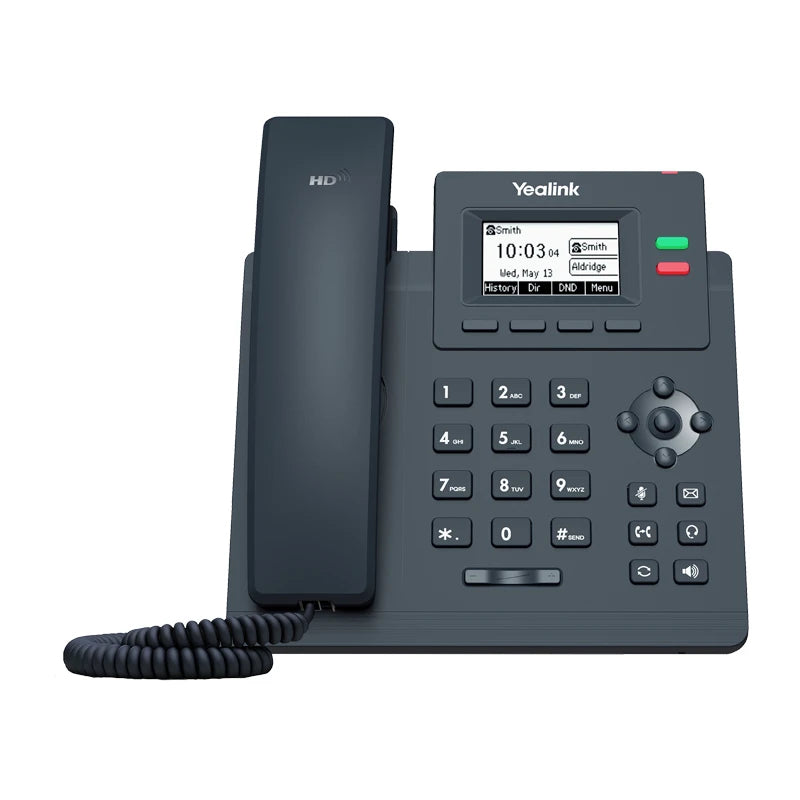
* Entry-level workhorse for simplified communications • Supports up to 2 SIP accounts and local 5-way conferencing • Essential features: • Dual-port Gigabit Ethernet • Integrated PoE support (Power over Ethernet) • Advanced audio features: • Yealink HD Voice with HD handset and HD speaker • Opus Codec support and Smart Noise Filtering technology • Full-duplex hands-free speakerphone with Acoustic Echo Cancellation • Flexible call handling: • Supports up to 2 SIP accounts and local 5-way conferencing • Displays call and contact information on a 2.3-inch, 132x64-pixel graphical LCD * Accessories: • Yealink 5V 0.6A external power adapter (sold separately) • Desk stand with adjustable two-angle positions (included) • Package includes: • Yealink SIP-T31G IP Phone Unit • Handset with Handset Cord • Quick Start Guide

About This Product

The Yealink SIP-T31G is an entry-level IP phone built for straightforward desk communications where reliability and basic call handling matter more than advanced features. It is a natural fit for small offices, retail counters, and cubicle workers who need two lines and clear audio without the complexity of a full-featured executive phone. The dual Gigabit Ethernet ports and integrated PoE mean it can slot into modern office networks without extra power bricks or bandwidth bottlenecks, passing through a PC connection smoothly.

Because it supports only two SIP accounts and lacks a colour screen or sidecar expansion, it is not the right choice for a busy receptionist or anyone juggling many lines and busy lamp fields. That said, for a typical knowledge worker or a shared workspace, those limits keep the phone simple and affordable. The HD voice, Opus codec support, and noise filtering do a good job of cutting through background chatter in open-plan offices, making it a sensible upgrade from older single-line phones that still rely on narrowband codecs.

For Canadian businesses, the T31G works well with hosted VoIP services that provision over standard SIP, and its PoE capability is especially handy in GTA offices where power outlets are often scarce at desk clusters. Just be aware that the power adapter is sold separately if you do not have a PoE switch; purchasing a compatible 5V adapter is an extra step. The adjustable two-angle stand is a small but welcome touch for finding a comfortable screen position in tight spaces.

If you need a basic, no-fuss desk phone that handles two lines, passes Gigabit Ethernet to a computer, and delivers decent wideband audio, the T31G hits the mark. It is overkill only if you have no need for a second line or Gigabit passthrough, in which case a simpler single-line model could save a few dollars. For anything more demanding—like visual call management, Bluetooth, or Wi-Fi—you would be better served by a higher-tier Yealink or a softphone client.
Services We Provide
  • Professional Installation & Configuration
  • Ongoing Maintenance & Support
  • Troubleshooting & Repairs
  • System Upgrades & Updates



