
Yealink SIP-T33G Entry-Level IP Phone | Gigabit, Color Display, PoE -1301046

Frequently Asked Questions

First, verify that the network cable is securely connected and that the phone has obtained an IP address (check via the phone's menu under Status). Then confirm that the SIP credentials (username, password, and server address) entered in the phone's account settings exactly match what your provider gave you. If the issue persists, a Toronto-based VoIP support provider can usually resolve this remotely.
If you're using Power over Ethernet (PoE), make sure your switch or injector is PoE-capable and that the Ethernet cable is firmly plugged in. If using the optional power adapter, confirm it's the correct 5V 0.6A model and that the outlet is live. Try a different cable or port to rule out a hardware fault.
Connect the handset, plug in the Ethernet cable (and power adapter if not using PoE), and wait for the phone to boot. The phone will attempt to get an IP address automatically. You can then access the menu to enter your SIP account details, or if your provider supports auto-provisioning, they may provide a configuration file URL to enter.
Check that the phone is registered by looking for a registration status icon on the display. If it shows 'Unregistered' or 'Failed', review your SIP account settings. Also ensure the handset cord is plugged into the handset and the phone base, and that the handset isn't muted.
Yes, the phone supports EHS (Electronic Hookswitch) for compatible wireless headsets. You'll need a headset that works with Yealink's EHS protocol, and you may need to enable the headset mode in the phone's settings. Wired headsets can also be used via the headset jack.
First, check your network connection: ensure the Ethernet cable is not damaged and that your internet connection is stable. You can also try switching to a different codec in the phone's audio settings (e.g., from G.729 to G.711) if your provider supports it. Background noise filtering is enabled by default, but you can adjust its sensitivity in the settings.
During an active call, press the 'Transfer' soft key. You can then dial the number you want to transfer to. When the second party answers, press 'Transfer' again to complete the transfer, or press 'Blind Transfer' to transfer without waiting for an answer.
Check the Ethernet cable for damage and try a different port on your switch or router. If using PoE, ensure the switch isn't overloaded. You can also try a static IP address to rule out DHCP issues. If the problem persists, it may be a faulty Ethernet port on the phone.
Yes, the phone is SIP-compatible and should work with any provider that offers SIP trunking or hosted VoIP, including major Canadian carriers. You'll need to enter the correct SIP server and credentials from your provider. Some providers may require specific codec or NAT settings, which can be configured in the phone's advanced settings.
First, try a different Ethernet cable to rule out a bad cable. Then check if the port on your switch or router is active (look for a link light). If you're using PoE, ensure the switch port is PoE-enabled. You can also try power cycling the phone by unplugging it for 10 seconds.
IP Phones

Yealink SIP-T33G Entry-Level IP Phone | Gigabit, Color Display, PoE -1301046
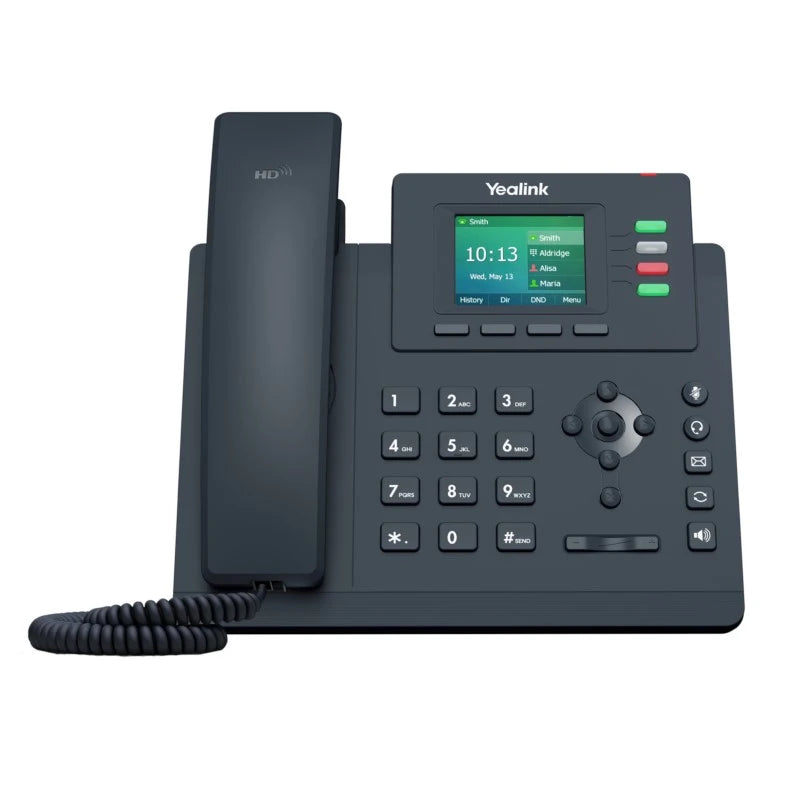
• The Yealink SIP-T33G is an entry-level, high-performance IP phone designed for maximizing productivity in both small and large office environments. Key features: • Fashionable appearance • Large, crisp color display • Powered by a new, more powerful chip for faster and smoother performance • Supports smart noise filtering technology • Wideband Opus codec for superior audio quality • Dual-port Gigabit Ethernet with PoE support for simple installation and high-speed data transfer • EHS wireless headset support • Adjustable stand with two-angle positions • 4 SIP lines with local 5-way conferencing • Unified firmware across the T3 Series for simplified deployment, management, and future feature updates What's included in the package: • Yealink SIP-T33G IP Phone Unit • Handset with Handset Cord • Desk Stand (Adjustable, two-angle) • Ethernet Cable (1.5m CAT5E UTP Cable) • Quick Start Guide (QSG) Note: The external Yealink 5V 0.6A power adapter is sold separately and the Yealink T33G Wall Mount Bracket is also available for purchase.

About This Product

The Yealink SIP-T33G is an entry-level IP phone that punches above its weight for small to medium-sized office environments. It's a solid choice for a receptionist, manager, or any desk worker who needs reliable voice communication without the complexity or cost of a high-end executive model. The color display and smart noise filtering make it a pleasant daily driver, and the dual-port Gigabit Ethernet with PoE support means it can be installed cleanly without a separate power adapter—ideal for tidy desk setups in a GTA office. It pairs well with a hosted VoIP service or an on-premises PBX, and its unified firmware across the T3 series simplifies provisioning if you're deploying a fleet. The tradeoff is that it's an entry-level phone, so you won't find advanced features like a large touchscreen, Bluetooth, or multiple line keys for heavy call handling. It's overkill for a simple lobby phone where a basic model would suffice, but underpowered for a power user who needs to manage dozens of calls or complex call queues. For most standard desk roles, it hits a sweet spot of performance and value.
Services We Provide
  • Professional Installation & Configuration
  • Ongoing Maintenance & Support
  • Troubleshooting & Repairs
  • System Upgrades & Updates



