
Yealink SIP-T34W 4-Line PoE IP Phone with built-in WiFi-1301037

Frequently Asked Questions

First, confirm the phone’s network connection by checking if it obtains an IP address (look under Menu > Status). Next, double-check the SIP server address and credentials in the account settings. A common issue is an incorrect server domain or a mistyped password. If you’re behind a firewall, ensure outbound SIP traffic on port 5060 is allowed. A Toronto-based VoIP support provider can often spot configuration mismatches in minutes.
Reseat both ends of the Ethernet cable and verify that the switch port provides 802.3af PoE and is not administratively disabled. Try a different PoE-capable switch port and, if possible, a known-good cable. If you’re using a midspan injector, check that its power adapter is plugged in and the indicator lights show active power. For persistent PoE issues, consider temporarily using a 5V DC power adapter (not included) to isolate whether the phone’s PoE circuit is faulty.
Make sure Wi-Fi is enabled in the phone’s settings and that you’ve selected the correct frequency band (2.4 GHz or 5 GHz). Move the phone closer to the access point to rule out weak signal. If the SSID is hidden, you’ll need to manually add it with the exact name and security type. In a busy Toronto office, band selection can help: choose 5 GHz to avoid interference from many 2.4 GHz devices.
This usually results from a router or firewall blocking RTP audio streams. Temporarily disable SIP ALG (Application Layer Gateway) in your router’s settings and ensure the RTP port range (default 10000–20000) is open for both UDP inbound and outbound. If the issue is only on remote extensions, verify that your firewall allows the phone’s local IP for media. A packet capture will confirm whether audio packets are being lost or blocked.
Check for channel interference using a Wi-Fi analyzer app on a laptop. If possible, change your access point to a less congested channel. Also, ensure the phone’s firmware is up to date, as Yealink often improves wireless stability. Consider moving the phone to the other frequency band (2.4 GHz vs 5 GHz) to see if one is more stable in your environment.
This typically means the SIP account failed to register. Log into the web interface and under Account > Register Status, look for the cause – often it’s “DNS Failed” or “Wrong Password”. Verify the provider’s registrar address resolves correctly from your office network by pinging it from a PC. If registration works from outside the office but not inside, your firewall might be blocking the SIP port. Contact your IT or support team to review the phone’s logs for more detail.
For a Bluetooth headset, enable Bluetooth in the phone’s settings and put the headset into pairing mode. The phone will scan and display visible devices; select yours and enter the PIN if required. For wired headsets, use the RJ9 headset port or connect a USB headset to the USB 2.0 port – the phone automatically detects it. If your USB headset isn’t recognized, check Yealink’s compatibility list, as not all third-party devices are supported.
First, note if the freeze occurs during a specific action (like making a conference call) or randomly. Ensure the phone’s firmware is the latest version by checking Yealink’s support site; an update may fix known stability bugs. Also, verify that the power source is stable – if using PoE, try a different switch port or a separate power adapter to eliminate a flaky power supply. Do not perform a factory reset until you’ve ruled out external factors, as that will erase all configuration.
Yes, the T34W supports four independent SIP accounts. Each can be registered to a different provider or server. Configure them under separate account tabs in the web interface, and assign line keys to each account as needed. For Canadian businesses, this is handy if you have a primary provider and a low-cost long-distance trunk, for example. Just ensure your network firewall does not block traffic to multiple different SIP servers.
Don’t rush to power cycle repeatedly. First, disconnect power for 30 seconds and then reconnect; the phone might enter a recovery mode. If the screen remains black, check if you can access the phone’s web interface from a PC on the same subnet. If you can, attempt the firmware update again from there. If not, contact a support professional to assess whether a recovery flash is needed – performing this incorrectly can render the phone inoperable.
IP Phones

Yealink SIP-T34W 4-Line PoE IP Phone with built-in WiFi-1301037
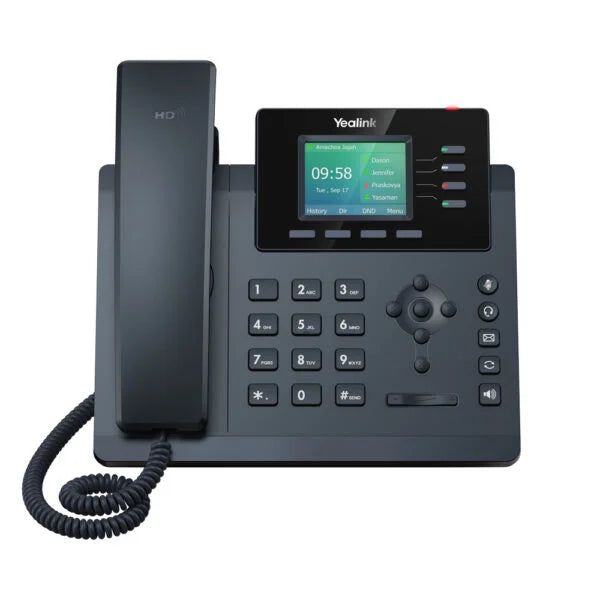
The Yealink SIP-T34W is an ideal choice for businesses seeking a high-performance, cost-effective phone that balances features with affordability. Key highlights include: • Extra-large 2.4-inch (320x240 pixel) color display with backlighting • Powerful new chip for faster response times and improved work efficiency • Built-in Dual-Band Wi-Fi (2.4G/5G) for reliable, fast connections • Dual-Port Gigabit Ethernet for lightning-fast data transfer • PoE support for simplified deployment • 4 SIP accounts and 5-way conferencing for enhanced call management • USB 2.0 port and Bluetooth headsets support for seamless connectivity This IP phone unit is accompanied by a handset, desk stand (adjustable, two-angle), Ethernet cable, quick start guide, and other necessary accessories. For detailed specifications, refer to the Yealink T34W IP Phone datasheet.

About This Product

The Yealink SIP-T34W is designed for small to mid-sized businesses that need a dependable, feature-rich desk phone without the cost of premium executive models. With four SIP accounts and built-in dual-band Wi-Fi, it suits shared workspaces, front desks, and remote workers who require wireless flexibility alongside Gigabit Ethernet for wired reliability. The color screen and five-way conferencing make daily call management clear and straightforward, while PoE support simplifies cable management in office deployments.

This phone pairs well with hosted VoIP services and on-premise PBXs that support standard SIP registration. For Canadian businesses, the dual-band Wi-Fi helps maintain stable connections in high-density environments like Toronto’s downtown offices, where wireless interference can be a challenge. The included USB 2.0 port and Bluetooth support allow headsets to be connected easily, reducing desk clutter.

Buyers should note that while the T34W handles four lines capably, it lacks the large touchscreen and advanced UC integration found in higher-end models. For a receptionist managing high call volumes or a power user who needs visual voicemail and presence across many extensions, a more advanced Yealink T4 or T5 series phone might be a better fit. Conversely, deploying the T34W as a simple single-line phone in a lobby is overkill; a basic corded SIP phone would suffice and lower cost.

For businesses with limited IT staff, the phone’s widely supported auto-provisioning options mean it can be rolled out quickly across multiple locations. Just ensure your network prioritizes voice traffic and that VLANs are correctly configured, especially when using Wi-Fi, to avoid call quality issues.
Services We Provide
  • Professional Installation & Configuration
  • Ongoing Maintenance & Support
  • Troubleshooting & Repairs
  • System Upgrades & Updates



