
Yealink SIP-T34W 4-Line PoE VoIP Phone (New-in-Open-Box)

Frequently Asked Questions

First, confirm your router is broadcasting on a 2.4GHz or 5GHz band and that the phone’s Wi-Fi setting is enabled. Go to Menu > Settings > Wi-Fi and scan for networks, then connect to your SSID. If the signal is weak, try moving the phone closer to the router or check for interference. A Toronto-based VoIP support provider can help if the issue persists.
The SIP-T34W supports PoE (Power over Ethernet), so if you're using a PoE switch, make sure the Ethernet cable is firmly plugged into the phone's LAN port and the switch. If you're using the optional power adapter (sold separately), verify it's a 5V/0.6A adapter and that the outlet is live. A non-PoE switch will not power the phone without an adapter.
From the phone's main screen, press the Menu soft key, navigate to Settings > Advanced (password is usually 123), then select Account. Choose an unused line and enter your SIP credentials (server, account name, password) provided by your VoIP provider. Reboot the phone to apply the settings. If registration fails, double-check the server address and credentials.
Jittery audio is often related to network quality. On a Wi-Fi connection, ensure the phone has a strong signal and that your router prioritises VoIP traffic if possible. For wired connections, confirm the Ethernet cable is not damaged. Reducing other bandwidth-heavy activities (streaming, large downloads) during calls may also help.
Yes, the USB 2.0 port supports wired USB headsets and also works with Bluetooth headsets when paired through the phone's Bluetooth function. For EHS wireless headsets, ensure the headset is compatible and that you have enabled the EHS feature in the phone's settings under Settings > Headset.
Random reboots can result from unstable power delivery. If using PoE, verify the switch provides sufficient power (802.3af/at). If using an adapter, confirm it meets the 5V/0.6A spec. Also check the phone's firmware is up to date via the provider’s provisioning server. A loose network cable can also cause intermittent disconnects.
Press the Menu key, go to Features > Call Forward, then choose the forwarding mode (Always, Busy, No Answer). Enter the destination number and press Save. To disable, set the mode to Off. Ensure the feature is also provisioned by your VoIP provider if server-side forwarding is required.
Yes. Press Menu, then Settings > Basic Settings > Display > LCD Brightness and use the volume keys to adjust. The backlight can also be set to stay on during calls. If the screen remains unresponsive, a soft reset (unplug power for 10 seconds) often resolves minor display glitches.
This usually means the phone cannot authenticate with your VoIP server. First, verify that SIP credentials (username, password, domain) are entered correctly and that the phone has internet access. Try temporarily connecting via Ethernet to rule out Wi-Fi issues. If the problem continues, your provider may have a server outage or the account may be locked.
Yes, if you purchase the optional power adapter (5V DC, 0.6A, centre positive, part number PS5V600U). Plug it into the DC 5V port on the back of the phone. Without either PoE or an adapter, the phone will not power on.
IP Phones

Yealink SIP-T34W 4-Line PoE VoIP Phone (New-in-Open-Box)
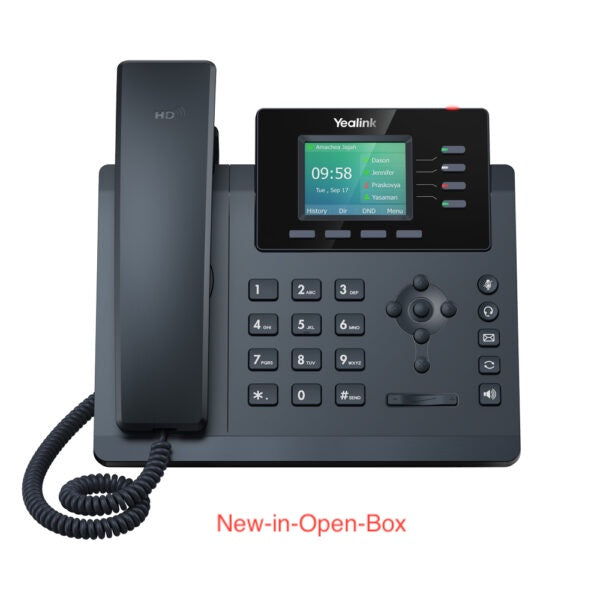
An entry-level color screen IP phone with high performance, the Yealink SIP-T34W offers support for 4 lines and includes local 5-way conferencing. Key features include: • Built-in dual-band 2.4G/5G Wi-Fi (802.11a/b/g/n/ac) • USB 2.0 port for wired USB headsets/Bluetooth headsets • 2.4” 320 x 240-pixel color display with backlight • Dual-port Gigabit Ethernet • PoE support • Opus codec support • Up to 4 SIP accounts • Local 5-way conferencing • Support EHS Wireless Headset • Unified Firmware • Support YDMP/YMCS • Stand with 2 adjustable angles • Wall mountable • Handset with hall switch Note: Power adapter is not included. Additional Information: Weight: 2 lbs Dimensions: 9.5 × 8.5 × 4 in Phone Type: Desk, WiFi / WiFi Capable

About This Product

The Yealink SIP-T34W is an entry-level colour-screen IP phone that strikes a practical balance between affordability and modern connectivity. It’s well suited for small offices, home offices, or hot-desking environments where having a dedicated desk phone with Wi-Fi capability can simplify network setup without running Ethernet cables. The built-in dual-band Wi-Fi (2.4G/5G) means it can connect to an existing wireless network, making deployment flexible in spaces lacking wired drops. This phone works best with a hosted VoIP service—common providers in the GTA such as VoIP.ms, Vonage Business, or RingCentral are fully compatible. Note that a power adapter is not included, so you will need a PoE switch (which the phone supports) or purchase a separate AC adapter. While the 4-line capacity and 5-way local conferencing handle most daily call demands, the phone is less appropriate for high-volume call centres or environments requiring many simultaneous lines. For single-line users, the Wi-Fi and colour screen may still be overkill compared to a simpler model, but the added features offer future-proofing if needs grow.
Services We Provide
  • Professional Installation & Configuration
  • Ongoing Maintenance & Support
  • Troubleshooting & Repairs
  • System Upgrades & Updates



