
Yealink SIP-T44W IP Phone | 12-Line, Built-in Wi-Fi/Bluetooth, Color LCD-1301213

Frequently Asked Questions

Verify that the phone has a valid IP address and can reach the internet. Then check the SIP server address, authentication credentials, and ensure port 5060 isn't blocked by your firewall. If you're using Wi-Fi, confirm the network is not restricting VoIP traffic. If the issue persists, a Toronto-based VoIP support provider can usually resolve this remotely.
Start by moving the phone closer to your wireless access point to improve signal strength. Try switching to the 5 GHz band if you're on 2.4 GHz, as it tends to be less congested. Ethernet is always more reliable for real-time calls, so consider using the wired port for critical conversations.
This usually means the phone isn't registered with your VoIP service. Look at the LCD for a registration status icon (often a red phone). Power cycle the phone and re-enter your SIP credentials if needed. If you're using auto-provisioning, confirm the provisioning server is accessible from the phone's network.
Echo is often caused by acoustic coupling. First, lower the handset volume and make sure the phone isn't too close to a speakerphone. If echo continues, consulting with your IT provider or a Toronto VoIP specialist can help fine-tune audio settings on the PBX side, such as enabling echo cancellation or adjusting codec preferences.
Yes. Go to Menu > Basic > Bluetooth, enable Bluetooth, then put your headset in pairing mode. The phone will list available devices; select yours. Once paired, you can choose the headset as the default audio device for calls. Note that Bluetooth range is limited, so keep the headset close to the phone.
Check the Wi-Fi settings: ensure the SSID and password are correct and the security type matches your network. If using wired, reseat the Ethernet cable at both ends and verify the switch port is active. A simple power cycle of the phone often resolves temporary network detection issues.
Set up a provisioning server with configuration files tailored to your PBX. On each phone, go to Menu > Settings > Advanced (password: admin) > Auto Provision > Server URL, and enter your provisioning server address. Test the process on one phone before rolling out to others to ensure the settings are correct.
Download the latest firmware from Yealink's support site. Access the phone's web interface via its IP address, then go to Settings > Upgrade. Choose the firmware file and start the upgrade. Do not power off the phone during the upgrade. You can also push firmware through a provisioning server.
First, ensure your switch supports 802.3af PoE, which the T44W requires. Try a different Ethernet cable and a different switch port. If you have a PoE injector, test with that. If the phone still doesn't power on, try the optional 5V 1.2A power adapter to confirm the phone itself is functional.
The T44W is a standard SIP phone and works with any SIP-based provider, including Bell Business VoIP and Rogers Unified Communications. Enter your SIP credentials (username, password, domain) exactly as provided by your carrier. They may require specific codec settings like G.711; contact them for supported configuration details.
IP Phones

Yealink SIP-T44W IP Phone | 12-Line, Built-in Wi-Fi/Bluetooth, Color LCD-1301213
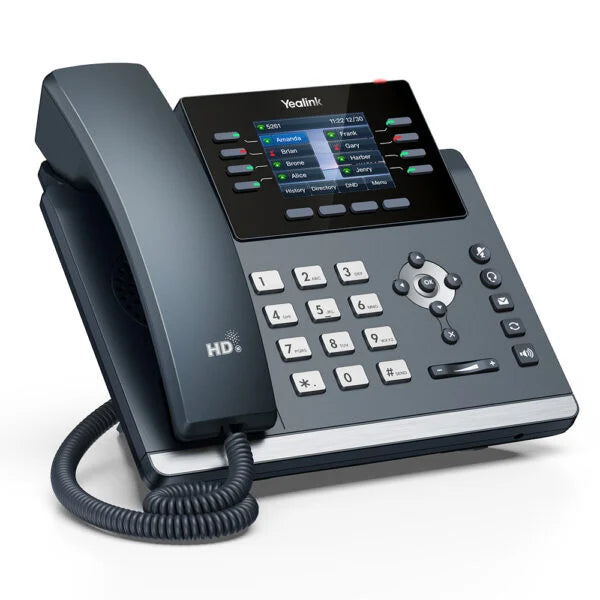
The Yealink SIP-T44W is a feature-rich 12-line IP phone ideal for businesses and co-working spaces prioritizing flexibility and a clean workspace. Key features include: • Integrated dual-band Wi-Fi and Bluetooth for seamless connectivity • Acoustic Shield Technology to actively suppress background noise, delivering crystal-clear voice clarity • Optima HD Voice with cutting-edge hardware and wideband codec support for superior acoustic performance • Dual USB ports for expanded functionality, including Expansion Module Support and USB Recording • Desk Stand (Adjustable, two-angle) included in the package Additional items included in the package: • Yealink SIP-T44W IP Phone Unit • Handset with Handset Cord • Quick Start Guide (QSG) • Ethernet Cable Note: The external 5V 1.2A power adapter is sold separately and not included by default. Also, the Yealink T44W Wall Mount Bracket is available for purchase separately.

About This Product

The Yealink SIP-T44W is designed for professionals who need a reliable desk phone but want the flexibility of wireless connectivity. It's particularly well-suited for co-working spaces, hot-desking setups, or small-to-medium offices in the Greater Toronto Area where running Ethernet to every desk isn't always practical. The built-in Wi-Fi and Bluetooth let you connect without a cable tether, while still providing the full desk phone experience.

This phone works as a direct replacement for wired-only models, adding support for cordless headsets and mobile app integration over Bluetooth. It integrates smoothly with most SIP-based PBX platforms, including those popular with Canadian business VoIP providers. The dual USB ports allow you to connect expansion modules or record calls directly to a flash drive, giving you room to grow as your needs change.

The integrated Wi-Fi is convenient but can introduce latency or packet loss on congested networks; for important calls, connecting via the wired Ethernet port is recommended. Keep in mind that the power adapter is not included, so you'll need a PoE switch or purchase the adapter separately. While the phone supports expansion modules, those are sold separately and require additional setup.

For a single-line user who only makes occasional calls, this model offers more features than necessary. Conversely, for a heavy call center agent requiring dozens of line appearances without expansion modules, a dedicated call center phone might be more cost-effective. The T44W hits a sweet spot for teams that need flexibility, clear audio, and moderate line capacity in a wireless-friendly office.
Services We Provide
  • Professional Installation & Configuration
  • Ongoing Maintenance & Support
  • Troubleshooting & Repairs
  • System Upgrades & Updates



