
Yealink SIP-T46U: High-Performance IP Phone with Dual USB and HD Audio-1301203

Frequently Asked Questions

First, confirm that the phone has a valid IP address by pressing the OK key and navigating to Status. If it shows 0.0.0.0, check the Ethernet cable and ensure your network provides DHCP. Next, verify that the SIP server address and login credentials in Account settings exactly match what your provider gave you—common errors are extra spaces or incorrect ports. If everything looks correct, try power‑cycling the phone by unplugging it for ten seconds.
This usually means the handset is not properly seated or the handset cord is loose. Lift the handset and press a key—if the screen shows a dialing prompt, the issue is the handset connection. Reseat both ends of the coiled cord (handset and phone base). If still no tone, test with a known‑working handset cord. The problem is rarely the phone itself.
Press the OK key, go to Menu > Settings > Account, and choose an unused account number. Enter your SIP credentials (server, username, password) from your VoIP provider. You can configure up to 16 accounts, each with its own line key. After saving, the phone will register with each account; a green LED on the line key indicates success. For a Toronto office using multiple business lines, each line can be mapped to a different extension.
Start by checking the Ethernet cable—a loose or damaged cable can cause intermittent connectivity. Also confirm the phone’s IP address hasn’t changed during a call; a short DHCP lease can force a renegotiation. On the same network, try moving the phone to a different switch port. If the issue persists across all ports, your VoIP provider can check for SIP session timer mismatches.
Yes, but only if you have a business SIP trunk or a VoIP‑enabled plan from those providers. The T46U is a standard SIP phone and works with any carrier that supplies SIP credentials. For residential cable voice lines, the modem often expects a proprietary device; you would need to move to a business SIP plan. On Rogers Business or Telus Business Voice, provisioning is straightforward once you enter the server details.
Press the OK key, then navigate to Menu > Settings > Basic Settings > Display > Backlight. You can adjust the brightness level (from 1 to 10) and also set the backlight timeout. If the screen remains dim after adjusting, check that the ambient light sensor (if present) isn’t covered—the T46U has a light sensor that can auto‑dim the display.
First, check if the issue affects the handset, headset, or both. If only the handset, try cleaning the earpiece speaker grille with a dry cloth—dust can muffle audio. If it’s a headset, ensure the headset is fully inserted into the RJ‑9 port and that the headset’s own volume is turned up. The T46U supports high‑definition codecs like Opus and G.722, so make sure your provider has HD enabled on your line.
Check that the Ethernet cable is securely connected to the phone’s LAN port and to a PoE‑enabled switch port. Many switches label PoE ports—try a different PoE port. If your switch is not PoE (many basic switches aren’t), you will need to purchase the optional external power adapter (sold separately). A simple way to test is to use a known‑working PoE injector or the adapter.
The phone comes with a wall mount bracket that attaches to the back of the T46U. Remove the desk stand by sliding it off, then attach the wall bracket using the screws provided. Mark the wall for two screws (standard spacing), mount the bracket, and hang the phone. Ensure the Ethernet cable exits from the bottom to keep the installation tidy. The phone’s screen orientation is the same as desktop use.
This is typically a network issue where audio packets aren't reaching the other end. First, check the handset mute button and the speakerphone mute—if the mute LED is on, press it to unmute. If not, verify that your phone’s local network allows all traffic (no unusual firewall rules). On a corporate network, ask your IT team to make sure SIP ALG is disabled on the router. A Toronto‑based VoIP support provider can usually resolve this remotely.
IP Phones

Yealink SIP-T46U: High-Performance IP Phone with Dual USB and HD Audio-1301203
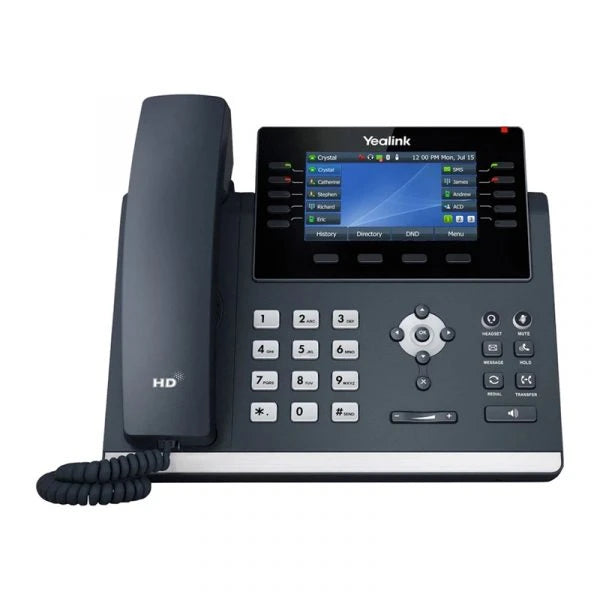
• Designed for busy executives and high-call-volume professionals, the Yealink SIP-T46U is a powerful desktop communication tool that combines power, performance, and advanced connectivity. • Key features: • High-resolution TFT color display with backlight • Dual-port Gigabit Ethernet with PoE support • Supports up to 16 VoIP accounts • Wall mountable with adjustable stand offering two-angle positions • Opus, G.722, G.711, G.729AB (High-quality codec support) • Includes: • Yealink SIP-T46U IP Phone Unit • Handset with Handset Cord • Desk Stand (Adjustable, two-angle) • Ethernet Cable (2m CAT5E UTP Cable) • Quick Start Guide (QSG) Note: The external power adapter is sold separately and not included by default.

About This Product

The Yealink SIP-T46U is a desk phone designed for professionals who handle a high volume of calls and need quick access to multiple lines or accounts. It fits naturally into busy office environments—law firms, executive suites, or reception areas—where call clarity and reliable connectivity matter more than mobile features. This model pairs well with business VoIP platforms that support up to 16 SIP accounts, making it a solid replacement for older single-line phones or basic multi-line sets. It is best deployed with Power over Ethernet (PoE) switches, since the external power adapter must be purchased separately; if your network lacks PoE, factor in the added cost and desk clutter of a power brick. The T46U is likely overkill for a single-user home office with just one line, and underpowered for a high‑density call centre where specialised headsets and USB peripherals are needed (the unit lacks built‑in Bluetooth and its USB ports are not confirmed in the specification). For a Toronto office with a standard PoE‑enabled switch, this phone offers excellent audio quality and easy provisioning without breaking the budget.
Services We Provide
  • Professional Installation & Configuration
  • Ongoing Maintenance & Support
  • Troubleshooting & Repairs
  • System Upgrades & Updates



