
Yealink SIP-T53 PoE Prime Business IP Phone with Gigabit Ethernet-1301086

Frequently Asked Questions

First, ensure your network cable is securely connected and your switch or PoE injector is providing power. Then check that the SIP account credentials (username, password, and server address) are entered correctly in the phone’s web interface or via provisioning. If the issue persists, a Toronto-based VoIP support provider can usually resolve this remotely.
Verify that your network switch supports Power over Ethernet (PoE) and that the port is enabled. If your switch does not provide PoE, you will need to use the optional power adapter (sold separately) or a PoE injector. Try a different Ethernet cable or port to rule out a faulty connection.
Echo is often caused by speakerphone volume being too high or the handset speaker being too loud in a reflective room. Lower the handset or speaker volume and ask the caller to reduce their speaker volume as well. If the problem continues, try using a headset to rule out acoustic feedback from the room.
Connect the EXP50 module to the phone using the included cable, then power cycle the phone. The module should be automatically detected. You can then configure the programmable keys and DSS (Direct Station Select) labels through the phone’s web interface under 'DSS Key' settings. No additional power source is needed when using PoE.
Yes, the Yealink T53 has a built-in USB 2.0 port that supports Bluetooth via the Yealink BT41 dongle (sold separately). Simply plug the dongle into the USB port, pair your headset following the phone’s Bluetooth menu, and adjust audio settings as needed.
One-way audio is almost always a network routing or firewall issue. First, confirm that the phone’s LAN connection is active and that your router allows SIP traffic. Then check the audio settings in your VoIP provider’s portal; many require a supported codec like G.711. A quick test with a different network (e.g., tethering) can help isolate the problem.
Start by checking the Ethernet cable and the port on your switch—reseat both ends. If the T53 is on a VLAN, ensure the VLAN ID is correctly configured in the network settings. A failing PoE switch port can also cause intermittent drops; try a different port on the same switch to see if the issue follows the cable or the phone.
Firmware updates are typically pushed by your VoIP provider through auto-provisioning. If you manage your own phone, you can manually download the latest firmware from the Yealink support site and upload it via the phone’s web interface under 'Settings' > 'Upgrade'. Always back up current settings before upgrading.
Yes, the T53 is a standard SIP phone and works with most Canadian carriers that offer hosted VoIP. You will need to configure the account details (server, username, password) provided by your carrier. Some carriers may require specific codec settings or support for features like Call Waiting, which can be adjusted in the phone’s web portal.
Acoustic Shield is typically on by default, but you can adjust its sensitivity. On the phone, go to 'Settings' > 'Basic Settings' > 'Sound' > 'Acoustic Shield'. Try different levels to find what works best for your environment. If you still hear background noise during calls, ensure the handset or headset microphone is not blocked.
IP Phones

Yealink SIP-T53 PoE Prime Business IP Phone with Gigabit Ethernet-1301086
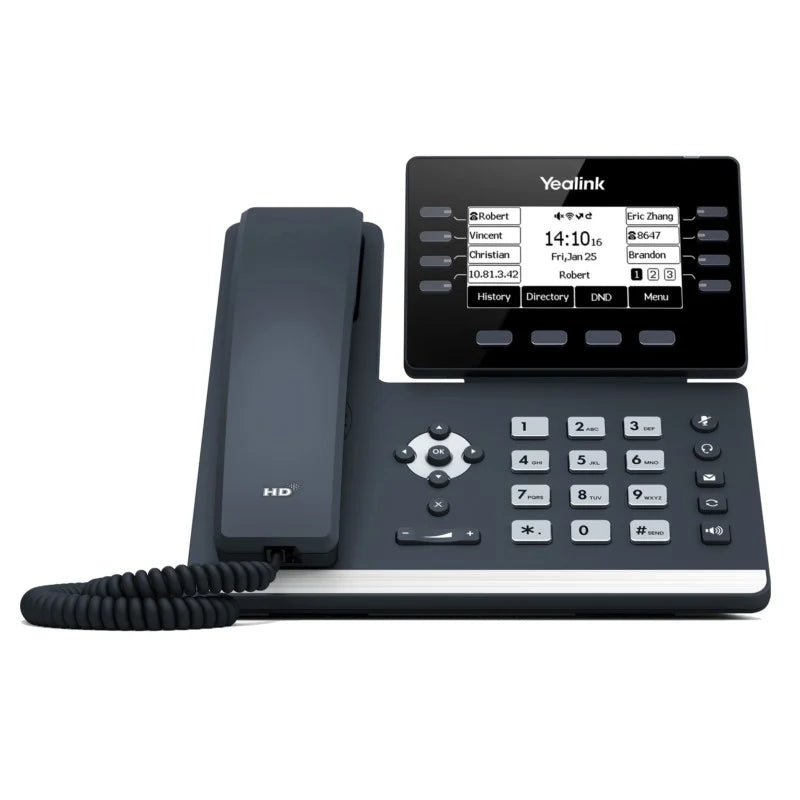
• The Yealink SIP-T53 is a professional-grade, USB-expandable desktop IP phone designed for busy executives and professionals who require Gigabit speed, superior audio quality, and a future-proof solution. Key Features: • Crystal-clear audio with Yealink Optimal HD Voice technologies • Acoustic Shield technology eliminates background distractions and noises • HAC regulations compliance for users with hearing loss • Dual-Port Gigabit Ethernet and PoE support for high-speed data transfer • Built-in USB 2.0 port with Bluetooth and Wi-Fi capabilities • Adjustable display with a comfortable viewing angle • Scalable power and efficiency with 12 VoIP accounts and EXP50 expansion modules • Cordless phone system capability with DECT Dongle (sold separately) • Comprehensive package includes IP phone unit, handset, desk stand, Ethernet cable, and Quick Start Guide

About This Product

The Yealink SIP-T53 is a professional-grade IP phone designed for executives and managers who need clear audio and reliable performance in a busy office environment. It fits well in corporate settings across the Greater Toronto Area, where teams often rely on Power over Ethernet (PoE) from modern network switches and expect seamless integration with standard SIP-based phone systems. The built-in USB 2.0 port adds flexibility for Bluetooth headsets or Wi-Fi connectivity, making it easy to reduce desk clutter. For roles that require call handling with multiple lines or a shared line appearance, the T53 supports up to 12 VoIP accounts and optional EXP50 expansion modules, allowing a receptionist or team lead to monitor extensions without a separate console. While the T53 is a strong choice for most office scenarios, it may be overkill for a single user with only one line who doesn't need expansion capabilities—a simpler model would suffice. Conversely, it is perfectly capable for a small-to-mid-sized business with moderate call volume; only very large call centers with high headset density might need a dedicated headset-friendly model. The integrated Gigabit Ethernet ensures fast data transfer and avoids bottlenecks when the phone shares a cable with a computer—a common setup in cubicle environments. Canadian buyers should note that PoE requires a PoE-compatible switch or injector, and typical VoIP providers in the region support the T53 out of the box with automatic provisioning.
Services We Provide
  • Professional Installation & Configuration
  • Ongoing Maintenance & Support
  • Troubleshooting & Repairs
  • System Upgrades & Updates



