
Yealink SIP-T53W IP Phone with built-in Bluetooth and WiFi-1301087

Frequently Asked Questions

First, confirm that the phone is connected to your network—either via Ethernet or Wi-Fi—and has obtained a valid IP address. Next, double-check the SIP account credentials (username, password, and server address) entered in the phone’s account settings. A simple power cycle of both the phone and your router or switch often resolves temporary network glitches.
Press the OK button on the phone to open the menu, navigate to Settings > Advanced Settings (default password: admin) > Network > Wi-Fi, then scan for your network and enter the password. For a more stable connection, use the 5 GHz band if your router supports it and the phone is within range.
Ensure the headset is in pairing mode and that no other device is connected to it. On the phone, go to Settings > Bluetooth, enable Bluetooth, then select your headset from the list of available devices. If pairing fails, power cycle both devices and try again, keeping them within one metre of each other.
Check that the handset cord is fully plugged into both the phone and handset, and that the headset (if used) is properly connected. Reduce the handset or speaker volume slightly, as high volume can cause acoustic feedback. If the issue persists, test with a different handset or headset to rule out a hardware fault.
The T53W supports Power over Ethernet (PoE), so if your network switch provides PoE, simply connect an Ethernet cable to the phone’s LAN port. If your switch does not support PoE, you must use the included power adapter (5V DC, sold separately if not included in the box). Check that the adapter is plugged into a working outlet and the phone’s power port.
Most Canadian carriers provide SIP settings for third-party phones. On the phone, go to Menu > Settings > Advanced Settings > Account, enter the SIP server, port, and your credentials as provided. You may need to adjust the codec priority (e.g., G.711 for best compatibility). If auto-provisioning is available, ask your provider for the configuration URL.
Yes, the USB 2.0 port supports recording to a compatible USB flash drive (FAT32 format). Insert the drive, then during a call press the Record soft key if enabled by your system administrator. Note that call recording may be subject to legal consent requirements in Canada; ensure you comply with applicable laws.
Wi-Fi instability is often due to interference or weak signal. Move the phone closer to the access point or use a Wi-Fi extender. In the phone’s Wi-Fi settings, try switching to the 2.4 GHz band, which offers better range through walls. Also, check that your router’s firmware is up to date and that the network isn’t overloaded.
On the T53W, enable Bluetooth and pair it with your mobile phone. Once paired, go to Menu > Contacts > Bluetooth Contacts, then select Import to copy contacts from the mobile device. Note that not all phones support full contact sync; if import fails, try using a CSV file via the web interface instead.
This usually means the phone cannot reach the provisioning server or the URL is incorrect. Verify the server address and ensure your network allows outbound HTTP/HTTPS traffic. Temporarily disable any firewall that might block the connection. If you are not using auto-provisioning, you can safely ignore this error by clearing the provisioning URL in settings.
IP Phones

Yealink SIP-T53W IP Phone with built-in Bluetooth and WiFi-1301087
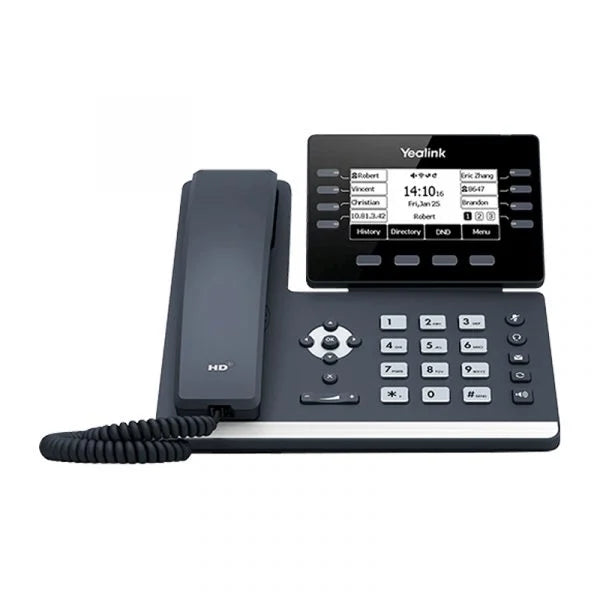
• The Yealink SIP-T53W is a prime business IP phone designed for busy executives and professionals who demand power, clarity, and a clutter-free desk. It combines an enhanced user-friendly design with cutting-edge wireless connectivity to maximize office productivity. Key Features: • Crystal-clear audio with Yealink Optimal HD Voice technologies • Acoustic Shield technology eliminates background distractions and noises • Hearing Aid Compatible (HAC) for clear communication • Built-in dual-band Wi-Fi (2.4G/5G) • Bluetooth 4.2 for wireless headset pairing and mobile phone contacts synchronization • Adjustable 3.7-inch graphical LCD display with comfortable viewing angle • Supports 12 VoIP accounts and 8 line keys programmable for up to 21 features Additional Features: • Built-in USB 2.0 port for expansion modules, wireless headset connectivity, and USB call recording • Expansion modules programmed with up to 180 paperless DSS keys for high call volume environments • Desk stand with adjustable two-angle design • Ethernet cable included • Quick start guide (QSG) provided

About This Product

The Yealink SIP-T53W is designed for professionals who need a reliable desk phone without sacrificing desk space or connectivity options. Its built-in dual-band Wi-Fi and Bluetooth 4.2 make it an excellent choice for offices where running Ethernet cables to every desk is impractical, or for users who frequently switch between a handset and a wireless headset. The phone pairs naturally with Yealink’s expansion modules (sold separately) for executives or receptionists who manage high call volumes, yet it remains a solid standalone unit for someone who just needs a few lines and clear audio. A practical tradeoff is that wireless connections, while convenient, can be less stable than a wired Ethernet link in congested environments, so users in dense office buildings may want to verify Wi-Fi signal strength before relying on it for critical calls. For a small team or a single user with modest call volume, the T53W’s feature set may feel like more than necessary; conversely, a busy call center agent would likely outgrow the built-in line keys without an expansion module. In a Canadian business context, the phone works with most SIP-based VoIP providers common in the GTA, and its support for Power over Ethernet (PoE) simplifies installation in offices that already have PoE switches.
Services We Provide
  • Professional Installation & Configuration
  • Ongoing Maintenance & Support
  • Troubleshooting & Repairs
  • System Upgrades & Updates



