
Yealink SIP-T54W Business WiFi IP Phone-Built-in Bluetooth & Gigabit-1301081
AIM Telecom provides troubleshooting and configuration support for this product to businesses across Canada and the USA. Contact us to confirm whether the issue can be handled by phone or requires on-site service.
Get Support Call 416-312-4819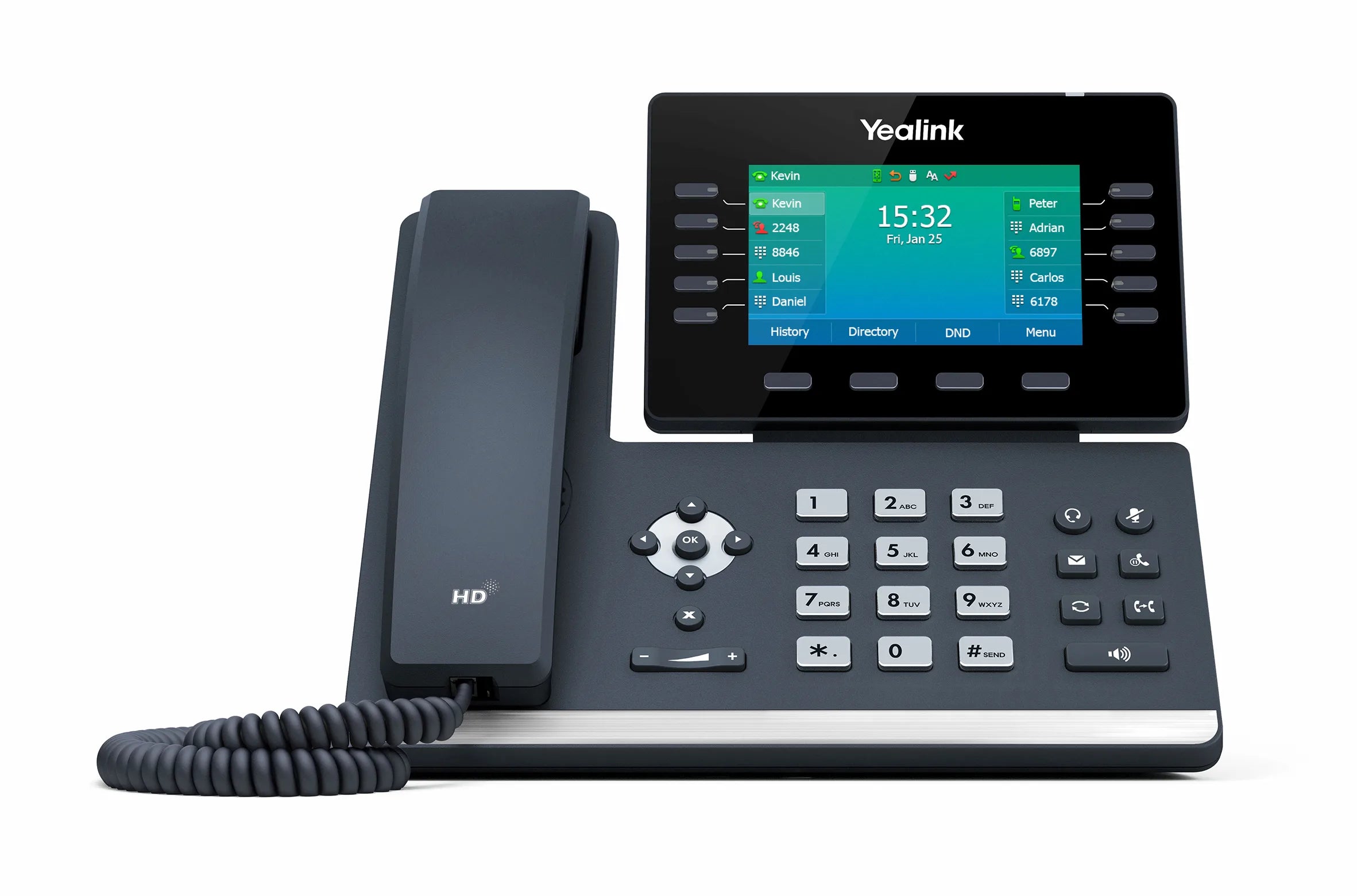
Common issues and fixes
Reviewed troubleshooting steps are not yet available for this model.
Ask AIM Telecom about this productAbout this product
The Yealink SIP-T54W is a professional-grade desktop workhorse, engineered for busy professionals who demand superior audio quality and a clutter-free workspace. Key features include:
• HD Voice clarity
• Integrated dual-band 2.4G/5G Wi-Fi and Bluetooth 4.2 module for true network freedom and seamless headset integration
• Yealink's Acoustic Shield technology actively blocks out background noise for clearer, professional-sounding audio
• Adjustable color screen with a premium, flexible user experience
• Supports up to 16 VoIP accounts and features 10 paperless line keys for unmatched efficiency in managing complex call flows
• HAC Handset for hearing aid compatibility
• Dual Gigabit Ethernet and PoE support for simple installation and high-speed data transfer
What's included in the package:
Yealink SIP-T54W IP Phone Unit
Handset with Handset Cord
Desk Stand (Adjustable, two-angle)
Ethernet Cable
Quick Start Guide (QSG)
Note: The external Yealink 5V 2A power adapter is sold separately (not included by default). For a full list of specifications, please refer to the Yealink T54W IP Phone datasheet.
• HD Voice clarity
• Integrated dual-band 2.4G/5G Wi-Fi and Bluetooth 4.2 module for true network freedom and seamless headset integration
• Yealink's Acoustic Shield technology actively blocks out background noise for clearer, professional-sounding audio
• Adjustable color screen with a premium, flexible user experience
• Supports up to 16 VoIP accounts and features 10 paperless line keys for unmatched efficiency in managing complex call flows
• HAC Handset for hearing aid compatibility
• Dual Gigabit Ethernet and PoE support for simple installation and high-speed data transfer
What's included in the package:
Yealink SIP-T54W IP Phone Unit
Handset with Handset Cord
Desk Stand (Adjustable, two-angle)
Ethernet Cable
Quick Start Guide (QSG)
Note: The external Yealink 5V 2A power adapter is sold separately (not included by default). For a full list of specifications, please refer to the Yealink T54W IP Phone datasheet.
More product details
The Yealink SIP-T54W is designed for professionals who manage high call volumes or multiple lines and want the freedom of a wireless desk phone. Its integrated dual-band Wi-Fi and Bluetooth make it a strong fit for modern open-plan offices, hot‑desking setups, or any workspace where running Ethernet to every desk is impractical. The acoustic‑shield technology helps maintain call clarity even in noisy surroundings, so executives and managers who are frequently on important calls will benefit from the improved audio. With support for up to 16 VoIP accounts and paperless line keys, it suits roles like administrative assistants, salespeople juggling several clients, or IT staff monitoring multiple services.
In a typical deployment, the T54W pairs naturally with a hosted VoIP platform or an on‑premise IP PBX. Its dual Gigabit ports let you daisy‑chain a PC, preserving a wired connection for your computer even if the phone is connecting over Wi‑Fi. The phone gains true flexibility from the wireless module, but buyers should be aware that a stable VoIP experience still depends on a well‑designed Wi‑Fi network. In areas with heavy RF interference, a wired connection remains the safer choice, and the phone’s Ethernet ports provide a quick fallback. The lack of a native expansion‑module port means this model is not the right pick for attendants who need extensive DSS sidecars; those roles are better served by the T55A or T58A series.
For Canadian businesses, the T54W works smoothly with most hosted VoIP providers and on‑premise platforms commonly found in the GTA. Its dual‑band Wi‑Fi can navigate the crowded 2.4 GHz spectrum typical in downtown high‑rises, but you will still want to test access‑point placement to get reliable 5 GHz coverage. Another practical note: the power adapter is sold separately, so organisations relying solely on Wi‑Fi without Power over Ethernet will need to factor that accessory into their budget. Overall, the phone offers a solid, audio‑focused experience for users who need flexibility and clarity without moving into high‑end video‑centric models.
In a typical deployment, the T54W pairs naturally with a hosted VoIP platform or an on‑premise IP PBX. Its dual Gigabit ports let you daisy‑chain a PC, preserving a wired connection for your computer even if the phone is connecting over Wi‑Fi. The phone gains true flexibility from the wireless module, but buyers should be aware that a stable VoIP experience still depends on a well‑designed Wi‑Fi network. In areas with heavy RF interference, a wired connection remains the safer choice, and the phone’s Ethernet ports provide a quick fallback. The lack of a native expansion‑module port means this model is not the right pick for attendants who need extensive DSS sidecars; those roles are better served by the T55A or T58A series.
For Canadian businesses, the T54W works smoothly with most hosted VoIP providers and on‑premise platforms commonly found in the GTA. Its dual‑band Wi‑Fi can navigate the crowded 2.4 GHz spectrum typical in downtown high‑rises, but you will still want to test access‑point placement to get reliable 5 GHz coverage. Another practical note: the power adapter is sold separately, so organisations relying solely on Wi‑Fi without Power over Ethernet will need to factor that accessory into their budget. Overall, the phone offers a solid, audio‑focused experience for users who need flexibility and clarity without moving into high‑end video‑centric models.