
Yealink SIP-T54W IP Phone- New in Open Box

Frequently Asked Questions

First check that the phone is getting power (look for the backlight) and that the Ethernet cable is firmly seated in the Internet port, not the PC port. If it is connected correctly, the phone likely cannot reach the provisioning server or has invalid account credentials. Verify with your VoIP provider that the account is active and that the phone’s IP address is allowed through your firewall.
The T54W defaults to a wired connection; you need to enable Wi-Fi via the phone’s interface (Menu > Basic > Wi-Fi) and select your network. If the wireless networks are not appearing, ensure the Wi-Fi is turned on in the settings, not simply unplugged from Ethernet. Confirm the phone has the correct Wi-Fi password and that your network is broadcasting on a 2.4 GHz or 5 GHz band that the phone can see.
First, test the handset, speakerphone, and any connected headset to isolate which audio path is affected. If the issue is only with the handset, reseat the curly cord at both ends. Ensure the mute button is not lit red. If you are using a Bluetooth headset linked via the phone’s menu, check that the headset is selected as the audio device during the call and is fully charged.
Confirm in the web interface (Account > Register) that the SIP server address, username, and password exactly match the credentials provided by your carrier. Pay close attention to any domain spelling—common with Canadian hosted platforms—and ensure UDP is selected as the transport unless the provider specifies TCP or TLS. A typical first step is to try a quick power cycle of both the phone and your local router.
Start by temporarily connecting the phone with an Ethernet cable to see if the issue disappears; this confirms the problem is the wireless link. If so, bring the phone closer to your access point and avoid placing it near large metal objects or microwaves. In the phone’s Wi-Fi settings, try switching from the 2.4 GHz band to the less crowded 5 GHz band if signal strength allows, and ensure Quality of Service is prioritized for voice traffic on your router.
Plug your compatible USB headset into the phone’s USB port; the phone should recognize it automatically. Then go to Menu > Features > Headset > Headset Use and ensure it is set to ‘Headset’ rather than ‘Speaker’. You can then activate the headset button on the phone to use it for all calls, and enabling the auto-answer feature for headset use in the web interface will further streamline call handling if your workflow requires it.
The phone supports USB recording when a compatible USB flash drive is inserted into its USB port. Once the drive is connected and recognized, you can start recording by pressing the Record softkey during a call, if your phone system administrator has enabled the feature on your account. The recordings are stored as .wav files directly on the USB drive, which you can then access from a computer.
IP Phones

Yealink SIP-T54W IP Phone- New in Open Box
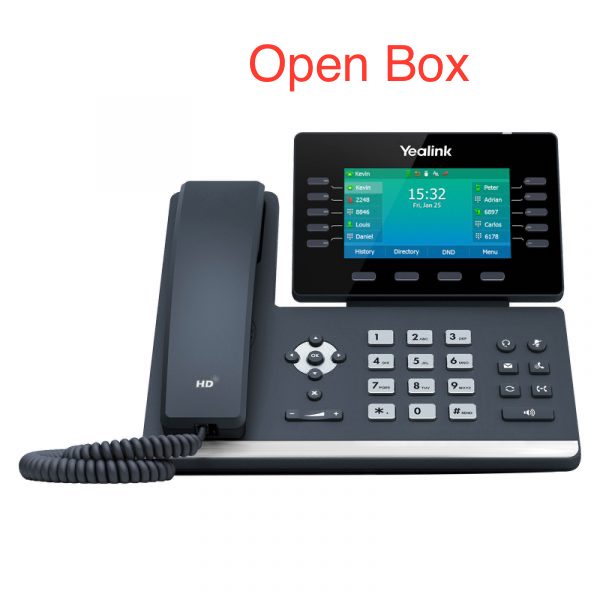
• Designed for busy executives and professionals, Yealink SIP-T54W is an easy-to-use Prime Business Phone with a 4.3-inch color LCD screen that adjusts to your viewing needs. • Built-in Bluetooth 4.2 and dual-band 2.4G/5G Wi-Fi ensure you stay up-to-date with modern wireless technology. • Features:  • 4.3″ 480 x 272-pixel color display with backlight  • Adjustable LCD screen  • Built-in Bluetooth 4.2  • Built-in dual-band 2.4G/5G Wi-Fi (802.11a/b/g/n/ac)  • USB 2.0 port for USB recording, wired/wireless USB headsets, and EXP50 connections  • Up to 16 VoIP accounts  • Dual-port Gigabit Ethernet  • PoE support  • HAC Handset  • Paperless label design  • Wall mountable Additional Information: Weight: 2.6 lbs Dimensions: 11 × 10 × 5 in Phone Type: Desk, WiFi / WiFi Capable Technical Specifications: Audio Features: • HD voice: HD handset, HD speaker • Hearing aid compatible (HAC) handset • Acoustic Shield • Smart Noise Filtering • Audio codec: Opus, G.722, PCMA, PCMU, G.729,G.729A, G.726, G.723.1, iLBC • DTMF: In-band, Out-of-band (RFC 2833) and SIP INFO • Full-duplex hands-free speakerphone with AEC

About This Product

The Yealink SIP-T54W fits well in environments where desk phones remain the primary communication tool for roles that demand clear, hands-on voice interaction. Its 16-account capacity makes it a sensible option for executive assistants, front-desk staff, or professionals managing multiple lines across different departments or client companies. The adjustable color screen and integrated Bluetooth help keep the physical workspace tidy, cutting down on corded headset clutter while still offering a familiar handset experience.

Given its dual-band Wi-Fi and Bluetooth, this phone is a practical choice for modern offices with a wireless-first or flexible seating layout, or for spaces where Ethernet runs are difficult to add. It pairs naturally with a DECT or Bluetooth headset, and the USB port can support a Wi-Fi dongle-free connection to a wireless headset or a basic call-recording setup. For a GTA-based office provisioning remote or hybrid workers, the built-in wireless capabilities mean a new hire can get a fully functional desk phone without requiring a dedicated network drop at the home or satellite office.

A buyer should understand that while Wi-Fi is convenient, voice quality consistency depends on the local wireless environment and network design; a congested office Wi-Fi will affect any wireless SIP phone. The dual-port gigabit switch, however, lets you keep a wired PC connection without sacrificing a wall port when you use a cable. The phone does not include native video calling, so a deployment requiring integrated video at the desk would need complementary software clients or a different terminal. For smaller Canadian offices on hosted platforms popular in the region, the SIPv54W provisions without drama, though the full 16-account ceiling is far beyond what a typical single-user deployment will ever need.

This model is overkill for a simple lobby phone or a break-room extension where only one line is required, and its full feature set is wasted in environments that have fully pivoted to softphone-only workflows. On the other hand, it is underpowered for a dedicated conference-room station if video is an everyday requirement, though its speakerphone and Opus codec support deliver strong audio for voice-only huddle spaces.
Services We Provide
  • Professional Installation & Configuration
  • Ongoing Maintenance & Support
  • Troubleshooting & Repairs
  • System Upgrades & Updates



