
Yealink SIP-T57W Premium IP Phone with built-in Bluetooth and Wi-Fi-1301089

Frequently Asked Questions

First, verify that your SIP account credentials (username, password, and server address) are entered exactly as provided by your provider. Then confirm the phone has a stable network connection—if using Wi-Fi, check signal strength and try switching to an Ethernet cable for testing. If the issue persists, a Toronto-based VoIP support provider can usually resolve this remotely.
Go to Settings > Network > Wi-Fi on the touch screen. Enable Wi-Fi, scan for your network, and enter the password. For best performance in a busy office, use the 5 GHz band if available. If the connection drops frequently, try moving the phone closer to the access point or switching to a wired network.
First, clean the screen with a soft, dry cloth to remove any dirt or grease. Then power cycle the phone by unplugging the power adapter for 10 seconds and plugging it back in. If that doesn't help, ensure you're not pressing too hard—the screen is capacitive, so a light tap is sufficient. Persistent issues may require a calibration or firmware update, so contact your VoIP support team.
Yes, the T57W supports Bluetooth 4.2 for headsets. Go to Settings > Bluetooth, turn it on, and put your headset in pairing mode. Select it from the list. Note that call audio quality may vary depending on the headset and distance from the phone.
The T57W has smart noise filtering and Acoustic Shield built in, so check that these features are enabled. Go to Settings > Audio > Noise Filter and ensure it’s set to High. Also verify your handset or headset isn't picking up noise from an open window or fan. If the issue continues, try using a different audio device to isolate the problem.
Go to Settings > Account, then add each account by entering the SIP server, authentication name, and password provided by your provider. You can register up to 16 accounts. Assign each account to a line key on the touch screen for easy access. If you run into registration errors, double-check the server address and port numbers.
The T57W supports dual-band Wi-Fi (2.4 GHz and 5 GHz). For best VoIP call quality, use the 5 GHz band to avoid interference from other devices. If your office has many Wi-Fi clients, consider using a wired Ethernet connection instead for reliability. A quick ping test between the phone and your VoIP server can help assess latency.
Bluetooth dropouts are often caused by distance or interference. Ensure the headset is within 10 meters of the phone and there are no large metal objects in between. Try unpairing and re-pairing the headset. If the problem persists, test with a wired headset to confirm the phone's Bluetooth module is working correctly.
Firmware updates are typically deployed by your VoIP provider through their provisioning system. If you manage your own phone, you can manually check for updates under Settings > Advanced > Firmware Update. Before updating, confirm the version with your provider to ensure compatibility. Never interrupt a firmware update as it may permanently damage the phone.
Yes, the T57W supports Yealink EXP50 expansion modules for additional paperless DSS keys (up to 180 keys with multiple modules). Simply connect the module to the expansion port on the side of the phone. No external power is needed—the module draws power from the phone. This setup is great for receptionists or executives who need fast access to many contacts.
IP Phones

Yealink SIP-T57W Premium IP Phone with built-in Bluetooth and Wi-Fi-1301089
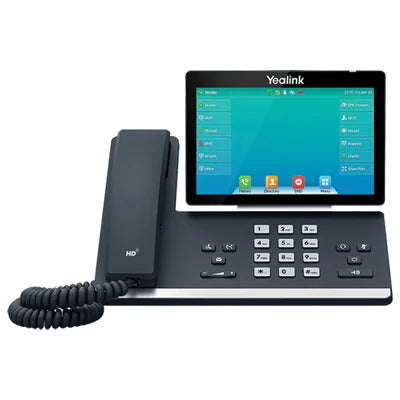
The Yealink SIP-T57W is a flagship IP phone designed for busy executives and professionals who demand the best in performance, call capacity, and user experience. Key features include: • 7-inch adjustable touch screen with smartphone-like interface • Smart noise filtering for crystal clear voice transmission • Acoustic Shield technology to eliminate background distractions and noises • Built-in wireless freedom and gigabit performance via Dual-Band Wi-Fi (2.4G/5G) and Bluetooth 4.2 • Maximum call capacity of 16 VoIP accounts with 29 one-touch DSS keys • Expansion modules for up to 180 paperless DSS keys • Corded-cordless option with DD10K USB dongle • Includes Yealink SIP-T57W IP Phone Unit, Handset with Handset Cord, Desk Stand (Adjustable, two-angle), and Quick Start Guide The phone unit is powered by a 5V 2A external power adapter, which is sold separately. For a full list of specifications, please refer to the Yealink T57W IP Phone datasheet (PDF).

About This Product

The Yealink SIP-T57W is a premium touch-screen IP phone built for executives and power users who manage multiple lines and high call volumes. With its 7-inch adjustable touch screen, it offers a smartphone-like interface that makes navigation intuitive, while the built-in dual-band Wi-Fi and Bluetooth 4.2 free you from wired desk constraints. This phone is at home in a busy downtown Toronto office or a suburban GTA boardroom where call clarity and background noise reduction are critical—thanks to smart noise filtering and Acoustic Shield technology. It pairs well with Yealink expansion modules (up to 180 paperless DSS keys) for receptionists or managers who need fast access to many contacts or lines, and it can also work cordlessly with the optional DD10K USB dongle. However, its premium price and feature set (16 VoIP accounts, large touch screen) make it overkill for a single-line user or a small retail front desk; a simpler model like the Yealink T43U would be more practical. Also note that the phone requires a separate 5V 2A power adapter (sold separately), so factor that into your deployment budget. Canadian businesses should confirm compatibility with their VoIP provider’s provisioning server and that their network supports the phone’s Wi-Fi and Bluetooth features without interference.
Services We Provide
  • Professional Installation & Configuration
  • Ongoing Maintenance & Support
  • Troubleshooting & Repairs
  • System Upgrades & Updates



