
Yealink SIP-T57W Premium IP Phone with built-in Bluetooth and Wi-Fi (New-in-Open-Box)

Frequently Asked Questions

First, confirm the account credentials and server address are entered exactly as provided by your VoIP provider—typos are a common culprit. Check that the phone’s network connection is active: the Ethernet port LEDs should be lit or the Wi-Fi icon should show a successful connection. If you’re using a firewall or VLAN, ensure the necessary SIP and RTP ports are open. If the issue persists, a Toronto-based VoIP support provider can usually resolve this remotely.
Start by testing with the handset, speakerphone, and a headset to see if the problem is limited to one audio path. Ensure the volume isn’t muted or turned all the way down using the touch screen controls. If you’re using a headset, confirm it’s properly connected via USB or Bluetooth and selected as the audio device. Also verify that your network firewall isn’t blocking RTP traffic, which carries the actual voice stream.
Verify that the Ethernet cable is securely connected to both the phone’s Internet port and a PoE-enabled switch port. Check that the switch port actually has PoE enabled—some switches allow you to disable power per port. Try a different cable and a different switch port to rule out a faulty connection. If you have a PoE injector available, test with that as an alternative power source.
Move the phone closer to your access point temporarily to see if signal strength is the issue. In the phone’s settings, check which Wi-Fi band you’re connected to; if 2.4 GHz is crowded, try switching to 5 GHz. Ensure your access point’s firmware is up to date and that it isn’t overloaded with clients. If the problem continues, a wired Ethernet connection will always be more reliable for voice traffic.
Make sure the headset is in pairing mode and that the phone’s Bluetooth is turned on and set to discoverable. After pairing, go to the phone’s audio settings and confirm the headset is selected as the active audio device. If the headset works with other devices, try unpairing and re-pairing it. Keep in mind that some headsets may need a firmware update for full compatibility.
First, gently clean the screen with a soft, dry cloth to remove any smudges that might interfere with touch sensitivity. If the phone is powered via PoE, disconnect the Ethernet cable for 30 seconds and reconnect to force a reboot. If using a power adapter, unplug it and plug it back in. A hard reboot often clears temporary interface glitches without affecting settings.
On the phone’s touch screen, swipe down from the top to access the control center and tap the Wi-Fi icon. Select your network from the list, enter the password, and confirm. For corporate networks using 802.1X authentication, you’ll need to configure the security settings under the advanced Wi-Fi menu, which may require your IT administrator’s assistance.
Yes, plug a compatible USB headset into the phone’s USB 2.0 port. The phone should automatically detect it and route audio accordingly. If it doesn’t, go to the audio settings and set the USB headset as the default device. Most standard USB headsets work, but for best results check Yealink’s compatibility list or test with your model.
From the main screen, navigate to Settings > Advanced Settings (default password is usually ‘admin’) > Account. You can enable and configure up to 16 accounts by entering the label, display name, registrar server, and credentials for each. Assign each account to a line key so you can see incoming calls clearly. If you’re unsure about server details, contact your VoIP provider.
Insert a USB flash drive into the phone’s USB port. During a call, tap the Record soft key on the touch screen; the recording will be saved to the USB drive. The phone must have recording enabled in its configuration—if the soft key is missing, check with your administrator. Always inform the other party before recording, as call recording laws in Canada require consent.
IP Phones

Yealink SIP-T57W Premium IP Phone with built-in Bluetooth and Wi-Fi (New-in-Open-Box)
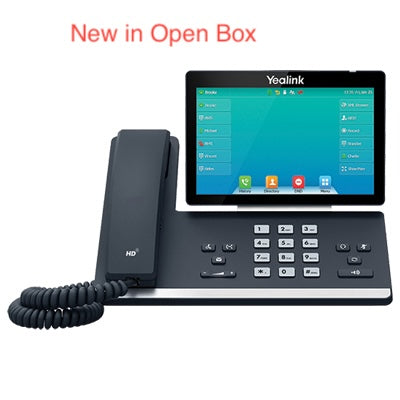
• Yealink SIP-T57W is a Prime Business Phone designed for busy executives and professionals, featuring an adjustable 7-inch multi-point touch screen for easy navigation and visual presentation. • The phone boasts built-in Bluetooth 4.2, dual band 2.4G/5G Wi-Fi, and USB 2.0 port for recording, wired/wireless headsets, or up to three Yealink EXP50 expansion modules connection. • It comes with features like: • 7” 800 x 480 capacitive adjustable touch screen • Adjustable LCD screen • Dual firmware images • T53/T53W/T54W/T57W firmware unified • Built-in Bluetooth 4.2 • Built-in dual band 2.4G/5G Wi-Fi (802.11a/b/g/n/ac) • USB 2.0 port for USB recording, wired/wireless USB headsets and EXP50 • Up to 16 VoIP accounts • Dual-port Gigabit Ethernet • PoE support • HAC Handset • Paperless label design • Wall mountable • The phone is from Yealink and weighs 3.6 lbs, measuring 14 × 12 × 6 in. • It features HD voice, HD handset, HD speaker, Smart Noise Filtering, Audio codec, and other technical specifications. • Note: Power adapter is not included and new-in-Open-Box items are in new condition and have been carefully tested.

About This Product

The Yealink SIP-T57W is built for professionals who spend significant time on calls and value a quick, visual interface. Its large adjustable touch screen suits executive desks, private offices, or any setting where the phone doubles as a directory and presence tool. The built-in Bluetooth and Wi-Fi mean you can place it where wired Ethernet is inconvenient, but for the most consistent call quality, a wired connection is still the safer choice. This unit is new-in-open-box, tested and ready, though you’ll need to supply your own power adapter or use a PoE switch.

It pairs naturally with wireless headsets and Yealink’s EXP50 expansion modules, making it adaptable for assistants or managers who monitor multiple lines. The dual firmware images add a layer of resilience during updates, which is welcome in a business-critical device. If your workflow involves frequent conferencing or on-screen contact management, the touch interface is a genuine productivity boost rather than a gimmick.

For smaller offices or shared spaces, this phone may be more than necessary. A simpler model would cover basic calling at a lower cost. Conversely, in a high-volume call center, the T57W’s design prioritizes individual user experience over agent density, so it isn’t the natural fit for a bullpen of dozens of stations. It’s best understood as a premium personal endpoint.

In a Canadian business context, the dual-band Wi-Fi handles typical office interference well, though in dense downtown Toronto high-rises with many competing networks, a wired Gigabit connection will avoid any potential wireless congestion. If you’re deploying across multiple GTA locations, the unified firmware family simplifies management alongside other T5 series phones.
Services We Provide
  • Professional Installation & Configuration
  • Ongoing Maintenance & Support
  • Troubleshooting & Repairs
  • System Upgrades & Updates



