
Yealink SIP-T58W Business IP Phone-7" Touch Screen, built-in BT and WiFi-1301111

Frequently Asked Questions

First, confirm that the SIP server address and credentials are entered correctly under Settings > Account. Then check that the phone has a valid IP address and can reach the internet—try pinging a public address from the phone's network diagnostic menu. If the issue persists, a Toronto-based VoIP support provider can usually resolve this remotely.
Start by cleaning the screen with a soft, dry cloth to remove any debris or moisture. If that doesn't help, restart the phone by unplugging the power or Ethernet cable for 10 seconds. A factory reset should only be attempted after confirming the cause with support, as it will erase all settings.
Ensure the phone is within range of a strong Wi-Fi signal—preferably within 10 metres of the access point. Go to Settings > Wi-Fi, forget the network, and reconnect. If the problem continues, try switching to a 5 GHz band if available, as it's generally less congested than 2.4 GHz in office environments.
Put your Bluetooth headset into pairing mode, then on the phone go to Settings > Bluetooth and scan for devices. Select your headset from the list and confirm the pairing. For Yealink's BTH58 handset, ensure it's charged and within 10 metres; pairing is initiated from the phone's Bluetooth menu.
First, make sure the CAM50 is firmly plugged into the top USB port of the T58W. Then check that the phone's video settings (Settings > Camera) are enabled and that your VoIP provider supports video calling. Restart the phone after connecting the camera to ensure it's detected.
Verify that the handset or headset microphone is not muted (look for a mute icon on the screen). Also check that the correct audio device is selected during the call—tap the audio path icon and choose Handset, Speaker, or Headset. If using a Bluetooth headset, try re-pairing it.
Go to Settings > Account > Register and enter the server address, username, and password for each account. You can add up to 16 accounts. After saving, assign each account to a line key via Settings > DSS Keys for one-touch access.
Check that the Ethernet cable is securely connected at both ends and that the switch or router port is active. Try a different cable or port. If the phone is powered via PoE, ensure the switch provides enough power (the T58W requires at least PoE+). A power cycle of the phone and network switch often resolves this.
Yes, the T58W is SIP-compatible and should work with any provider that supplies SIP credentials. However, some providers require specific configuration for features like voicemail or call forwarding. Check with your provider for their recommended settings or contact a local VoIP support company for assistance.
First, confirm the EXP50 is properly connected to the T58W via the expansion port on the left side of the phone. Then power-cycle the phone by unplugging it for 10 seconds. If it still isn't detected, check that the module's firmware is up to date—this can be done through the phone's Settings > Device > Firmware Update.
IP Phones

Yealink SIP-T58W Business IP Phone-7" Touch Screen, built-in BT and WiFi-1301111
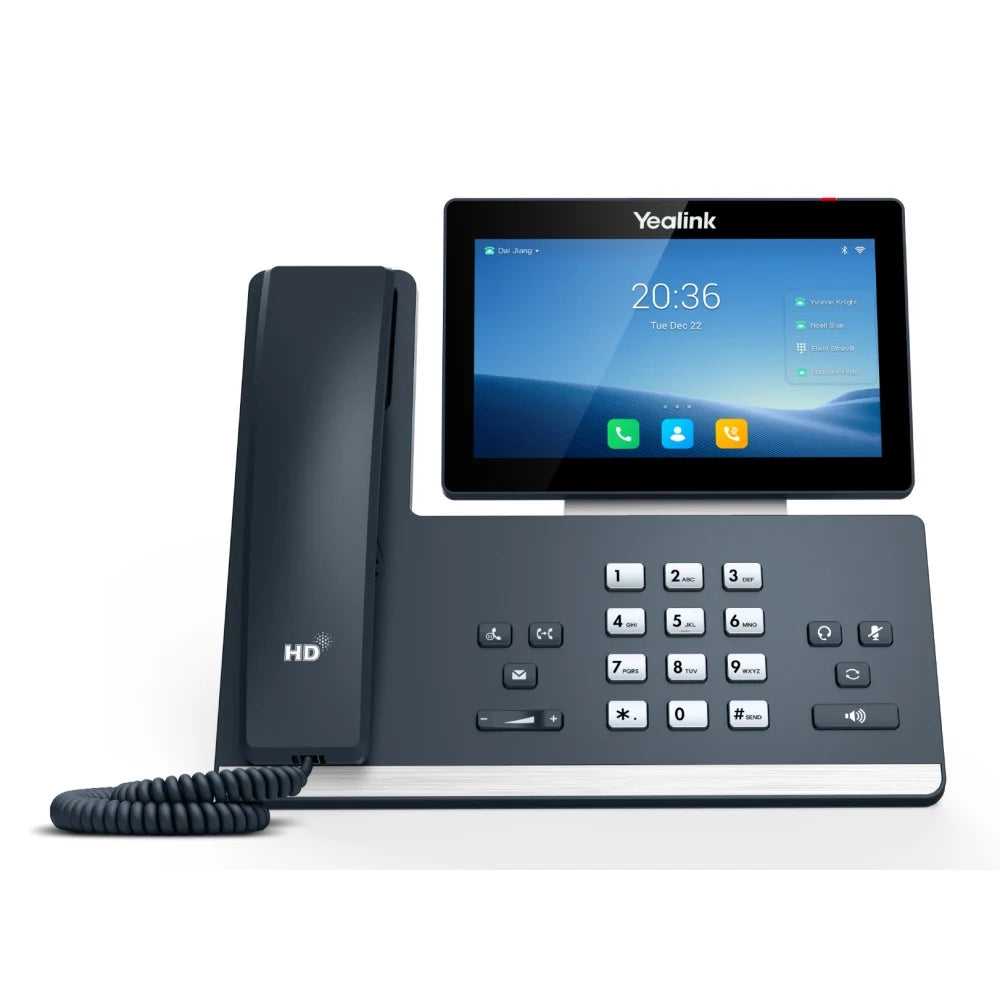
The Yealink SIP-T58W Smart Business Phone is an elite device designed for executives who demand high performance, rich features, and seamless visual communication. Running on the Android 9.0 operating system with enhanced security features, the T58W transforms the desktop phone into a dynamic, flexible productivity tool. Key Features: • High-quality HD Audio with Noise Proof Technology • Crystal clear voice for all 16 SIP accounts • Supports Opus codec and is Hearing Aid Compatible (HAC) • Wireless Handset Support: Supports Yealink Bluetooth Handset BTH58 (up to 17 hours talk time) for true freedom of movement within a 10-meter range • Video-Ready: Easily upgrade to HD video conferencing by adding the optional 5-megapixel Yealink CAM50 HD Camera (720p 30fps) • Integrated Connectivity: Features built-in Dual-Band Wi-Fi (2.4G/5G) and Bluetooth 4.2 for wireless headsets, mobile sync, and network access • Android 9.0 Power & Enhanced Security: + Arm TrustZone Technology for safeguarding sensitive ARM-based data and applications + Secure Boot & Encryption with upgraded firmware and data encryption + Strict authority management for maximum security Other Key Features: • 16 SIP Accounts and 27 One-Touch DSS Keys for maximum productivity • Dual USB 2.0 Ports (one on top for the CAM50 camera, one on the rear for a USB flash drive) • Expansion Modules: Supports up to 3 EXP50 Color-Screen Expansion Modules for high-volume call management What's Included in the Package: • Yealink SIP-T58W IP Phone Unit • Handset with Handset Cord • Desk Stand (Adjustable, two-angle) • Ethernet Cable • Quick Start Guide (QSG) Get the Full T58W Experience with a Bundle: SIP-T58W-CAM: Includes CAM50 HD Camera for video feature at your desk SIP-T58W PRO: Includes BTH58 wireless handset for mobility without video SIP-T58W PRO-CAM: Includes both BTH58 wireless handset and CAM50 HD Camera for the complete experience

About This Product

The Yealink SIP-T58W is a premium Android-based business phone aimed at executives, managers, and power users who need more than basic call handling. Its 7-inch touchscreen and Android 9.0 environment make it feel more like a desktop productivity hub than a traditional desk phone, ideal for roles where visual communication, app integration, or quick access to multiple lines and contacts is important. In a GTA office setting, it pairs naturally with Yealink's EXP50 expansion modules for receptionists or call-center managers who handle high call volumes, and with the optional CAM50 camera it becomes a desktop video conferencing terminal. The built-in dual-band Wi-Fi and Bluetooth 4.2 reduce desk clutter by removing the need for a wired network drop or a separate headset base, though for mission-critical reliability a wired Ethernet connection is still recommended. One practical tradeoff is that the T58W's advanced feature set may be overkill for a user who only takes a few calls a day; a simpler model like the Yealink T4 series would suffice and cost less. Conversely, while it supports up to 16 SIP accounts, it lacks native support for some hosted PBX features like hot-desking or shared parking lots unless the platform explicitly supports them, so check compatibility with your Canadian VoIP provider before committing to a bulk deployment. The device is also relatively large and heavy, so it may not be ideal for hot-desking environments where users move between desks frequently.
Services We Provide
  • Professional Installation & Configuration
  • Ongoing Maintenance & Support
  • Troubleshooting & Repairs
  • System Upgrades & Updates



