
Yealink SIP-T58W Pro Gigabit Business IP Phone with Wireless Handset-1301113

Frequently Asked Questions

First, verify that your network connection is active and that the phone has obtained an IP address (check via Settings > Status). Then double-check the SIP account credentials (username, password, and server address) entered in the phone's account settings. If the issue persists, a Toronto-based VoIP support provider can usually resolve this remotely.
Try a simple power cycle by unplugging the phone from power or PoE for 30 seconds, then plugging it back in. If the screen remains unresponsive, check for any screen protector or debris that might interfere. If the problem continues, contact your VoIP support provider before attempting any factory reset.
Ensure the handset is charged and within range. On the phone, go to Settings > Bluetooth, enable Bluetooth, and scan for devices. Select the BTH58 from the list and follow the on-screen pairing instructions. Once paired, you can use the handset for calls and navigation.
Start by checking your network connection: if using Wi-Fi, move the phone closer to the router or switch to a wired Ethernet connection for stability. Also, ensure no other devices are heavily using bandwidth during calls. If the issue persists, verify that your VoIP provider's server is not experiencing issues.
Yes, the T58W Pro has two USB 2.0 ports that support USB headsets. Simply plug in a compatible USB headset, and the phone should automatically detect it. You may need to select the headset as the audio device in the phone's settings under Audio or Devices.
First, confirm that the power source is working: if using PoE, ensure the switch port is enabled and supplying power; if using the power adapter (sold separately), verify it is plugged in securely. Try a different Ethernet cable or power outlet. If the phone still does not power on, contact your VoIP support provider.
Video calling requires the optional Yealink CAM50 camera, which connects via USB. Once the camera is attached, go to Settings > Camera to enable it. Then, during a call, you can tap the video icon to start video. Ensure your VoIP provider supports video calls and that your account is provisioned for it.
Check that the Ethernet cable is securely connected to both the phone and the network switch or router. Verify that DHCP is enabled on your network. You can also try a different Ethernet port or cable. If the issue persists, manually set a static IP address in the phone's network settings as a temporary workaround.
Yes, the T58W Pro supports doorphone features like preview, one-button open, and monitoring. You will need to configure the doorphone as a contact or account in the phone's settings, and ensure your VoIP provider supports doorphone integration. This is a great feature for office environments.
During a call, press the volume up button on the side of the phone to increase the speaker volume. You can also adjust the overall ringer and media volume in Settings > Sound. If the volume is still too low, check if any audio enhancements like Acoustic Shield are enabled, as they may reduce volume in noisy environments.
IP Phones

Yealink SIP-T58W Pro Gigabit Business IP Phone with Wireless Handset-1301113
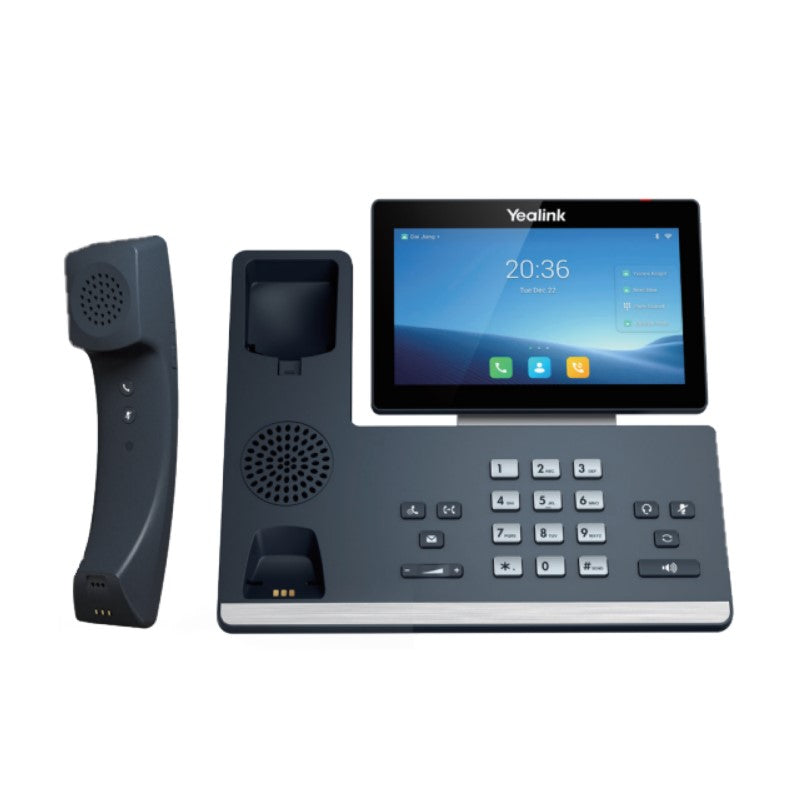
The Yealink SIP-T58W Pro is a simple-to-use smart business phone that provides an enriched HD audio and video calling experience for business professionals. It enables productivity-enhancing visual communication with the ease of a standard phone. Key Features: • Runs Android 9.0 • 7-inch (1024 x 600) capacitive adjustable touch screen • Supports Yealink Bluetooth Handset BTH58 • 720p30 HD video (with CAM50) • Optimal HD audio, Yealink Noise Proof Technology • Yealink’s SDK (Software Development Kit) • DoorPhone Features (Preview, One-button Open, Monitoring) • Built-in Bluetooth 4.2 and Dual Band 2.4G/5G Wi-Fi • 2 x USB 2.0 ports for USB headset, media and storage applications • Opus Codec support • Up to 16 SIP accounts • Up to 10-party audio conferencing • Dual-port Gigabit Ethernet, supports PoE • Wall mountable • Supports up to 3 Expansion Module EXP50 • Supports Yealink/Unify Square Device Management Platform Note: Power Adapter is sold separately. Technical Specifications: • HD voice: HD handset, HD speaker • Hearing aid compatible (HAC) handset • Acoustic Shield, Noise Proof • Smart Noise Filtering • Audio codec: Opus, G.722, PCMA, PCMU, G.729, G.729A, G.726, G.723.1, iLBC • DTMF: In-band, Out-of-band (RFC 2833) and SIP INFO • Full-duplex hands-free speakerphone with AEC • VAD, CNG, AEC, PLC, AJB, AGC

About This Product

The Yealink SIP-T58W Pro is a high-end smart business phone designed for professionals who need more than just voice calls. Its 7-inch touchscreen and Android 9.0 operating system make it feel like a small tablet, ideal for executives, managers, or receptionists who frequently manage multiple calls, contacts, and calendars. The wireless handset (BTH58) adds flexibility, allowing you to walk around the office while on a call without being tethered to the desk. This phone pairs well with Yealink's expansion modules (EXP50) for reception or call-center roles, and it can replace a traditional desk phone and a separate intercom or door-phone system thanks to its built-in doorphone features. However, the T58W Pro is overkill for a simple cubicle worker who only needs basic call handling—a more affordable model like the Yealink T4 series would suffice. It is also worth noting that the power adapter is sold separately, so if you do not have PoE (Power over Ethernet) on your network switch, you will need to budget for that extra purchase. For Canadian businesses, especially in the GTA, this phone works well with most SIP-based VoIP providers and is compatible with common Canadian carrier networks, though you should confirm that your provider supports the advanced features like video calling and the Android app ecosystem.
Services We Provide
  • Professional Installation & Configuration
  • Ongoing Maintenance & Support
  • Troubleshooting & Repairs
  • System Upgrades & Updates



