
Yealink SIP-T73U IP Phone | 12-Line, Gigabit, TEE Security, Acoustic Shield-1301012

Frequently Asked Questions

First, confirm if your Ethernet cable is plugged into a PoE-enabled switch or injector, as the T73U requires PoE unless you have purchased a separate power adapter. Check the switch's port lights to see if it's providing power. If you're using an injector, reseat the cables on both the data and power sides to ensure a solid connection.
This is often a network issue where the phone cannot reach a provisioning server or DHCP server. First, unplug the Ethernet cable and plug it back in to force a fresh network negotiation. While it's rebooting, confirm with your IT team that the phone's MAC address is authorized on the network and that the provisioning server URL is correct and reachable.
First, try unplugging and firmly reseating the handset cord at both ends, as a loose connection is a common cause of static. If the problem persists, test the call with a USB headset connected to the built-in port; if the echo disappears, the issue is isolated to the handset or its cord. You can also check if the firmware is up-to-date, as audio processing improvements are often included in updates.
The T73U itself requires a wired Ethernet connection for its own network access. For a Wi-Fi connection, you must purchase the optional Yealink WF50 Wi-Fi dongle and plug it into the phone's USB port. Once connected, you can configure the Wi-Fi network settings directly on the phone's screen. The phone does not have built-in Wi-Fi.
First, power cycle the phone by unplugging the Ethernet cable and plugging it back in. If the error remains, carefully re-enter your SIP credentials on the phone's web interface, paying close attention to the username, password, and server address for that specific line. A single typo is often the culprit. If the issue persists, a Toronto-based VoIP support provider can usually resolve this remotely by checking the SIP server logs.
The T73U supports call recording via its USB port, but it's designed to work with a compatible USB flash drive formatted by the phone itself. Insert the drive into the USB port, and the phone should recognize it. You can then initiate recording during a call using a soft key on the screen, and the file will be saved directly to the connected drive.
The T73U requires the optional BT41 Bluetooth dongle to be plugged into the USB port; it does not have built-in Bluetooth. Ensure the dongle is fully inserted and the phone has recognized it. Then, put your headset into pairing mode and activate the Bluetooth scanning on the phone's settings menu. If the phone still doesn't see it, a simple reboot of the phone with the dongle attached can often resolve the detection issue.
First, check the physical connection by looking at the link lights on the phone's Ethernet port and the switch port it's plugged into. A solid green light indicates a healthy link. Try a different Ethernet cable to rule out a cable fault, and plug the phone into a different port on your network switch. If the issue persists, a Toronto-based VoIP support provider can usually resolve this remotely by checking for IP conflicts or switch port configuration errors.
IP Phones

Yealink SIP-T73U IP Phone | 12-Line, Gigabit, TEE Security, Acoustic Shield-1301012
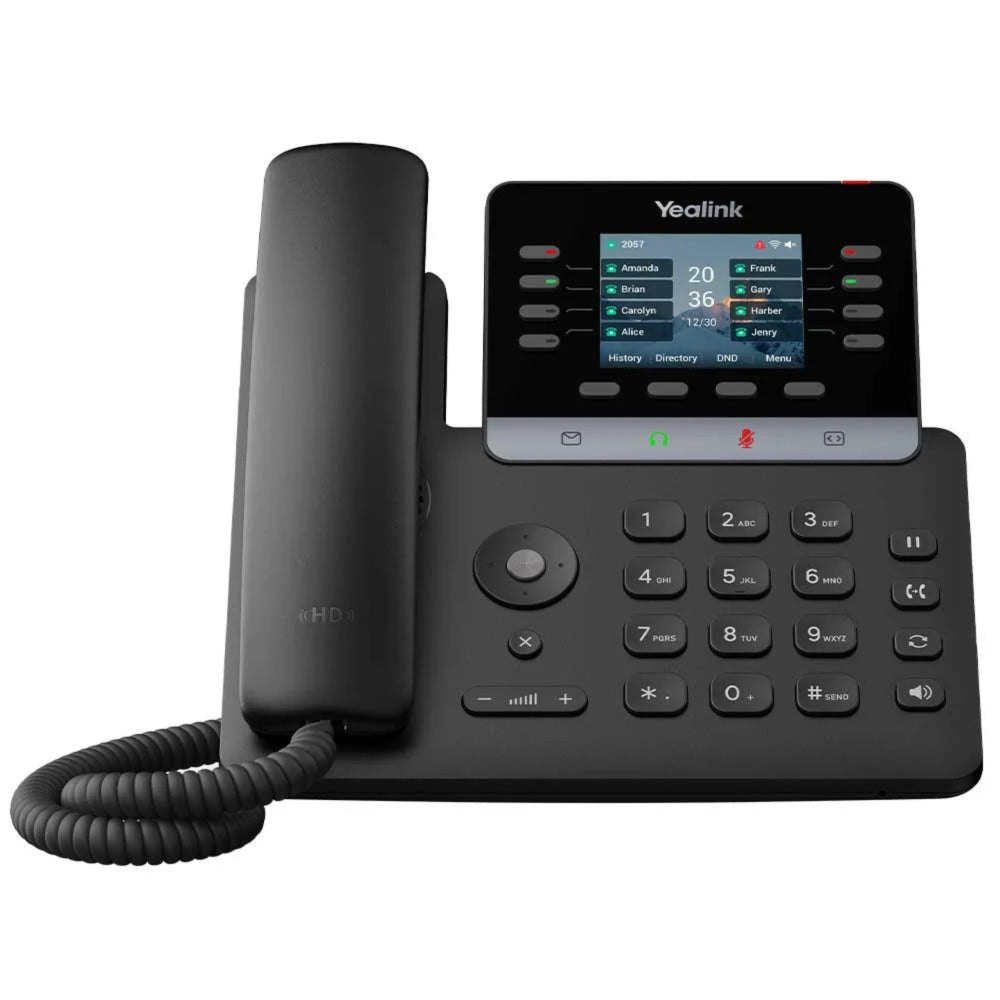
• Versatile business communication device with high-quality voice performance and advanced functionality • Built on Linux 6.1 for a robust, high-security solution • Supports up to 12 SIP accounts, ideal for busy office environments • Advanced security features: • TEE Hardware Encryption: protects data and system performance • Hall Switch Technology: eliminates clicking sound associated with traditional mechanical hooks • Dual System function: provides enhanced reliability and seamless interoperability • Ultra-HD Voice: guarantees clear and responsive audio during every call • Built-in USB Port: supports both USB headsets and call recording, providing flexible options for hands-free calling and compliance documentation • Wireless Ready: supports optional WF50 Wi-Fi dongle and BT41 Bluetooth dongle for expanded wireless connectivity • Power over Ethernet (PoE): simplifies cabling and installation • Expanded Capacity: supports up to 12 active SIP accounts, perfect for users managing multiple lines or roles • Expansion Module Support: features compatibility with EXP55 color-screen expansion module for advanced call handling and monitoring • Unified Firmware: part of the T7X series, simplifying deployment and maintenance across devices The package includes: • Yealink SIP-T73U IP Phone Unit • Handset with Handset Cord • Desk Stand (Adjustable, two-angle) • Ethernet Cable • Quick Start Guide (QSG) For a full list of specifications, please refer to the Yealink T73U IP Phone datasheet.

About This Product

The Yealink T73U is a desktop IP phone built for busy professionals who juggle multiple lines and need a reliable, clear communication endpoint. It fits naturally in the office of an executive assistant, a receptionist managing several call queues, or any power user who handles up to 12 SIP accounts. In a Canadian business context, it’s a solid choice for a growing Toronto law firm or a Vancouver tech company where call clarity and security are non-negotiable. It’s not a basic lobby phone, nor is it designed for a call centre agent who needs a large sidecar for speed dials; it’s the step up for a professional who needs more account capacity than an entry-level phone offers, without the footprint of a full executive console.

The phone’s practical strengths lie in its modern security and audio capabilities. The TEE hardware encryption and Linux 6.1 base address real concerns for businesses in regulated industries, such as financial services on Bay Street, where endpoint security is a compliance requirement. The Acoustic Shield and Ultra-HD voice technologies are about more than just sounding good; they actively work to suppress the open-office noise common in Toronto’s glass-and-concrete towers, making it a practical tool for maintaining professionalism on calls. The inclusion of a built-in USB port for call recording is a genuine value-add for compliance documentation, without needing a separate adapter.

There are practical limits to consider. While it's wireless-ready with optional dongles, it’s not a native Wi-Fi phone; you'll need to budget for the WF50 adapter if you can't use the built-in Gigabit Ethernet. Its value is fully realized in a LAN-connected, PoE-powered deployment. For a small office or a single-line user, the 12-account capacity is overkill, and a more basic model would be a better fit. Conversely, for a receptionist managing dozens of lines and needing extensive visual call management, you will likely need to add the EXP55 expansion module, as the phone’s own screen and buttons are optimized for a moderate, not extreme, call load. It’s a powerful core unit, but its full potential is unlocked with the right accessories for the right role.
Services We Provide
  • Professional Installation & Configuration
  • Ongoing Maintenance & Support
  • Troubleshooting & Repairs
  • System Upgrades & Updates



