
Yealink SIP-T73W IP Phone | Built-in Wi-Fi 6 / Bluetooth, 12 Line-1301009

Frequently Asked Questions

First, confirm the Ethernet cable is connected to a PoE-enabled switch port or a PoE injector that supplies enough power. If you’re using an external power adapter, make sure it’s the correct model and securely plugged into both the phone and the wall outlet. Try a different cable or port, and check that the switch hasn’t disabled PoE on that port. A powered-off screen usually points to a power delivery issue.
Start by verifying that the phone has a valid IP address from your network; if it doesn’t, check your DHCP server or switch the phone to a static IP. Next, confirm the SIP server address, username, and password entered in the account settings—these are often case-sensitive. Ensure your firewall isn’t blocking SIP ports (typically 5060 for UDP/TCP) or the outbound proxy. If the issue persists, a Toronto-based VoIP support provider can usually resolve this remotely.
Poor audio is often a network congestion or jitter problem. Start by temporarily connecting the phone directly to your router with an Ethernet cable to see if the wireless signal is the culprit. If using Wi-Fi, move closer to the access point or switch to the 5 GHz band to reduce interference. Also, check that your router’s QoS settings prioritize voice traffic when available.
Make sure the headset is in pairing mode and within a few feet of the phone. On the SIP-T73W, navigate to the Bluetooth settings and delete any old pairings that might conflict. If the phone doesn’t discover the headset, turn off Bluetooth on the phone and headset, then re-enable and try again. Confirm the headset is compatible with standard Bluetooth hands-free profile (HFP).
Check the Wi-Fi signal strength displayed on the phone; if it’s weak, move the access point closer or reduce physical obstructions. Try switching to the 5 GHz band as it’s less crowded. Ensure your access point firmware is up to date and that it supports Wi-Fi 6 features like OFDMA, which can improve stability. If the connection continues to drop, a Toronto-based VoIP support provider can usually resolve this remotely.
First, verify the flash drive is formatted as FAT32 and has enough free space; the phone may reject NTFS or exFAT drives. Check that USB recording is enabled in the phone’s web interface under Features. Try a different USB drive, as some high-capacity or high-speed drives may not be recognized. Recording is not automatic; you must press the record soft key during the call.
You can configure DSS keys through the web interface by logging into the phone’s IP address with a browser. Navigate to the DSS Key tab, select a programmable key, and choose ‘Speed Dial’ as the type. Enter the extension or phone number and a label, then save. Changes take effect immediately without a reboot.
Yes, the built-in Wi-Fi 6 can connect to your wireless network for both SIP signalling and voice traffic. However, the phone still needs power, so you’ll either need a Power over Ethernet injector connected to the phone’s WAN port or the optional power adapter. Without an Ethernet cable for data, simply configure the phone’s Wi-Fi settings during initial setup or via the menu later.
IP Phones

Yealink SIP-T73W IP Phone | Built-in Wi-Fi 6 / Bluetooth, 12 Line-1301009
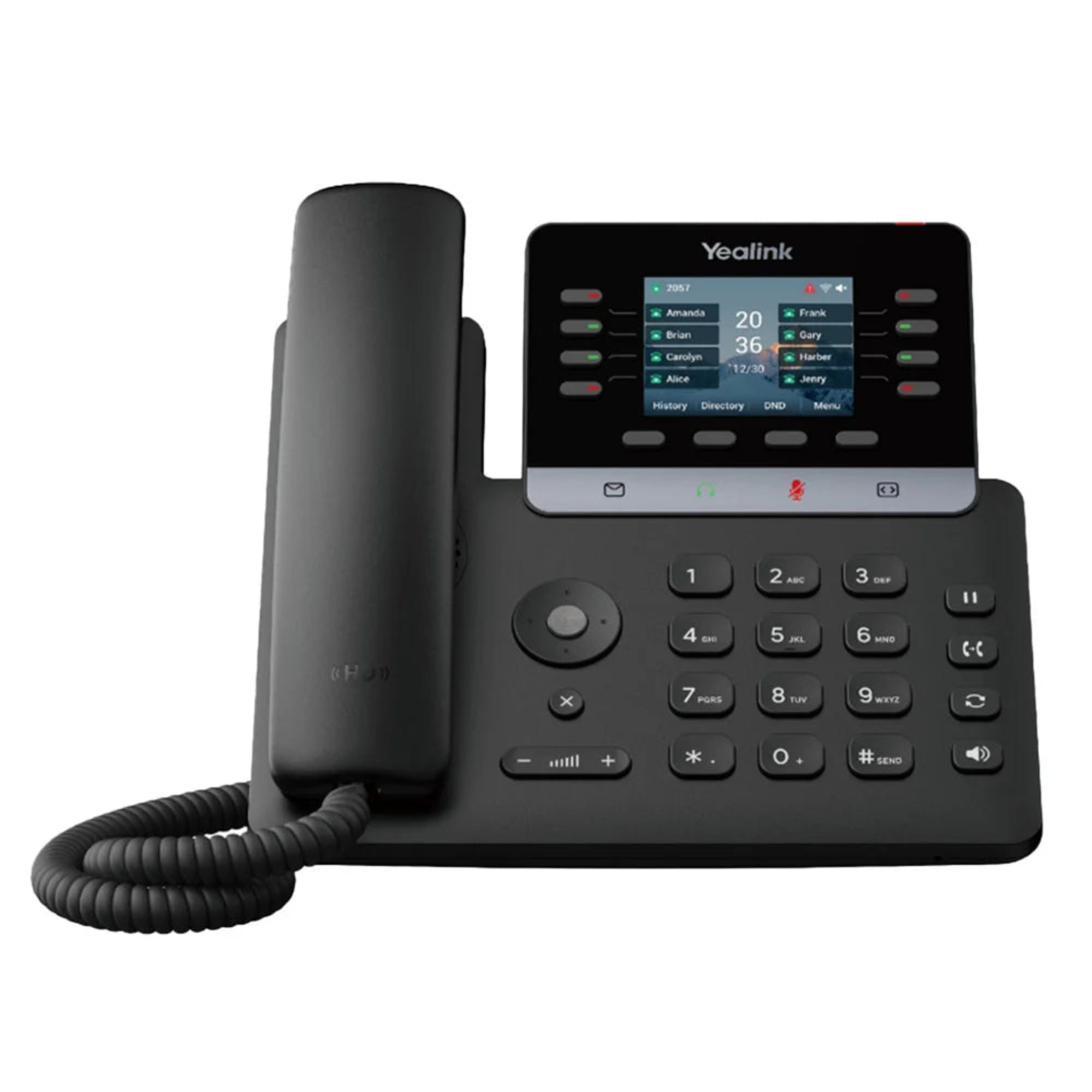
The Yealink SIP-T73W is a 12-line IP phone designed for the modern hybrid workspace, featuring built-in Dual-Band Wi-Fi 6 and Bluetooth 5.0 for future-ready connectivity and a cleaner desk environment. Key Features: • Built-in Wi-Fi 6 (802.11ax) for faster and more stable wireless network performance • Integrated Bluetooth 5.0 for better connection and energy efficiency • Linux 6.1 & TEE Hardware Encryption for enterprise-grade protection against network threats • Dual System Function to protect the phone from system crashes during failed upgrades • Ultra-HD Voice for crystal-clear sound • Optimized Acoustic Shield with Smart Noise Filtering for reduced background noise • 40 Programmable Keys with 8 physical line keys and 32 programmable DSS keys across 5 pages • USB Connectivity with a USB 2.0 port for USB headsets and call recording to a flash drive • EXP55 Support for up to three cascaded EXP55 Expansion Modules What's Included: - Yealink SIP-T73W IP Phone Unit - Handset with Handset Cord - Desk Stand (Adjustable, two-angle) - Ethernet Cable - Quick Start Guide (QSG) Please refer to the Yealink SIP-T73W IP Phone datasheet for a full list of specifications.

About This Product

The Yealink SIP-T73W is built for professionals who juggle multiple lines and need reliable wireless connectivity. Its 12-line capacity and 40 programmable keys suit receptionists, executive assistants, or any role where call management and speed dials are part of the daily workflow. With built-in Wi-Fi 6 and Bluetooth 5.0, it eliminates cable clutter without sacrificing call clarity, making it a solid choice for hybrid home and office setups.

In practice, this phone shines in environments with modern Wi-Fi infrastructure, but buyers should note that it requires a PoE switch or injector for power out of the box — a separate power adapter is not included. The Wi-Fi 6 radio works best with a compatible access point, though it remains backward-compatible with older standards at reduced performance. The USB port adds flexibility for corded headsets or local call recording, but only one port is available, so you’ll need to choose between these functions without a hub.

For a Canadian business setting, the SIP-T73W integrates easily with most hosted VoIP services and on-premise PBXs used in the GTA. It’s a practical upgrade when desk wiring is limited or when moving stations regularly. The phone is overkill for a user who only needs a couple of lines and never touches DSS keys, but in a bustling Toronto office, the acoustic shield and noise filtering can make a real difference on open-plan floors. Deploying it fleet-wide, however, assumes a robust Wi-Fi 6 network; otherwise, its wireless advantage is wasted.
Services We Provide
  • Professional Installation & Configuration
  • Ongoing Maintenance & Support
  • Troubleshooting & Repairs
  • System Upgrades & Updates



