
Yealink SIP-T74W IP Phone | 16-Line, Built-in Wi-Fi 6, Bluetooth 5.0, 4.3" Color Screen-1301010

Frequently Asked Questions

First, verify that the SSID you entered is correct and that the Wi‑Fi password matches—a mismatch is the most common cause. Also check that the AP is broadcasting on a band the phone supports (2.4 GHz or 5 GHz) and that MAC address filtering is not blocking the phone. Reboot both the phone and the access point. If the problem continues, ask your IT team whether the network requires 802.1X certificates or RADIUS authentication that need to be provisioned on the phone.
Look at the Wi‑Fi signal strength icon on the phone’s display; if it’s weak, try moving the phone closer to the access point or relocating the AP to reduce walls and metal obstructions. Temporarily switch to the Ethernet cable included in the box—if drops stop, the issue is the wireless path, not the phone. In a busy office, check that the Wi‑Fi channel is not overcrowded and that QoS is enabled on the network. If the problem persists, a Toronto‑based VoIP support provider can usually diagnose the root cause remotely.
This often points to a NAT or firewall issue on the network. Confirm that SIP ALG is disabled on the router or firewall that the phone traffic passes through, and check that the phone’s codec selection matches what your VoIP provider supports. Power‑cycling the phone and your internet gateway can clear a temporary port-mapping conflict. If the symptom happens on all calls, review the phone’s network settings under the account configuration—ensuring the correct outbound proxy or STUN server is set usually resolves it.
Start by lowering the speaker volume and moving the handset or speakerphone away from nearby hard surfaces. If you are using a Bluetooth headset, try a corded headset to see if the echo disappears—some wireless headsets introduce their own latency. Acoustic Shield can’t fully eliminate echo caused by network reflections, so if the echo persists, have your IT team check for excessive jitter or delay on the Wi‑Fi link.
After pairing, press the headset key on the phone to switch the audio path to the Bluetooth device. Then make a test call and adjust the volume using the phone’s volume keys—the headset may have its own volume buttons as well. Make sure no other device is still connected to the headset, and that the headset is fully charged. If the problem remains, unpair and re‑pair the headset, standing within a metre of the phone.
Double‑check the username, password, and server address you entered against the credentials from your VoIP provider. Ensure the phone can reach the registration server by pinging it from another device on the same network. If your office uses VLANs, verify the phone is on the correct voice VLAN and that the firewall allows SIP and RTP traffic. A Toronto‑based VoIP support provider can usually troubleshoot registration failures remotely without needing a site visit.
On the phone, press the Menu softkey, go to Settings > Wi‑Fi, and turn Wi‑Fi on. The phone scans for available networks; select your SSID, enter the password, and save. For a hidden SSID, you can add it manually. Once connected, the Wi‑Fi icon appears on the status bar. If your network uses enterprise authentication, you will need to supply the authentication credentials or a certificate—your IT department can provide those details.
Navigate to Menu > Settings > Advanced Settings (default password is “admin”), then Accounts. Choose an unused account slot and fill in the label, display name, user name, register name, and password provided by your VoIP carrier. Set the server host (SIP server) and port, and choose the desired transport (UDP, TCP, or TLS). After saving, the phone will attempt to register; a green status icon confirms success.
Yes. Insert a USB flash drive into one of the phone’s USB ports. During a call, press the Record softkey (if it’s available on the screen) or a programmed DSS key. The audio is saved as a .wav file on the USB drive. Before relying on this feature, check that your jurisdiction allows recording without consent, and use a drive formatted in FAT32 for best compatibility.
Go to Menu > Features > Dsskey. The phone automatically detects the modules and assigns a page of programmable keys for each. Choose an empty key, assign it a type (BLF, speed dial, intercom, etc.), enter the target extension or number, and save. You can temporarily test a key by pressing it; the LED will light or the function will trigger. These settings are retained even after a reboot.
IP Phones

Yealink SIP-T74W IP Phone | 16-Line, Built-in Wi-Fi 6, Bluetooth 5.0, 4.3" Color Screen-1301010
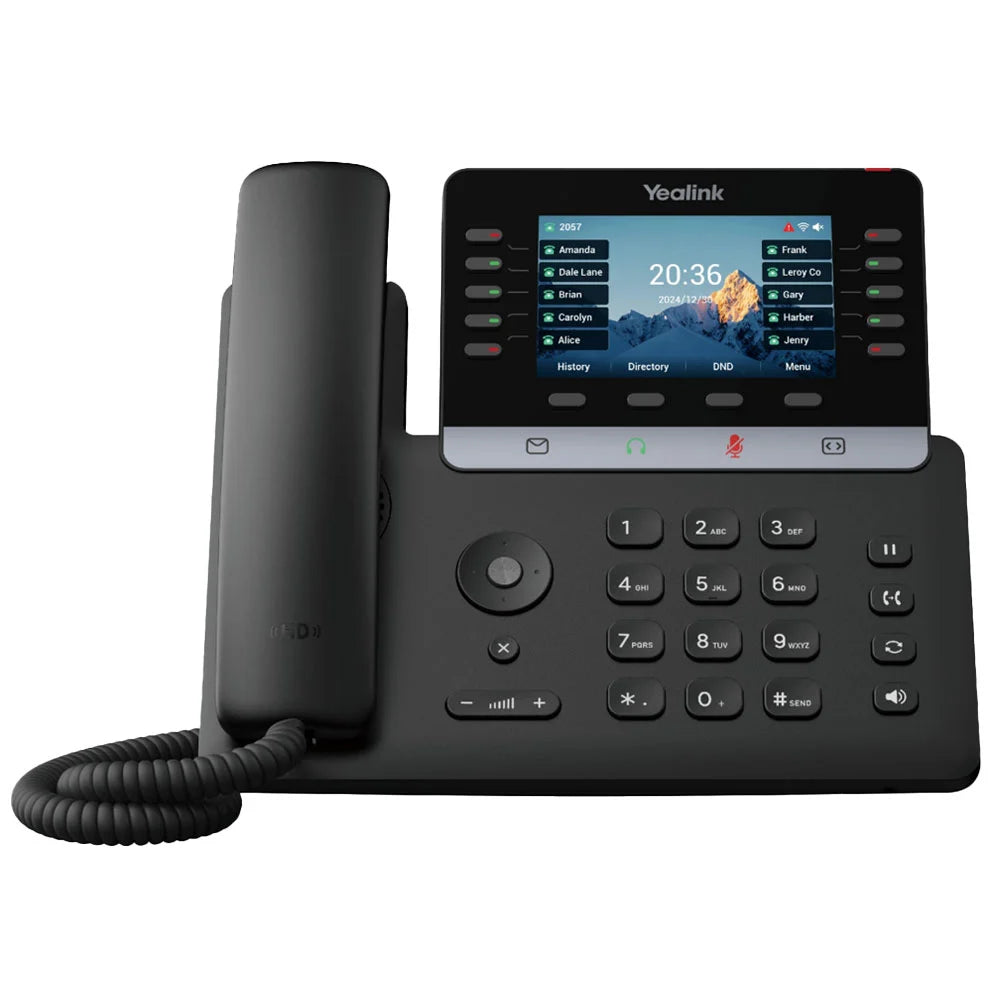
The Yealink SIP-T74W is the flagship wireless desk phone in the T7 series, combining executive features with modern wireless convenience. Engineered for managers and professionals who demand a large interface and the freedom to deploy without messy cables, this 16-line IP phone features built-in Dual-Band Wi-Fi 6 and Bluetooth 5.0. Key Features: • Built-in Dual-Band Wi-Fi 6 (802.11ax) delivers superior network stability and greater throughput • Integrated Bluetooth 5.0 provides faster pairing and a more stable, energy-efficient connection to wireless headsets and mobile devices • TEE Hardware Encryption protects the phone's operating system and data from modern threats • Large 4.3" Color LCD offers enhanced visibility and a modern interface for navigating its extensive feature set and 16 lines Premium Audio and Office Efficiency: • Ultra-HD Voice utilizes high-end audio components and wideband codecs (Opus support) to ensure every call is crystal clear • Optimized Acoustic Shield actively eliminates distracting background sounds, making it ideal for open-plan offices or remote workspaces • High Account Capacity supports up to 16 SIP accounts, ideal for complex call management and line sharing High Scalability and Dual USB Ports: • Programmable Keys feature 10 physical line keys that can be programmed up to 40 DSS keys across 4 pages • Dual USB 2.0 Ports provide two ports for high flexibility, supporting USB headsets, call recording, and power for connected accessories • Massive Scalability supports up to three cascaded EXP55 Expansion Modules, allowing the phone to scale to a full reception console setup with hundreds of keys What's Included in the package: • Yealink SIP-T74W IP Phone Unit • Handset with Handset Cord • Desk Stand (Adjustable, two-angle) • Ethernet Cable • Quick Start Guide (QSG) Please refer to the Yealink T74W IP Phone datasheet for a full list of specifications.

About This Product

The Yealink SIP-T74W is the top-end wireless desk phone in the T7 range, aimed squarely at professionals who need a full-featured device without being tethered to a wall jack. Its 16-line capacity and large 4.3‑inch color screen make it a natural fit for executives, executive assistants, and heavy call‑handlers in open‑plan or flexible office layouts. By leaning on built‑in Wi‑Fi 6 and Bluetooth 5.0, the T74W eliminates desktop Ethernet clutter while still supporting corded headsets, USB accessories, and the expansion modules that turn it into a compact attendant console.

In the real world, the promise of wireless convenience depends heavily on the network around it. A properly deployed Wi‑Fi 6 access point gives the phone excellent voice reliability and low latency, but in a congested radio environment or a building with poor coverage, call quality can suffer regardless of the phone’s audio processing. For anyone whose calls absolutely cannot drop—trading desks, emergency coordinators—using the phone’s built‑in Ethernet port and Power over Ethernet remains the safer path, even if it sidesteps the headline wireless feature.

A Canadian business moving to a new space in the GTA may find the T74W compelling when they are already investing in modern Wi‑Fi 6 infrastructure and want to avoid running cables to every desk. It is overkill for a single‑line receptionist who only needs basic call answering, yet it can feel underpowered if you expect native contact‑center logic; for true ACD queues or advanced reporting, a softphone client or a dedicated call‑center endpoint is more appropriate.

Pairing the phone with a Yealink‑compatible Bluetooth headset and using the USB port for local call recording rounds out a professional setup that suits both permanent desks and hot‑desking environments. Just keep in mind that the T74W’s value lies in its flexibility, not in replacing a wired phone where one is already installed and working flawlessly.
Services We Provide
  • Professional Installation & Configuration
  • Ongoing Maintenance & Support
  • Troubleshooting & Repairs
  • System Upgrades & Updates



